Integrations
Metrics can be integrated with Sysdig Monitor from a number of platforms, including Kubernetes (described in the Installation instructions), JMX, StatsD, Prometheus, and from a wide range of applications. Many metrics are collected by default out of the box; you can also extend the integration or create custom metrics.
Contents
Integrate JMX Metrics from Java Virtual Machines
The Sysdig agent retrieves data from your Java virtual machines using the JMX protocol. The agent is configured to automatically discover active Java virtual machines and poll them for basic JVM metrics like Heap Memory and Garbage collector as well as application specific metrics for ActiveMQ, Cassandra, Elasticsearch, HBase, Kafka, Tomcat, and Zookeeper.
The agent can also be easily configured to extract custom JMX metrics coming from your own Java processes. Metrics extracted are shown in the pre-defined Application views or under the Metrics > JVM and JMX menus.
The default JMX metrics configuration is found in the /opt/draios/etc/dragent.default.yaml file. When customizing existing entries, copy the complete application's bean listing from that defaults yaml file into the user settings file /opt/draios/etc/dragent.yaml . The Sysdig agent will merge configurations of both files.
Here is what your dragent.yaml file might look like for a customized entry for the Spark application:
customerid: 07c948-your-key-here-006f3b
tags: local:nyc,service:db3
jmx:
  per_process_beans:
    spark:
      pattern: "spark"
      beans:
        - query: "metrics:name=Spark shell.BlockManager.disk.diskSpaceUsed_MB"
          attributes:
            - name: VALUE
              alias: spark.metric
Include the jmx: and per_process_beans: section headers at the beginning of your application/bean list. For more information on adding parameters to a container agent's configuration file, see Understanding the Agent Config Files.
Contents
Troubleshooting: Why Can't I See Java (JMX) Metrics?
Bean Configuration
Basic JVM metrics are pre-defined inside the default_beans: section. This section is defined in the agent's default settings file and contains beans and attributes that are going to be polled for every Java process, like memory and garbage collector usage:
jmx:
  default_beans:
    - query: "java.lang:type=Memory"
      attributes:
        - HeapMemoryUsage
        - NonHeapMemoryUsage
    - query: "java.lang:type=GarbageCollector,*"
      attributes:
        - name: "CollectionCount"
          type: "counter"
        - name: "CollectionTime"
          type: "counter"
Metrics specific for each application are specified in sections named after the applications. For example, this is the Tomcat section:
per_process_beans:
    tomcat:
      pattern: "catalina"
      beans:
        - query: "Catalina:type=Cache,*"
          attributes:
            - accessCount
            - cacheSize
            - hitsCount
            - . . .
The key name, tomcat in this case, will be displayed as a process name in the Sysdig Monitor user interface instead of just java. The pattern: parameter specifies a string that is used to match a java process name and arguments with this set of JMX metrics. If the process main class full name contains the given text, the process is tagged and the metrics specified in the section will be fetched.
Note
The class names are matched against the process argument list. If you implement JMX metrics in a custom manner that does not expose the class names on the command line, you will need to find a pattern which conveniently matches your java invocation command line.
The beans: section contains the list of beans to be queried, based on JMX patterns. JMX patterns are explained in details in the Oracle documentation, but in practice, the format of the query line is pretty simple: you can specify the full name of the bean like java.lang:type=Memory , or you can fetch multiple beans in a single line using the wildcard * as in: java.lang:type=GarbageCollector,*
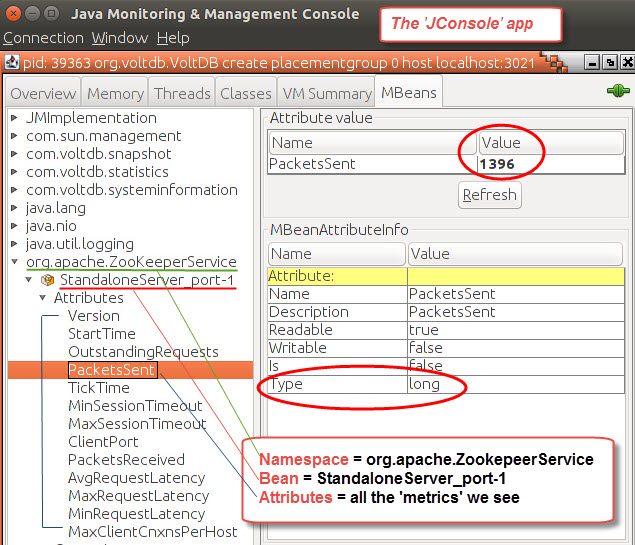
To get the list of all the beans that your application exports, you can use JVisualVM, Jmxterm, JConsole or other similar tools. Here is a screenshot from JConsole showing where to find the namespace, bean and attribute (metric) information (JConsole is available when you install the Java Development Kit):
For each query, you can specify the attributes that you want to retrieve. We support the following JMX attributes (For these attributes, all the subattributes will be retrieved):
Numeric
Attributes may be absolute values or rates. For values, we need to calculate a per second rate before sending them. In this case, you can specify type: counter , the default is rate which can be omitted, so usually you can simply write the attribute name.
Limits
The total number of JMX metrics polled per host is limited to 500. The maximum number of beans queried per process is limited to 300. If more metrics are needed please contact your sales representative with your use case.
In agents 0.46 and earlier, the limit was 100 beans for each process.
Aliases
JMX beans and attributes can have very long names. To avoid interface cluttering we added support for aliasing, you can specify an alias in the attribute configuration. For example:
  cassandra:
    pattern: "cassandra"
    beans:
      - query: "org.apache.cassandra.db:type=StorageProxy
        attributes:
          - name: RecentWriteLatencyMicros
            alias: cassandra.write.latency
          - name: RecentReadLatencyMicros
            alias: cassandra.read.latency
In this way the alias will be used in Sysdig Monitor instead of the raw bean name. Aliases can be dynamic as well, getting data from the bean name - useful where you use pattern bean queries. For example:
      - query: "java.lang:type=GarbageCollector,*"
        attributes:
          - name: CollectionCount
            type: counter
            alias: jvm.gc.NAME.count
          - name: CollectionTime
            type: counter
            alias: jvm.gc.NAME.time
This query will match multiple beans (All Garbage collectors) and the metric name will reflect the name of the Garbage Collector. For example: jvm.gc.ConcurrentMarkSweep.count . General syntax is: {<bean_property_key>} , to get all beans properties you can use a JMX explorer like JVisualVM or Jmxterm.
Troubleshooting: Why Can't I See Java (JMX) Metrics?
The Sysdig agent normally auto-discovers Java processes running on your host and enables the JMX extensions for polling them.
JMX Remote
If your Java application is not discovered automatically by the agent, try adding the following parameter on your application's command line:
-Dcom.sun.management.jmxremote
For more information, see Oracle's web page on monitoring using JMX technology.
Java Versions
Note
Only Java versions 7 and 8 are currently supported by the Sysdig agent. If you do not see JMX metrics reporting, your Java version may be older or newer.
Java-Based Applications and JMX Authentication
For Java-based applications (Cassandra, Elasticsearch, Kafka, Tomcat, Zookeeper and etc.), the Sysdig agent requires the Java runtime environment (JRE) to be installed to poll for metrics (beans).
Warning
The Sysdig agent does not support JMX authentication.
If the Docker-container-based Sysdig agent is installed, the JRE is installed alongside the agent binaries and no further dependencies exist. However, if you are installing the service-based agent (non-container) and you do not see the JVM/JMX metrics reporting, your host may not have the JRE installed or it may not be installed in the expected location: usr/bin/java
To confirm if the Sysdig agent is able to find the JRE, restart the agent with service dragent restart and check the agent's /opt/draios/logs/draios.log file for the two Java detection and location log entries recorded during agent startup.
Example if Java is missing or not found:
2017-09-08 23:19:27.944, Information, java detected: false
2017-09-08 23:19:27.944, Information, java_binary:
Example if Java is found:
2017-09-08 23:19:27.944, Information, java detected: true
2017-09-08 23:19:27.944, Information, java_binary: /usr/bin/java
If Java is not installed, the resolution is to install the Java Runtime Environment. If your host has Java installed but not in the expected location ( /usr/bin/java ) you can install a symlink from /usr/bin/java to the actual binary OR set the java_home: variable in the Sysdig agent's configuration file: /opt/draios/etc/dragent.yaml
java_home: /usr/my_java_location/
Disabling JMX Polling
If you do not need it or otherwise want to disable JMX metrics reporting, you can add the following two lines to the agent's user settings configuration file /opt/draios/etc/dragent.yaml:
jmx:
  enabled: false
After editing the file, restart the native Linux agent via service dragent restart or restart the container agent to make the change take effect.
If using our containerized agent, instead of editing the dragent.yaml file, you can add this extra parameter in the docker run command when starting the agent:
-e ADDITIONAL_CONF="jmx:\n enabled: false\n"
Integrate StatsD Metrics
StatsD is an open source project built by Etsy. Using a StatsD library specific to your application's language, it allows for the easy generation and transmission of custom application metrics to a collection server.
The Sysdig agent contains an embedded StatsD server, so your custom metrics can now be sent to our collector and be relayed to the Sysdig Monitor backend for aggregation. Your application metrics and the rich set of metrics collected by our agent already can all be visualized in the same simple and intuitive graphical interface. Configuring alert notifications is also exactly the same.
Contents
Installation and Configuration
The Statsd server, embedded in Sysdig agent beginning with version 0.1.136, is pre-configured and starts by default so no additional user configuration is necessary. Install the agent in a supported distribution directly or install the Docker containerized version in your container server and you're done.
Sending StatsD Metrics
Active Collection
By default, the Sysdig agent's embedded StatsD collector listens on the standard StatsD port, 8125, both on TCP and UDP. StatsD is a text based protocol, where samples are separated by a \n .
Sending metrics from your application to the collector is as simple as:
echo "hello_statsd:1|c" > /dev/udp/127.0.0.1/8125
The example transmits the counter metric "hello_statsd" with a value of '1' to the Statsd collector listening on UDP port 8125. Here is a second example sending the output of a more complex shell command giving the number of established network connections:
echo "EstablishedConnections:`netstat -a | grep ESTAB | wc -l`|c" > /dev/udp/127.0.0.1/8125
The protocol format is as follows:
METRIC_NAME:METRIC_VALUE|TYPE[|@SAMPLING_RATIO]
Metric names can be any string except reserved characters: |#:@ . Value is a number and depends on the metric type. Type can be any of: c, ms, g, s . Sampling ratio is a value between 0 (exclusive) and 1 and it's used to handle subsampling. When sent, metrics will be available in the same display menu for the subviews as the built in metrics.
Passive Collection
In infrastructures already containing a third party StatsD collection server, StatsD metrics can be collected "out of band". A passive collection technique is automatically performed by our agent by intercepting system calls - as is done for all the Sysdig Monitor metrics normally collected. This method does not require changing your current StatsD configuration and is an excellent way to 'test drive' the Sysdig Monitor application without having to perform any modifications other than agent installation.
The passive mode of collection is especially suitable for containerized environments where simplicity and efficiency are essential. With the containerized version of the Sysdig Monitor agent running on the host, all other container applications can continue to transmit to any currently implemented collector. In the case where no collector exists, container applications can simply be configured to send StatsD metrics to the localhost interface (127.0.0.1) as demonstrated above - no actual StatsD server needs to be listening at that address.
Effectively, each network transmission made from inside the application container, including statsd messages sent to a non existent destination, generates a system call. The Sysdig agent captures these system calls from its own container, where the statsd collector is listening. In practice, the Sysdig agent acts as a transparent proxy between the application and the StatsD collector, even if they are in different containers. The agent correlates which container a system call is coming from, and uses that information to transparently label the StatsD messages.
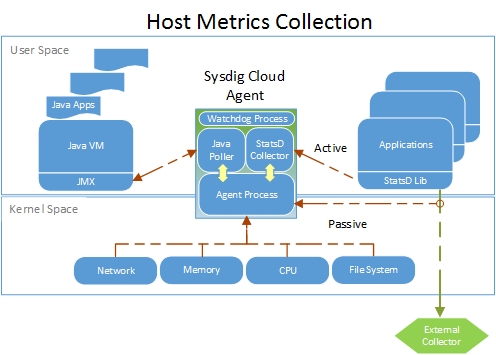 |
The above graphic demonstrates the components of the Sysdig agent and where metrics are actively or passively collected. Regardless of the method of collection, the number of StatsD metrics the agent can transmit is limited by your payment plan.
Note 1: When using the passive technique, ICMP port unreachable events may be generated on the host network.
Note 2: Some clients may use IPv6 addressing (::1) for the "localhost" address string. Metrics collection over IPv6 is not supported at this time. If your StatsD metrics are not visible in the Sysdig Monitor interface, please use "127.0.0.1" instead of "localhost" string to force IPv4. Another solution that may be required is adding the JVM option: java.net.preferIPv4Stack=true.
Note 3: When StatsD metrics are not continuously transmitted by your application (once per second as in the case of all agent created metrics), the charts will render a 'zero' or null value. Any alert conditions will only look at those Statsd values actually transmitted and ignore the nulls.
For more detail on the benefits of Sysdig Monitor's implementation of StatsD, please see the article State of the Art: StatsD Deployment Strategies in Containerized Environments.
Supported Metric Types
Counter
A counter metric is updated with the value sent by the application, sent to the Sysdig Monitor backend, and then reset to zero. You can use it to count, for example, how many calls have been made to an API:
api.login:1|c
You can specify negative values to decrement a counter.
Gauge
A gauge is a single value that will be sent as is:
table_size:10000|g
These are plotted as received, in the sense, they are at a point in time metrics. You can achieve relative increments or decrements on a counter by prepending the value with a + or a - respectively. As an example, these three samples will cause table_size to be 950:
table_size:1000|g
table_size:-100|g
table_size:+50|g
Note
In Sysdig Monitor, the gauge value is only rendered on the various charts when it is actually transmitted by your application. When not transmitted, a null is plotted on the charts which is not used in any calculations or alerts.
Set
A set is like a counter, but it counts unique elements. For example:
active_users:user1|s active_users:user2|sactive_users:user1|s
Will cause the value of active_users to be 2.
Metric Labels
Labels are an extension of the StatsD specification offered by Sysdig Monitor to offer better flexibility in the way metrics are grouped, filtered and visualized. Labeling can be achieved by using the following syntax:
enqueued_messages#users,country=italy:10|c
In general, this is the syntax you can use for labeling:
METRIC_NAME#LABEL_NAME=LABEL_VALUE,LABEL_NAME ...
Labels can be simple strings or key/value pairs, separated by an = sign. Simple labels can be used for filtering in the Sysdig Monitor web interface. Key/value labels can be used for both filtering and segmentation.
Note
Label names prefixed with 'agent.label' are reserved for Sysdig agent use only and any custom labels starting with that prefix will be ignored.
Limits
The number of StatsD metrics the agent can transmit is limited to 100 for the host and 100 for all running containers combined. If more metrics are needed please contact your sales representative with your use case.
Compatible Clients
Every StatsD compliant client works with our implementation. Here is a quick list, it's provided just as reference. We don't support them, we support only the protocol specification compliance.
A full list can be found at the StatsD GitHub page.
Turning Off StatsD Reporting
To disable Sysdig agent's embedded StatsD server, append the following lines to the /opt/draios/etc/dragent.yaml configuration file in each installed host:
statsd:
  enabled: false
After modifying the configuration file, you will need to restart the agent with:
service dragent restart
Changing the StatsD Listener Port and Transport Protocol
To modify the port that the agent's embedded StatsD server listens on, append the following lines to the /opt/draios/etc/dragent.yaml configuration file in each installed host (replace #### with your port):
statsd:
  tcp_port: ####
  udp_port: ####
Characters Allowed For StatsD Metric Names
Use standard ASCII characters, we suggest also to use . namespaces as we do for all our metrics.
Allowed characters: a-z A-Z 0-9 _ .
For more information on adding parameters to a container agent's configuration file, see the FAQ: How Can I Edit the Agents Configuration File.
Integrate Node.js Application Metrics
Sysdig is able to monitor node.js applications by linking a library to the node.js code, which then creates a server in the code to export the StatsD metrics.
The example below shows a node.js application that exports metrics using the Prometheus protocol:
{
          "name": "node-example",
          "version": "1.0.0",
          "description": "Node example exporting metrics via Prometheus",
          "main": "index.js",
          "scripts": {
            "test": "echo \"Error: no test specified\" && exit 1"
          },
          "license": "BSD-2-Clause",
          "dependencies": {
            "express": "^4.14.0",
            "gc-stats": "^1.0.0",
            "prom-client": "^6.3.0",
            "prometheus-gc-stats": "^0.3.1"
          }
}
The index.js library function is shown below:
        // Use express as HTTP middleware
        // Feel free to use your own
        var express = require('express')
                var app = express()

        // Initialize Prometheus exporter
                const prom = require('prom-client')
                const prom_gc = require('prometheus-gc-stats')
                prom_gc()

        // Sample HTTP route
                app.get('/', function (req, res) {
                res.send('Hello World!')
                })

        // Export Prometheus metrics from /metrics endpoint
                app.get('/metrics', function(req, res) {
                res.end(prom.register.metrics());
                });

                app.listen(3000, function () {
                console.log('Example app listening on port 3000!')
                })
To integrate an application:
Add an appcheck in the
dockerfile:FROM node:latest WORKDIR /app ADD package.json ./ RUN npm install ENV SYSDIG_AGENT_CONF 'app_checks: [{name: node, check_module: prometheus, pattern: {comm: node}, conf: { url: "http://localhost:{port}/metrics" }}]' ADD index.js ./ ENTRYPOINT [ "node", "index.js" ]Run the application:
user@host:~$ docker build -t node-example
user@host:~$ docker run -d node-example
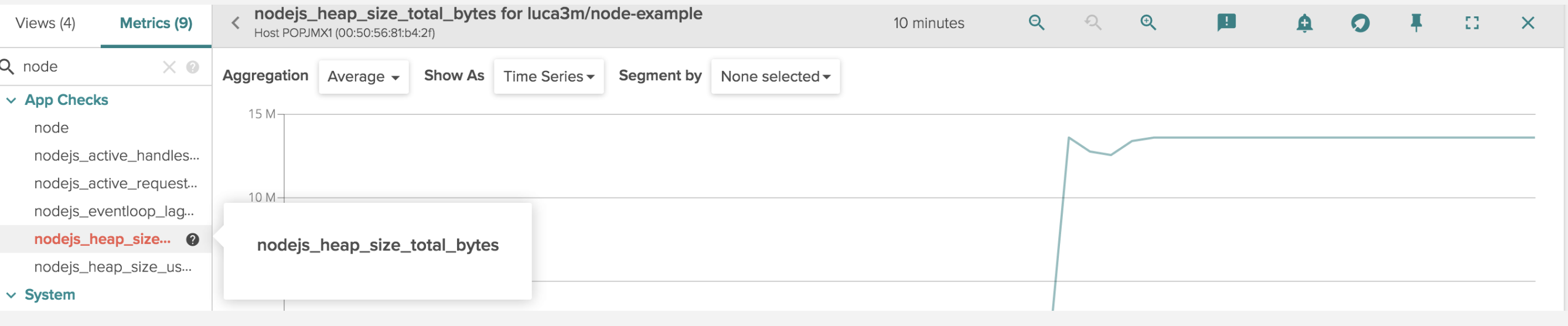
Once the Sysdig agent is deployed, node.js metrics will be automatically retrieved. The image below shows an example of key node.js metrics visible on the Sysdig Monitor UI:
 |
Note
For code and configuration examples, refer to the Github repository.
Integrate Prometheus Metrics into Sysdig Monitor UI
Introduction
Starting with version 0.70.0, the Sysdig Monitor Agent provides rich support for automatically scraping metrics from Prometheus exporters. This article describes default behaviors and how to further configure the feature to specify which processes and ports should be targeted for scraping. See our blog post for additional context on the Prometheus metric format and how such metrics are typically used.
Note
The Sysdig Monitor Agent also had rudimentary Prometheus support in versions older than 0.70.0. If you were using this functionality, see the section below on the Legacy Prometheus Application Check for important upgrade information.
Quick Start For Kubernetes Environments
Prometheus users who are already leveraging Kubernetes Service Discovery (specifically the approach in this sample prometheus-kubernetes.yml) may already have Annotations attached to their Pods that mark them as eligible for scraping. Such environments can quickly begin scraping the same metrics using the Sysdig Agent in a couple easy steps.
Enable the Prometheus metrics feature in the Sysdig Agent. Assuming you are deploying using DaemonSets, the needed config can be added to the Agent's
dragent.yamlby including the following in your DaemonSet YAML (placing it in theenvsection for thesysdig-agentcontainer):- name: ADDITIONAL_CONF value: "prometheus:\n enabled: true"
Ensure the Kubernetes Pods that contain your Prometheus exporters have been deployed with the following Annotations to enable scraping (substituting the listening
exporter-TCP-port):spec: template: metadata: annotations: prometheus.io/scrape: "true" prometheus.io/port: "exporter-TCP-port"The configuration above assumes your exporters use the typical endpoint called
/metrics. If an exporter is using a different endpoint, this can also be specified by adding the following additional optional Annotation, substituting theexporter-endpoint-name:prometheus.io/path: "/exporter-endpoint-name"
If you try this Kubernetes Deployment of a simple exporter, you will quickly see auto-discovered Prometheus metrics being displayed in Sysdig Monitor. You can use this working example as a basis to similarly Annotate your own exporters.
If you have Prometheus exporters not deployed in annotated Kubernetes Pods that you would like to scrape, the following sections describe the full set of options to configure the Agent to find and scrape your metrics.
Summary of Functionality
The Sysdig Monitor Agent uses its visibility to all running processes (at both the host and container levels) to find eligible targets for scraping Prometheus metrics. By default, no scraping is attempted. Once the feature is enabled, the Agent assembles a list of eligible targets in two steps:
A process is determined to be eligible for possible scraping if it positively matches against a series of Process Filter include/exclude rules.
The Agent will then attempt to scrape an eligible process at a
/metricsendpoint on all of its listening TCP ports, unless additional configuration is present to restrict scraping to a subset of ports and/or another endpoint name.
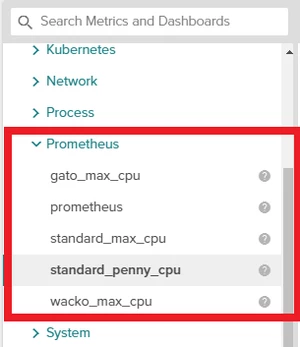
The metrics ultimately appear in the Sysdig Monitor Explore interface in the Prometheus section.
 |
Within the set of eligible processes/ports/endpoints, the Agent uses an auto-discover approach to scrape only ports that are exporting Prometheus metrics, and will stop attempting to scrape or retry on ports based on how they respond to attempts to connect and scrape them. It is therefore strongly recommended that you create a configuration that restricts the process and ports for attempted scraping to the minimum expected range for your exporters. This minimizes the potential for unintended side-effects in both the Agent and your applications due to repeated failed connection attempts.
Configuration
As is typical for the Agent, the default configuration for the feature is specified in dragent.default.yaml , and you can override the defaults by configuring parameters in the dragent.yaml . For each parameter you do not set in dragent.yaml , the defaults in dragent.default.yaml will remain in effect.
Main Config Parameters
Parameter | Default | Description |
|---|---|---|
| | Turns Prometheus scraping on/off. |
| | How often (in seconds) the Agent will scrape a port for Prometheus metrics |
| | Whether the Agent should log details on failed attempts to scrape eligible targets |
| | The maximum number of total Prometheus metrics that will be scraped across all targets. This value of 1000 is the maximum per-Agent, and is a separate limit from other Custom Metrics (e.g. statsd, JMX, and other Application Checks). |
| | The maximum number of Prometheus metrics that the Agent will save from a single scraped target |
| | The maximum number of tags per Prometheus metric that the Agent will save from a scraped target |
| | Whether the Agent should scrape and report histogram metrics. See the section below on histograms for details. |
| See below | Specifies which processes may be eligible for scraping. See the Process Filter section below. |
Process Filter
The process_filter section specifies which of the processes known by an Agent may be eligible for scraping.
Note that once you specify a process_filter in your dragent.yaml , this replaces the entire Prometheus process_filter section (i.e. all rules) shown in the dragent.default.yaml .
The Process Filter is specified in a series of include and exclude rules that are evaluated top-to-bottom for each process known by an Agent. If a process matches an include rule, scraping will be attempted via a /metrics endpoint on each listening TCP port for the process, unless a conf section also appears within the rule to further restrict how the process will be scraped (see the "conf" section below).
Multiple patterns can be specified in a single rule, in which case all patterns must match for the rule to be a match (AND logic).
Within a pattern value, simple "glob" wildcarding may be used, where * matches any number of characters (including none) and ? matches any single character. Note that due to YAML syntax, when using wildcards, be sure to enclose the value in quotes ( "*" ).
The table below describes the supported patterns in Process Filter rules. To provide realistic examples, we'll use a simple sample Prometheus exporter (source code here) which can be deployed as a container using the Docker command line below. To help illustrate some of the configuration options, this sample exporter presents Prometheus metrics on /promtheus instead of the more common /metrics endpoint, which will be shown in the example configurations further below.
# docker run -d -p 8080:8080 \
    --label class="exporter" \
    --name my-java-app \
    luca3m/prometheus-java-app

# ps auxww | grep app.jar
root     11502 95.9  9.2 3745724 753632 ?      Ssl  15:52   1:42 java -jar /app.jar --management.security.enabled=false

# curl http://localhost:8080/prometheus
...
random_bucket{le="0.005",} 6.0
random_bucket{le="0.01",} 17.0
random_bucket{le="0.025",} 51.0
...
Pattern name | Description | Example |
|---|---|---|
| Matches if the process is running inside a container running the specified image | |
| Matches if the process is running inside a container with the specified name | |
| Matches if the process is running in a container that has a Label matching the given value | |
| Matches if the process is attached to a Kubernetes object (Pod, Namespace, etc.) that is marked with the Annotation/Label matching the given value. Note: This pattern does not apply to the Docker-only command-line shown above, but would instead apply if the exporter were installed as a Kubernetes Deployment using this example YAML. Note: See the section below on Kubernetes Objects for information on the full set of supported Annotations and Labels. | |
| Matches the name of the running process | |
| Matches a command line argument | |
| Matches if the process is listening on one or more TCP ports. The pattern for a single rule can specify a single port as shown in this example, or a single range (e.g. Note: This parameter is only used to confirm if a process is eligible for scraping based on the ports on which it is listening. For example, if a process is listening on one port for application traffic and has a second port open for exporting Prometheus metrics, it would be possible to specify the application port here (but not the exporting port), and the exporting port in the | |
| Matches if an Application Check with the specific name or pattern is scheduled to run for the process. | |
Instead of the include examples shown above that would have each matched our process, due to the previously-described ability to combine multiple patterns in a single rule, the following very strict configuration would also have matched:
- include:
    container.image: luca3m/prometheus-java-app
    container.name: my-java-app
    container.label.class: exporter
    process.name: java
    process.cmdline: "*app.jar*"
    port: 8080
conf
Each include rule in the port_filter may include a conf portion that further describes how scraping will be attempted on the eligible process. If a conf portion is not included, scraping will be attempted at a /metrics endpoint on all listening ports of the matching process. The possible settings:
Parameter name | Description | Example |
|---|---|---|
| Either a static number for a single TCP port to be scraped, or a container/Kubernetes Label name or Kubernetes Annotation specified in curly braces. If the process is running in a container that is marked with this Label or is attached to a Kubernetes object (Pod, Namespace, etc.) that is marked with this Annotation/Label, scraping will be attempted only on the port specified as the value of the Label/Annotation. Note: The Label/Annotation to match against will not include the text shown in red. Note: See the section below on Kubernetes Objects for information on the full set of supported Annotations and Labels. Note: If running the exporter inside a container, this should specify the port number that the exporter process in the container is listening on, not the port that the container exposes to the host. | - or - - or - |
| A set of include and exclude rules that define the ultimate set of listening TCP ports for an eligible process on which scraping may be attempted. Note that the syntax is different from the | |
| Either the static specification of an endpoint to be scraped, or a container/Kubernetes Label name or Kubernetes Annotation specified in curly braces. If the process is running in a container that is marked with this Label or is attached to a Kubernetes object (Pod, Namespace, etc.) that is marked with this Annotation/Label, scraping will be attempted via the endpoint specified as the value of the Label/Annotation. If Note: A Label/Annotation to match against will not include the text shown in red. Note: See the section below on Kubernetes Objects for information on the full set of supported Annotations and Labels. | - or - - or - |
host | A hostname or IP address. The default is localhost. | host: 192.168.1.101 - or - host: subdomain.example.com - or - host: localhost |
| When set to (Available in Agent version 0.79.0 and newer) | |
| When set to (Available in Agent version 0.79.0 and newer) | |
Authentication Integration
As of agent version 0.89, Sysdig can collect Prometheus metrics from endpoints requiring authentication. Use the parameters below to enable this function.
For username/password authentication:
usernamepassword
For authentication using a token:
auth_token_path
For certificate authentication with a certificate key:
auth_cert_pathauth_key_path
Note
Token substitution is also supported for all the authorization parameters. For instance a username can be taken from a Kubernetes annotation by specifying
username: "{kubernetes.service.annotation.prometheus.openshift.io/username}"
conf Authentication Example
Below is an example of the dragent.yaml section showing all the Prometheus authentication configuration options, on OpenShift, Kubernetes, and etcd.
In this example:
The
username/passwordare taken from a default annotation used by OpenShift.The
auth tokenpath is commonly available in Kubernetes deployments.The
certificateandkeyused here for etcd may normally not be as easily accessible to the agent. In this case they were extracted from the host namespace, constructed into Kubernetes secrets, and then mounted into the agent container.
prometheus:
  enabled: true
  process_filter:
    - include:
        port: 1936
        conf:
            username: "{kubernetes.service.annotation.prometheus.openshift.io/username}"
            password: "{kubernetes.service.annotation.prometheus.openshift.io/password}"
    - include:
        process.name: kubelet
        conf:
            port: 10250
            use_https: true
            auth_token_path: "/run/secrets/kubernetes.io/serviceaccount/token"
    - include:
        process.name: etcd
        conf:
            port: 2379
            use_https: true
            auth_cert_path: "/run/secrets/etcd/client-cert"
            auth_key_path: "/run/secrets/etcd/client-key"
Kubernetes Objects
As described above, there are multiple configuration options that can be set based on auto-discovered values for Kubernetes Labels and/or Annotations. The format in each case begins with "kubernetes.OBJECT.annotation." or "kubernetes.OBJECT.label." where OBJECT can be any of the following supported Kubernetes object types:
daemonSetdeploymentnamespacenodepodreplicaSetreplicationControllerservicestatefulset
The configuration text you add after the final dot becomes the name of the Kubernetes Label/Annotation that the Agent will look for. If the Label/Annotation is discovered attached to the process, the value of that Label/Annotation will be used for the configuration option.
Note that there are multiple ways for a Kubernetes Label/Annotation to be attached to a particular process. One of the simplest examples of this is the Pod-based approach shown above in the Quick Start For Kubernetes Environments. However, as an example alternative to marking at the Pod level, you could attach Labels/Annotations at the Namespace level, in which case auto-discovered configuration options would apply to all processes running in that Namespace regardless of whether they're in a Deployment, DaemonSet, ReplicaSet, etc.
Examples
As an example that pulls together many of the configuration elements shown above, consider the default Agent configuration that's inherited from the dragent.default.yaml .
prometheus:
  enabled: false
  interval: 10
  log_errors: true
  max_metrics: 1000
  max_metrics_per_process: 100
  max_tags_per_metric: 20

  # Filtering processes to scan. Processes not matching a rule will not
  # be scanned
  # If an include rule doesn't contain a port or port_filter in the conf
  # section, we will scan all the ports that a matching process is listening to.
  process_filter:
    - exclude:
        process.name: docker-proxy
    - exclude:
        container.image: sysdig/agent
    # special rule to exclude processes matching configured prometheus appcheck
    - exclude:
        appcheck.match: prometheus
    - include:
        container.label.io.prometheus.scrape: "true"
        conf:
            # Custom path definition
            # If the Label doesn't exist we'll still use "/metrics"
            path: "{container.label.io.prometheus.path}"

            # Port definition
            # - If the Label exists, only scan the given port.
            # - If it doesn't, use port_filter instead.
            # - If there is no port_filter defined, skip this process
            port: "{container.label.io.prometheus.port}"
            port_filter:
                - exclude: [9092,9200,9300]
                - include: 9090-9500
                - include: [9913,9984,24231,42004]
    - exclude:
        container.label.io.prometheus.scrape: "false"
    - include:
        kubernetes.pod.annotation.prometheus.io/scrape: true
        conf:
            path: "{kubernetes.pod.annotation.prometheus.io/path}"
            port: "{kubernetes.pod.annotation.prometheus.io/port}"
    - exclude:
        kubernetes.pod.annotation.prometheus.io/scrape: false
Things to note about this default configuration:
Once enabled, this default configuration is ideal for the use case described above in the Quick Start For Kubernetes Environments.
All Prometheus scraping is disabled by default to allow for a smooth transition for users of the legacy Prometheus Application Check (see the note below). To enable the entire config shown here, you would only need to add the following to your
dragent.yaml:prometheus: enabled: true
A Process Filter rule excludes processes that are likely to exist in most environments but are known to never export Prometheus metrics, such as the Docker Proxy and the Agent itself.
Another Process Filter rule ensures that any processes configured to be scraped by the legacy Prometheus Application Check will not be scraped. See the section below on the Legacy Prometheus Application Check for details.
Another Process Filter rule is tailored to use of container Labels. Processes marked with the container Label
io.prometheus.scrapewill become eligible for scraping, and if further marked with container Labelsio.prometheus.portand/orio.prometheus.path, scraping will be attempted only on this port and/or endpoint. If the container is not marked with the specified path Label, scraping the/metricsendpoint will be attempted. If the container is not marked with the specified port Label, any listening ports in theport_filterwill be attempted for scraping (thisport_filterin the default is set for the range of ports for common Prometheus exporters, with exclusions for ports in the range that are known to be used by other applications that are not exporters).The final Process Filter include rule is tailored to the use case described above in Quick Start For Kubernetes Environments.
With this default configuration enabled, a containerized install of our example exporter shown below would be automatically scraped via the Agent.
# docker run -d -p 8080:8080 \
--label io.prometheus.scrape="true" \
--label io.prometheus.port="8080" \
--label io.prometheus.path="/prometheus" \
luca3m/prometheus-java-appSimilarly, in a Kubernetes-based environment, a Deployment with the Annotations as shown in using this example YAML would also be scraped by enabling the default configuration.
apiVersion: extensions/v1beta1
kind: Deployment
metadata:
name: prometheus-java-app
spec:
replicas: 1
template:
metadata:
labels:
app: prometheus-java-app
annotations:
prometheus.io/scrape: "true"
prometheus.io/path: "/prometheus"
prometheus.io/port: "8080"
spec:
containers:
- name: prometheus-java-app
image: luca3m/prometheus-java-app
imagePullPolicy: Always
Finally, we'll consider an example for a non-containerized environment or a containerized environment that doesn't use Labels or Annotations. The following dragent.yaml would override the default and do per-second scrapes of our sample exporter and also a second exporter on port 5005, each at their respective non-standard endpoints. This can be thought of as a conservative "whitelist" type of configuration since it restricts scraping to only exporters that are known to exist in the environment and the ports on which they're known to export Prometheus metrics.
prometheus:
  enabled: true
interval: 1
process_filter:
- include:
process.cmdline: "*app.jar*"
conf:
port: 8080
path: "/prometheus"
- include:
port: 5005
conf:
port: 5005
path: "/wacko"Histograms
By default, the Agent does not scrape details for the histogram metrics reported by exporters. To enable this, include the additional histograms option:
prometheus:
  enabled: true
  histograms: true
Note that the way Prometheus histograms are typically reported by exporters, they are cumulative across buckets and also report accumulations within each bucket range since the exporter started. To make this data easier to visualize, the Sysdig Monitor application presents histogram data as a delta over the selected time range. For instance, below we've had our sample Prometheus exporter running for over an hour, accumulating data in a histogram metric called random:
# curl http://127.0.0.1:8080/prometheus
...
# HELP random Random sleep
# TYPE random histogram
random_bucket{le="0.005",} 33.0
random_bucket{le="0.01",} 74.0
random_bucket{le="0.025",} 180.0
random_bucket{le="0.05",} 404.0
random_bucket{le="0.075",} 639.0
random_bucket{le="0.1",} 848.0
random_bucket{le="0.25",} 2145.0
random_bucket{le="0.5",} 4307.0
random_bucket{le="0.75",} 6371.0
random_bucket{le="1.0",} 8592.0
random_bucket{le="2.5",} 8619.0
random_bucket{le="5.0",} 8619.0
random_bucket{le="7.5",} 8619.0
random_bucket{le="10.0",} 8619.0
random_bucket{le="+Inf",} 8619.0
...
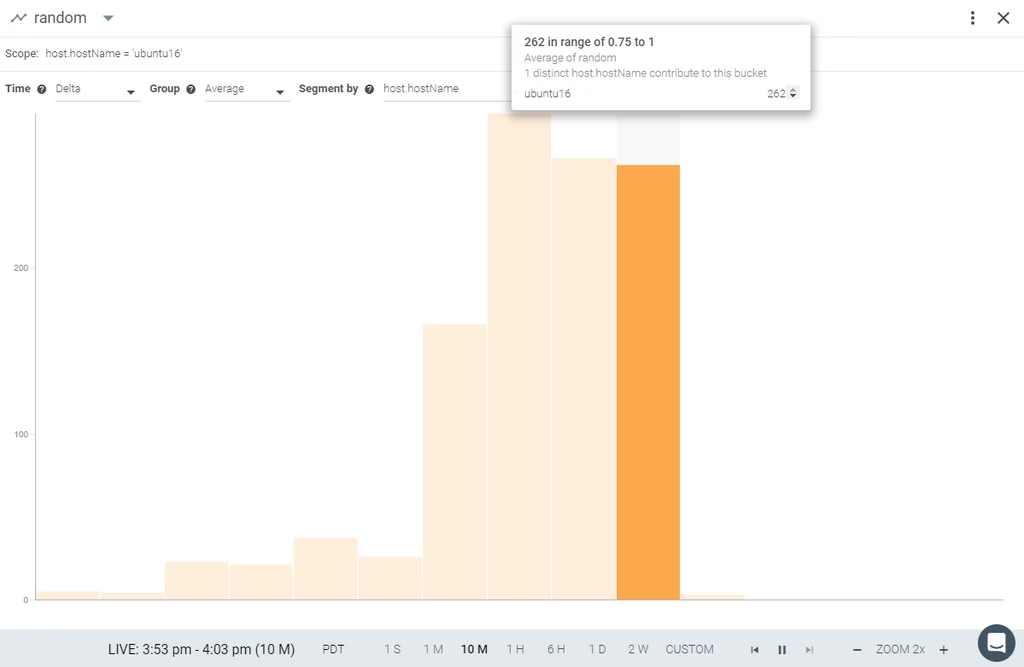
However in the Sysdig Monitor interface, if we select the metric and a time range such as 10 minutes, we'll see the per-bucket distribution for only that time range. Hover your mouse over a particular bar to see the bucket range. If this histogram metric is being reported from multiple sources, you will see the contribution to the total from each source based on your choice of Segment by. In this case we are segmenting by hostname and only have one contributing source, called "ubuntu16".
 |
Logging
After the Agent begins scraping Prometheus metrics, there may be a delay of up to a few minutes before the metrics become visible in Sysdig Monitor. To help quickly confirm your configuration is correct, starting with Agent version 0.80.0, the following log line will appear in the Agent log the first time since since starting that it has found and is successfully scraping at least one Prometheus exporter:
2018-05-04 21:42:10.048, 8820, Information, 05-04 21:42:10.048324 Starting export of Prometheus metrics
As this is an INFO level log message, it will appear in Agents using the default logging settings. To reveal even more detail, increase the Agent log level to DEBUG, which produces a message like the following that reveals the name of a specific metric first detected. You can then look for this metric to be visible in Sysdig Monitor shortly after.
2018-05-04 21:50:46.068, 11212, Debug, 05-04 21:50:46.068141 First prometheus metrics since agent start: pid 9583: 5 metrics including: randomSummary.95percentile
Troubleshooting
See the previous section for information on expected log messages during successful scraping. If you have enabled Prometheus and are not seeing the Starting export message shown there, revisit your configuration.
It is also suggested to leave the configuration option in its default setting of log_errors: true , which will reveal any issues scraping eligible processes in the Agent log.
For example, here is an error message for a failed scrape of a TCP port that was listening but not accepting HTTP requests:
2017-10-13 22:00:12.076, 4984, Error, sdchecks[4987] Exception on running check prometheus.5000: Exception('Timeout when hitting http://localhost:5000/metrics',)
2017-10-13 22:00:12.076, 4984, Error, sdchecks, Traceback (most recent call last):
2017-10-13 22:00:12.076, 4984, Error, sdchecks, File "/opt/draios/lib/python/sdchecks.py", line 246, in run
2017-10-13 22:00:12.076, 4984, Error, sdchecks, self.check_instance.check(self.instance_conf)
2017-10-13 22:00:12.076, 4984, Error, sdchecks, File "/opt/draios/lib/python/checks.d/prometheus.py", line 44, in check
2017-10-13 22:00:12.076, 4984, Error, sdchecks, metrics = self.get_prometheus_metrics(query_url, timeout, "prometheus")
2017-10-13 22:00:12.076, 4984, Error, sdchecks, File "/opt/draios/lib/python/checks.d/prometheus.py", line 105, in get_prometheus_metrics
2017-10-13 22:00:12.077, 4984, Error, sdchecks, raise Exception("Timeout when hitting %s" % url)
2017-10-13 22:00:12.077, 4984, Error, sdchecks, Exception: Timeout when hitting http://localhost:5000/metrics
Here is an example error message for a failed scrape of a port that was responding to HTTP requests on the /metrics endpoint but not responding with valid Prometheus-format data. The invalid endpoint is responding as follows:
# curl http://localhost:5002/metrics
This ain't no Prometheus metrics!
And the corresponding error message in the Agent log, indicating no further scraping will be attempted after the initial failure:
2017-10-13 22:03:05.081, 5216, Information, sdchecks[5219] Skip retries for Prometheus error: could not convert string to float: ain't
2017-10-13 22:03:05.082, 5216, Error, sdchecks[5219] Exception on running check prometheus.5002: could not convert string to float: ain't
Legacy Prometheus Application Check
Special care should be taken if you're already using the legacy Prometheus Application Check (explained below) to scrape any Prometheus metrics. You will be able to scrape for the same metrics using the new approach and they will appear in Sysdig Monitor under the same metric name. However, any historical data from when it was collected via the legacy Prometheus App Check will no longer be visible. As a result, the new approach is disabled by default, and you should carefully plan your transition to using the new approach for each set of metrics when you feel you can endure the break with historical data.
The legacy Prometheus application check is able to collect metrics from a static external HTTP endpoint exposing metrics in Prometheus format and import them as StatsD metrics in Sysdig.
To configure the legacy Prometheus application check, Add these lines to the agent's configuration file:
app_checks:
  - name: prometheus
    pattern:
      comm: python
      arg: /opt/draios/bin/sdchecks
    conf:
      url: http://{YOUR_PROMETHEUS_ENDPOINT_IP}:8080/metrics
Monitor Log Files
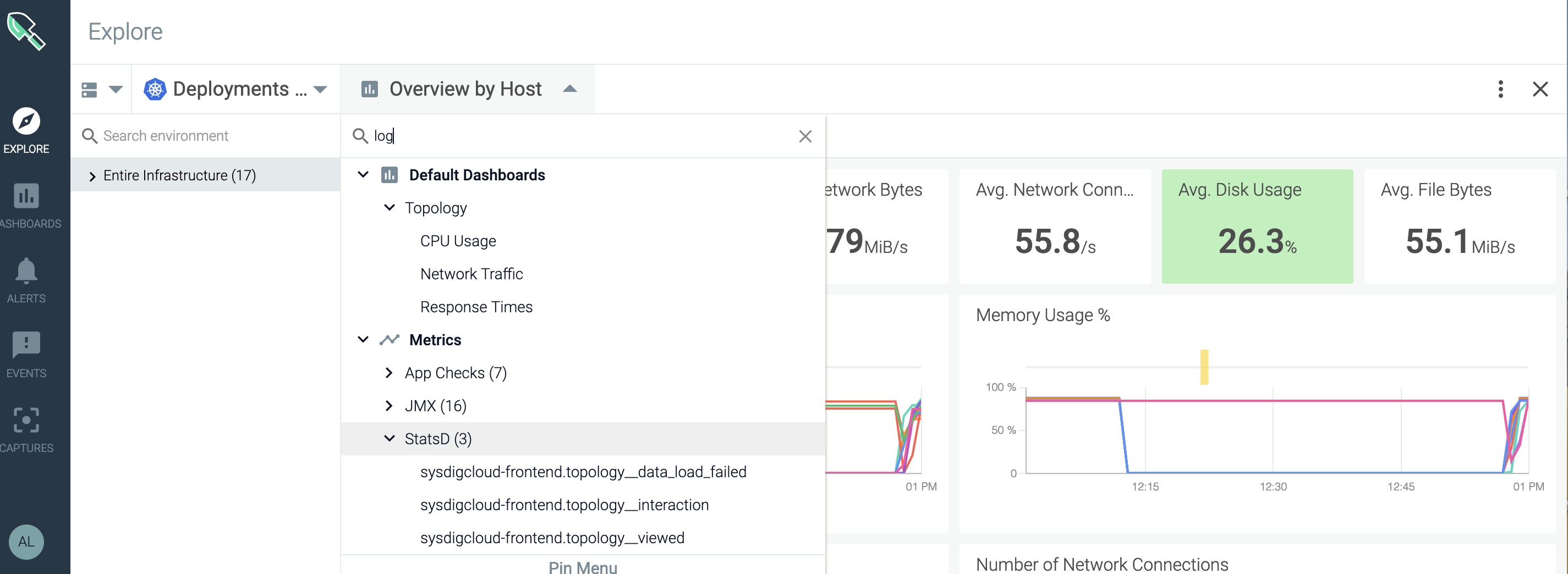
You can search for particular strings within a given log file, and create a metric that is displayed in Sysdig Monitor's Explore page. The metrics appear under the StatsD section:
 |
Sysdig provides this functionality via a "chisel" script called "logwatcher", written in Lua. You call the script by adding a logwatcher parameter in the chisels section of the agent configuration file (dragent.yaml). You define the log file name and the precise string to be searched. The results are displayed as metrics in the Monitor UI.
Caveats
The logwatcher chisel adds to Sysdig's monitoring capability but is not a fully featured log monitor. Note the following limitations:
No regex support: Sysdig does not offer regex support; you must define the precise log file and string to be searched.
(If you were to supply a string with spaces, forward-slashes, or back-slashes in it, the metric generated would also have these characters and so could not be used to create an alert.)
Limit of 12 string searches/host: Logwatcher is implemented as a LUA script and, due to resources consumed by this chisel, it is not recommended to have more than a dozen string searches configured per agent/host.
Implementation
Edit the agent configuration file to enable the logwatcher chisel. See Understanding the Agent Config Files for editing options.
Preparation
Determine the log file name(s) and string(s) you want to monitor.
Tip
To monitor the output of docker logs <container-name>, find the container's docker log file with:
docker inspect <container-name> | grep LogPath
Edit dragent.yaml
Access
dragent.yamldirectly at/opt/draios/etc/dragent.yaml.Add a chisels entry:
Format:
chisels:
  - name: logwatcher
    args:
      filespattern: YOURFILENAME.log
      term: YOURSTRING
Sample Entry:
customerid: 831f2-your-key-here-d69401
tags: tagname.tagvalue
chisels:
  - name: logwatcher
    args:
      filespattern: draios.log
      term: Sent
In this example, Sysdig's own
draios.logis searched for theSentstring.The output, in the Sysdig Monitor UI, would show the StatsD metric
logwatcher.draios_log.Sentand the number of 'Sent' items detected.Optional: Add multiple
-name:sections in the config file to search for additional logs/strings.Note the recommended 12-string/agent limit.
Restart the agent for changes to take effect.
For container agent:
docker restart sysdig-agent
For non-containerized (service) agent:
service dragent restart
Parameters
Name | Value | Description |
|---|---|---|
| | The chisel used in the enterprise Sysdig platform to search log files. (Other chisels are available in Sysdig's open-source product.) |
| | The log file to be searched. Do not specify a path with the file name. |
| | The string to be searched. |
View Log File Metrics in the Monitor UI
To view logwatcher results:
Log in to Sysdig Monitor and select
Explore.Select
Entire Infrastructure > Overview by Host.In the resulting drop-down, either scroll to
Metrics > StatsD > logwatcheror enter "logwatcher" in the search field.Each string you configured in the agent config file will be listed in the format
logwatcher.YOURFILENAME_log.STRING.The relevant metrics are displayed.
Note
You can also create an alert on logwatcher metrics, to be notified when an important log entry appears.
Integrate Applications (Default App Checks)
The Sysdig agent supports additional application monitoring capabilities with application check scripts or 'app checks'. These are a set of plugins that poll for custom metrics from the specific applications which export them via status or management pages: e.g. NGINX, Redis, MongoDB, Memcached and more.
Many app checks are enabled by default in the agent and when a supported application is found, the correct app check script will be called and metrics polled automatically.
However if default connection parameters are changed in your application, you will need to modify the app check connection parameters in the Sysdig Agent configuration file (dragent.yaml) to match your application.
In some cases you may also need to enable the metrics reporting functionality in the application before the agent can poll them.
This page details how to make configuration changes in the agent's configuration file, and provides an application integration example. Click the Supported Applications links for application-specific details.
Contents
Edit dragent.yaml to Integrate or Modify Application Checks
Find the default settings
Sample format
Change the default settings
Example 1: Change Name and Add Password
Example 2: Increase Polling Interval
Disabling
Disable a Single Application Check
Disable ALL Application Checks
Optional: Configure a Custom App-Check
Metrics Limit
Supported Applications
Edit dragent.yaml to Integrate or Modify Application Checks
Out of the box, the Sysdig agent will gather and report on a wide variety of pre-defined metrics. It can also accommodate any number of custom parameters for additional metrics collection.
The agent relies on a pair of configuration files to define metrics collection parameters:
| The core configuration file. You can look at it to understand more about the default configurations provided. Location: " CAUTION. This file should never be edited. |
| The configuration file where parameters can be added, either directly in YAML as |
The "dragent.yaml" file can be accessed and edited in several ways, depending on how the agent was installed.
Review Understanding the Agent Config Files for details.
The examples in this section presume you are entering YAML code directly intodragent.yaml, under the app_checks section.
Find the default settings
To find the default app-checks for already supported applications, check the dragent.default.yaml file.
(Location: /opt/draios/etc/dragent.default.yaml.)
Sample format
app_checks:
  - name: APP_NAME
    check_module: APP_CHECK_SCRIPT
    pattern:
      comm: PROCESS_NAME
    conf:
      host: IP_ADDR
      port: PORT
Parameter | Parameter 2 | Description | Sample Value |
|---|---|---|---|
| The main section of | n/a | |
| Every check should have a unique | e.g. MongoDB | |
| The name of the Python plugin that polls the data from the designated application. All the app check scripts can be found inside the | e.g. elastic | |
| This section is used by the Sysdig agent to match a process with a check. Four kinds of keys can be specified along with any arguments to help distinguish them. | n/a | |
| Matches process name as seen in /proc/ | ||
| Matches process name as seen in /proc/ | ||
| Matches any process arguments | ||
| Matches the process exe as seen in /proc/ | ||
| This section is specific for each plugin. You can specify any key/values that the plugins support. | ||
| Application-specific. A URL or IP address | ||
|
Note
{...} tokens can be used as values, which will be substituted with values from process info.
Change the default settings
To override the defaults:
Copy relevant code blocks from
dragent.default.yamlintodragent.yaml. (Or copy the code from the appropriate app check integration page in this documentation section.)Any entries copied into
dragent.yamlfile will override similar entries indragent.default.yaml.Never modify
dragent.default.yaml, as it will be overwritten whenever the agent is updated.Modify the parameters as needed.
Be sure to use proper YAML. Pay attention to consistent spacing for indents (as shown) and list all check entries under an
app_checks:section title.Save the changes and restart the agent.
Use
service restart agentordocker restart sysdig-agent.
Metrics for the relevant application should appear in the Sysdig Monitor interface under the appropriate name.
Example 1: Change Name and Add Password
Here is a sample app-check entry for Redis. The app_checks section was copied from the dragent.default.yaml file and modified for a specific instance.
customerid: 831f3-Your-Access-Key-9401
tags: local:sf,acct:dev,svc:db
app_checks:
  - name: redis-6380
    check_module: redisdb
    pattern:
      comm: redis-server
    conf:
      host: 127.0.0.1
      port: PORT
      password: PASSWORD
Edits made:
The name to be displayed in the interface
A required password.
Note
As the token PORT is used, it will be translated to the actual port where Redis is listening.
Example 2: Increase Polling Interval
The default interval for an application check to be run by the agent is set to every second. You can increase the interval per application check by adding the interval: parameter (under the -name section) and the number of seconds to wait before each run of the script.
Note
interval: must be put into each app check entry that should run less often; there is no global setting.
Example: Run the NTP check once per minute:
app_checks:
  - name: ntp
    interval: 60
    pattern:
      comm: systemd
    conf:
      host: us.pool.ntp.org
Disabling
Disable a Single Application Check
Sometimes the default configuration shipped with the Sysdig agent does not work for you or you may not be interested in checks for a single application. To turn a single check off, add an entry like this to disable it:
app_checks:
 - name: nginx
   enabled: false
This entry overrides the default configuration of the nginx check, disabling it.
If you are using the ADDITIONAL_CONF parameter to modify your container agent's configuration, you would add an entry like this to your Docker run command (or Kubernetes manifest):
-e ADDITIONAL_CONF="app_checks:\n - name: nginx\n enabled: false\n"
Disable ALL Application Checks
If you do not need it or otherwise want to disable the application check functionality, you can add the following entry to the agent's user settings configuration file /opt/draios/etc/dragent.yaml:
app_checks_enabled: false
Restart the agent as shown immediately above for either the native Linux agent installation or the container agent installation.
Optional: Configure a Custom App-Check
Sysdig allows custom application check-script configurations to be created for each individual container in the infrastructure, via the environment variable SYSDIG_AGENT_CONF. This avoids the need for multiple edits and entries to achieve the container-specific customization, by enabling application teams to configure their own checks.
The SYSDIG_AGENT_CONF variable stores a YAML-formatted configuration for the app check, and is used to match app-check configurations. It can be stored directly within the Docker file.
Note
The syntax is the same as dragent.yaml syntax.
The example below defines a per container app-check for Redis in the Dockerfile, using the SYSDIG_AGENT_CONF environment variable:
FROM redis
# This config file adds a password for accessing redis instance
ADD redis.conf /

ENV SYSDIG_AGENT_CONF { "app_checks": [{ "name": "redis", "check_module": "redisdb", "pattern": {"comm": "redis-server"}, "conf": { "host": "127.0.0.1", "port": "6379", "password": "protected"} }] }
ENTRYPOINT ["redis-server"]
CMD [ "/redis.conf" ]
The example below shows how parameters can be added to a container started with docker run, by either using the -e/–envflag variable, or injecting the parameters using an orchestration system (for example, Kubernetes):
PER_CONTAINER_CONF='{ "app_checks": [{ "name": "redis", "check_module": "redisdb", "pattern": {"comm": "redis-server"}, "conf": { "host": "127.0.0.1", "port": "6379", "password": "protected"} }] }'

docker run --name redis -v /tmp/redis.conf:/etc/redis.conf -e SYSDIG_AGENT_CONF="${PER_CONTAINER_CONF}" -d redis /etc/redis.conf
Metrics Limit
Metric limits are defined by your payment plan. If more metrics are needed please contact your sales representative with your use case.
Note that a metric with the same name but different tag name will count as a unique metric by the agent. Example: a metric 'user.clicks' with the tag 'country=us' and another 'user.clicks' with the 'tag country=it'are considered two metrics which count towards the limit.
Supported Applications
Below is the supported list of applications the agent will automatically poll.
Some app-check scripts will need to be configured since no defaults exist, while some applications may need to be configured to output their metrics. Click a highlighted link to see application-specific notes.
Active MQ
Apache CouchDB
Apache HBase
Apache Zookeeper
Cassandra
CEPH
Gearman
Gunicorn
HDFS
JVMKyoto
Tycoon
MemSQL
OracleDB
Postfix
Riak
Supervisord
TokuMX
NOTE: It is also possible to:
Create a Custom App Check from scratch, or
Apache
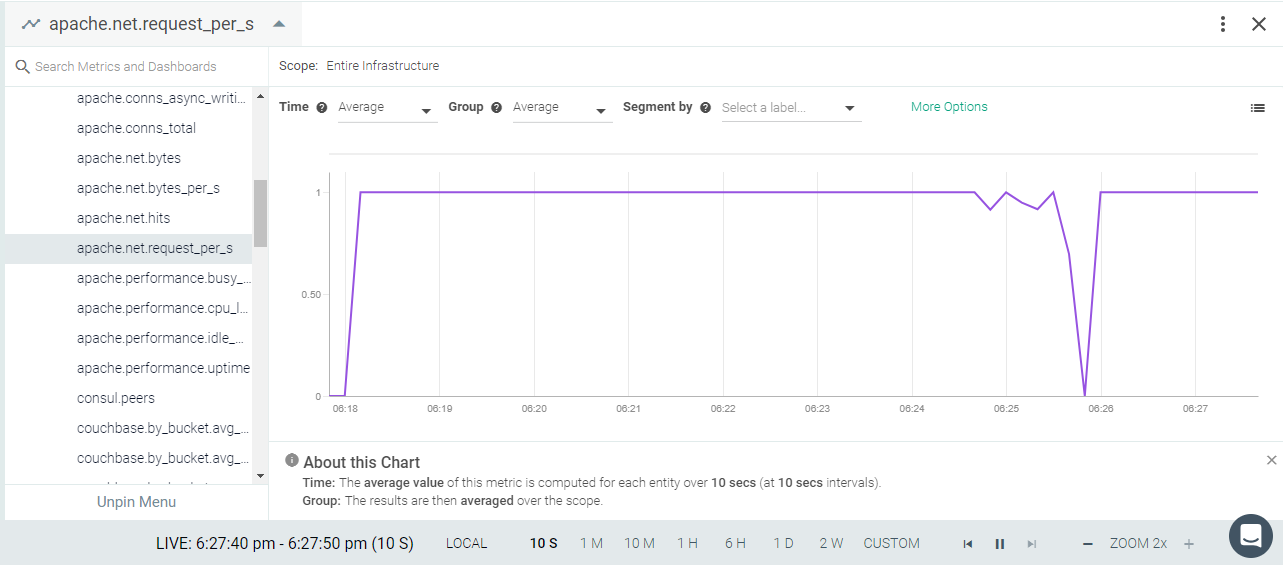
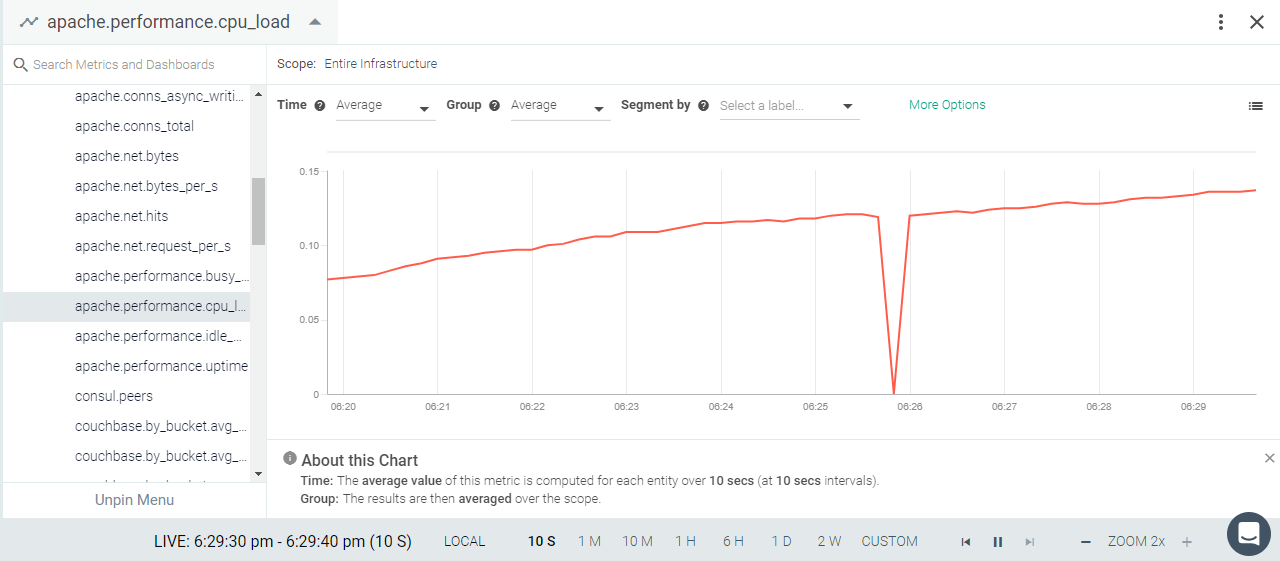
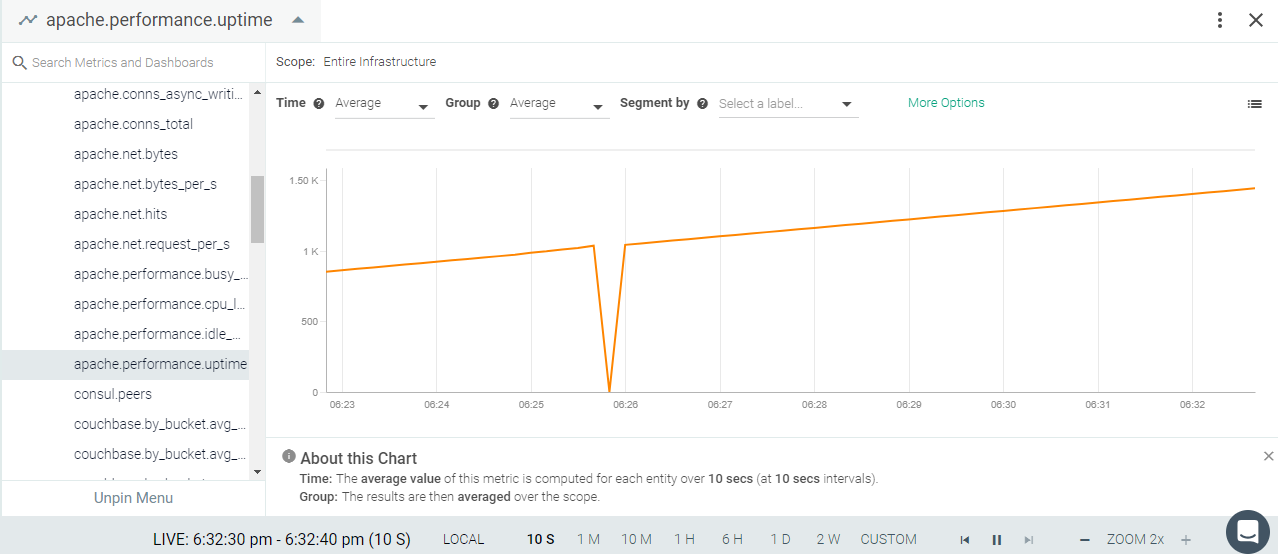
Apache web server is an open-source, web server creation, deployment, and management software. If Apache is installed on your environment, the Sysdig agent will connect using the mod_status module on Apache. You may need to edit the default entries in the agent configuration file to connect. See Default Configuration.
This page describes the default configuration settings, how to edit the configuration to collect additional information, the metrics available for integration, and a sample result in the Sysdig Monitor UI.
Install mod_status on your Apache servers and enable ExtendedStatus.
The following configuration is required. If it is already present, then un-comment the lines, otherwise add the configuration.
LoadModule status_module modules/mod_status.so
...

<Location /server-status>
    SetHandler server-status
    Order Deny,Allow
    Deny from all
    Allow from localhost
</Location>
...

ExtendedStatus OnReview how to Edit dragent.yaml to Integrate or Modify Application Checks.
Apache has a common default for exposing metrics. The process command name can be either apache2 or httpd. By default, the Sysdig agent will look for the process apache2. If named differently in your environment (e.g. httpd), edit the configuration file to match the process name as shown in Example 1.
By default, Sysdig's dragent.default.yaml uses the following code to connect with Apache and collect all metrics.
app_checks:
  - name: apache
    check_module: apache
    pattern:
      comm: apache2
    conf:
      apache_status_url: "http://localhost:{port}/server-status?auto"
log_errors: false If it is necessary to edit dragent.yaml to change the process name, use the following example and update the comm with the value httpd.
Warning
Remember! Never edit dragent.default.yaml directly; always edit only dragent.yaml.
app_checks:
  - name: apache
    check_module: apache
    pattern:
      comm: httpd
    conf:
      apache_status_url: "http://localhost/server-status?auto"
    log_errors: false
The Apache metrics are listed in the metrics dictionary here: Apache Metrics.
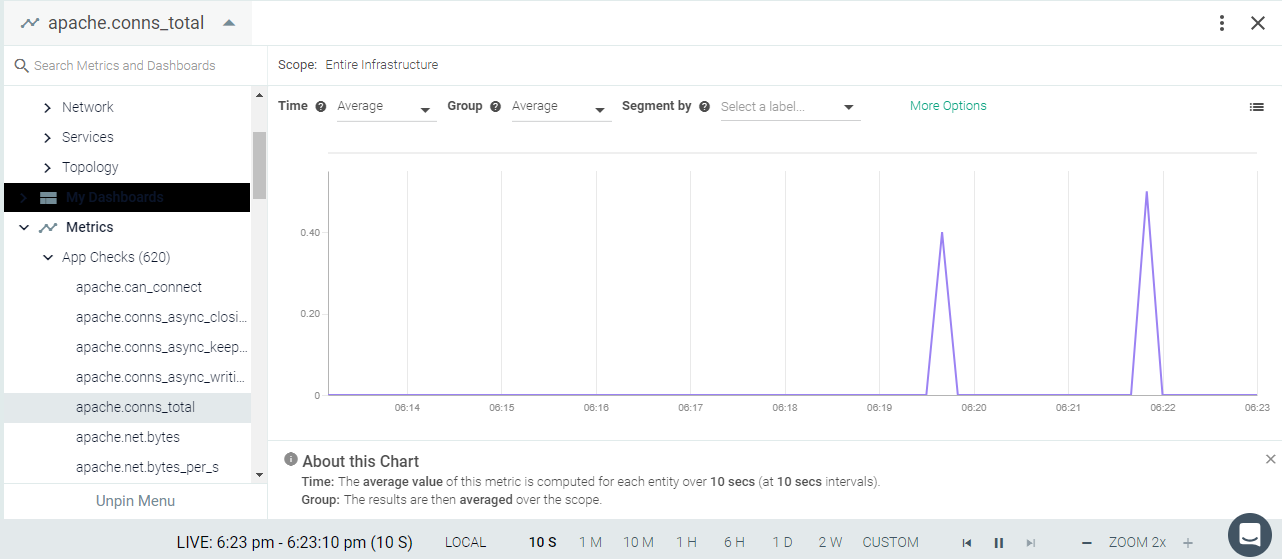 |
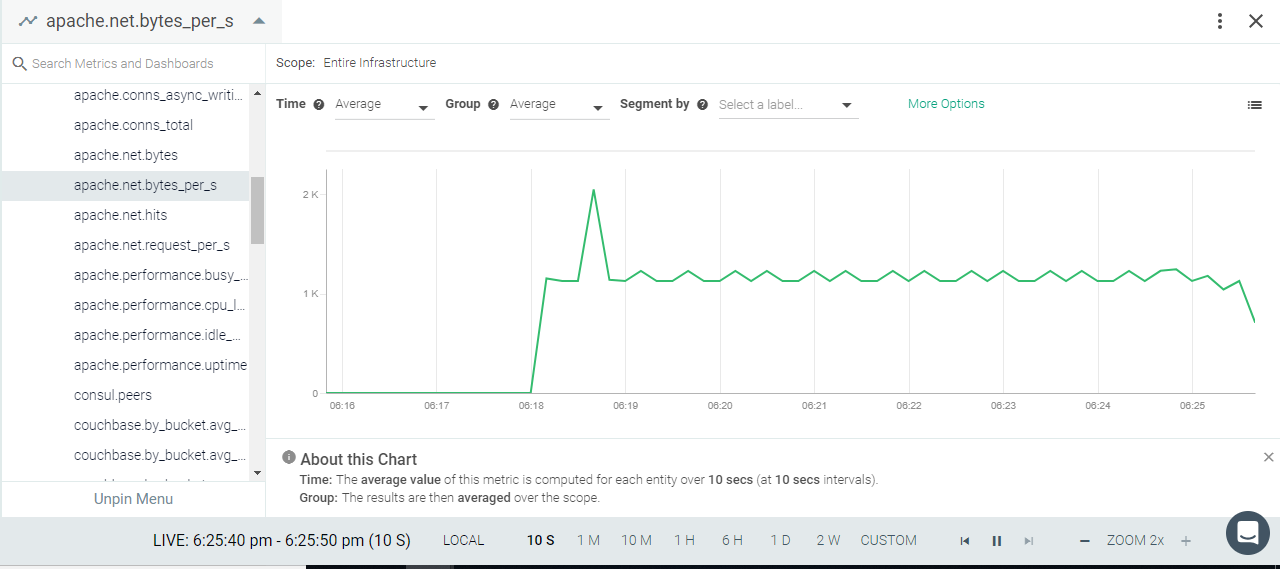 |
 |
 |
 |
Apache Kafka
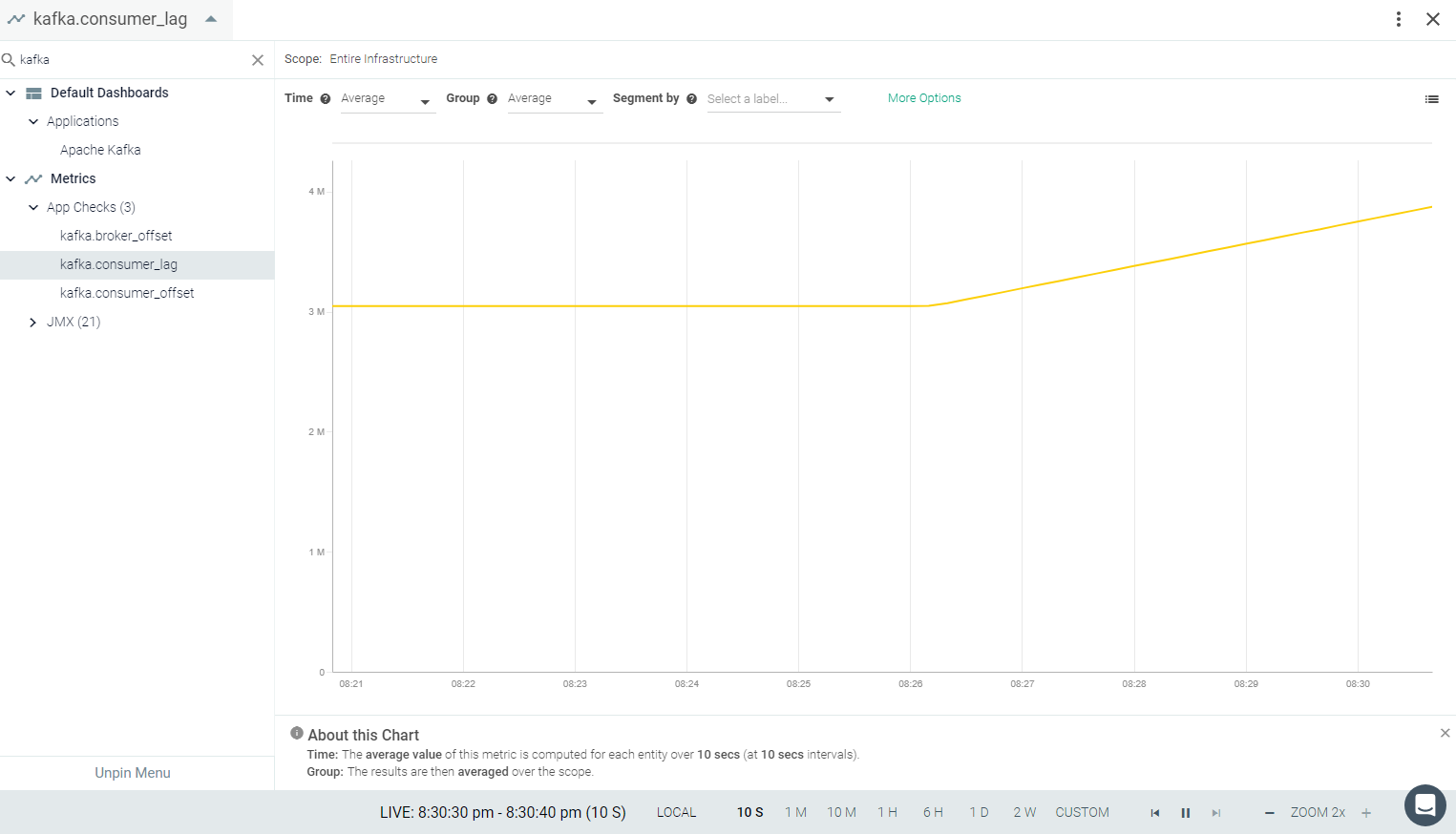
Apache Kafka is a distributed streaming platform. Kafka is used for building real-time data pipelines and streaming apps. It is horizontally scalable, fault-tolerant, wicked fast, and runs in production in thousands of companies. If Kafka is installed on your environment, the Sysdig agent will automatically connect. See Default Configuration.
The Sysdig agent automatically collects metrics from Kafka via JMX polling. You need to provide consumer names and topics in the agent config file to collect consumer-based Kafka metrics.
This page describes the default configuration settings, how to edit the configuration to collect additional information, the metrics available for integration, and a sample result in the Sysdig Monitor UI.
Example 2: Store Consumer Group Info (Kafka 9+)
Kafka Consumer Metrics (App Checks)
Kafka will automatically expose all metrics. You do not need to add anything on the Kafka instance.
Review how to Edit dragent.yaml to Integrate or Modify Application Checks.
Metrics from Kafka via JMX polling are already configured in the agent's default-settings configuration file. Metrics for consumers, however, need to use app-checks to poll the Kafka and Zookeeper API. You need to provide consumer names and topics in dragent.yaml file.
Since consumer names and topics are environment-specific, a default configuration is not present in dragent.default.yaml.
Refer to the following examples for adding Kafka checks to dragent.yaml.
Warning
Remember! Never edit dragent.default.yaml directly; always edit only dragent.yaml.
A basic example with sample consumer and topic names:
app_checks:
  - name: kafka
    check_module: kafka_consumer
    pattern:
      comm: java
      arg: kafka.Kafka
    conf:
      kafka_connect_str: "127.0.0.1:9092" # kafka address, usually localhost as we run the check on the same instance
      zk_connect_str: "localhost:2181" # zookeeper address, may be different than localhost
      zk_prefix: /
    consumer_groups:
      sample-consumer-1: # sample consumer name
        sample-topic-1: [0, ] # sample topic name and partitions
      sample-consumer-2: # sample consumer name
sample-topic-2: [0, 1, 2, 3] # sample topic name and partitionsFrom Kafka 9 onwards, you can store consumer group config info inside Kafka itself for better performance.
app_checks:
  - name: kafka
    check_module: kafka_consumer
    pattern:
      comm: java
      arg: kafka.Kafka
    conf:
      kafka_connect_str: "localhost:9092"
      zk_connect_str: "localhost:2181"
      zk_prefix: /
      kafka_consumer_offsets: true
      consumer_groups:
        sample-consumer-1: # sample consumer name
          sample-topic-1: [0, ] # sample topic name and partitions
Note
If kafka_consumer_offsets entry is set to true the app check will look for consumer offsets in Kafka. The appcheck will also look in Kafka if zk_connect_str is not set.
To enable aggregation of partitions at the topic level, use kafka_consumer_topics with aggregate_partitions = true.
In this case the app check will aggregate the lag & offset values at the partition level, reducing the number of metrics collected.
Set aggregate_partitions = false to disable metrics aggregation at the partition level. In this case, the appcheck will show lag and offset values for each partition.
app_checks:
  - name: kafka
    check_module: kafka_consumer
    pattern:
      comm: java
      arg: kafka.Kafka
    conf:
      kafka_connect_str: "localhost:9092"
      zk_connect_str: "localhost:2181"
      zk_prefix: /
      kafka_consumer_offsets: true
      kafka_consumer_topics:
        aggregate_partitions: true
      consumer_groups:
        sample-consumer-1: # sample consumer name
          sample-topic-1: [0, ] # sample topic name and partitions
        sample-consumer-2: # sample consumer name
sample-topic-2: [0, 1, 2, 3] # sample topic name and partitionsOptional tags can be applied to every emitted metric, service check, and/or event.
app_checks:
  - name: kafka
    check_module: kafka_consumer
    pattern:
      comm: java
      arg: kafka.Kafka
    conf:
      kafka_connect_str: "localhost:9092"
      zk_connect_str: "localhost:2181"
      zk_prefix: /
      consumer_groups:
        sample-consumer-1: # sample consumer name
          sample-topic-1: [0, ] # sample topic name and partitions
    tags:  ["key_first_tag:value_1", "key_second_tag:value_2", "key_third_tag:value_3"]
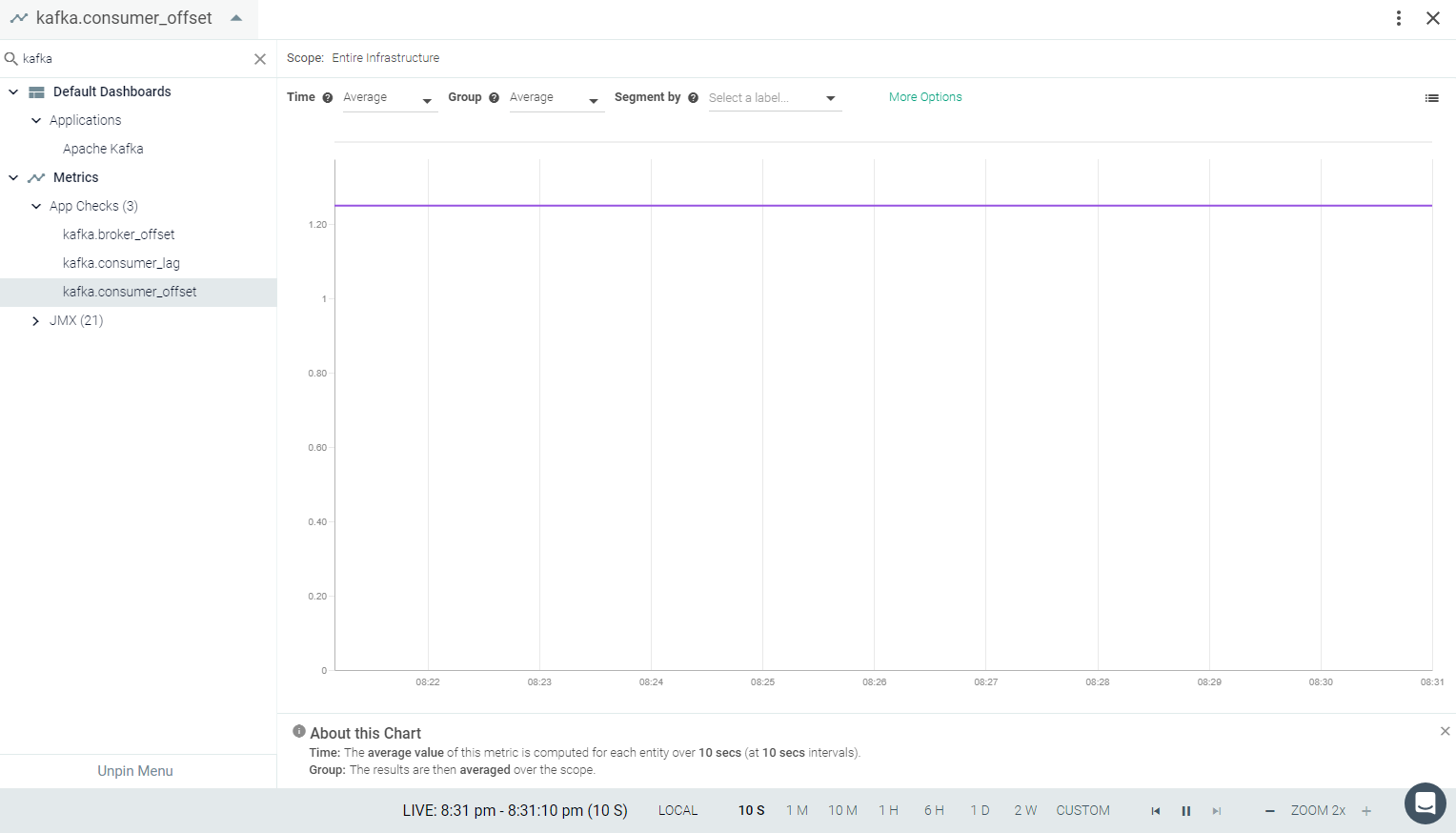
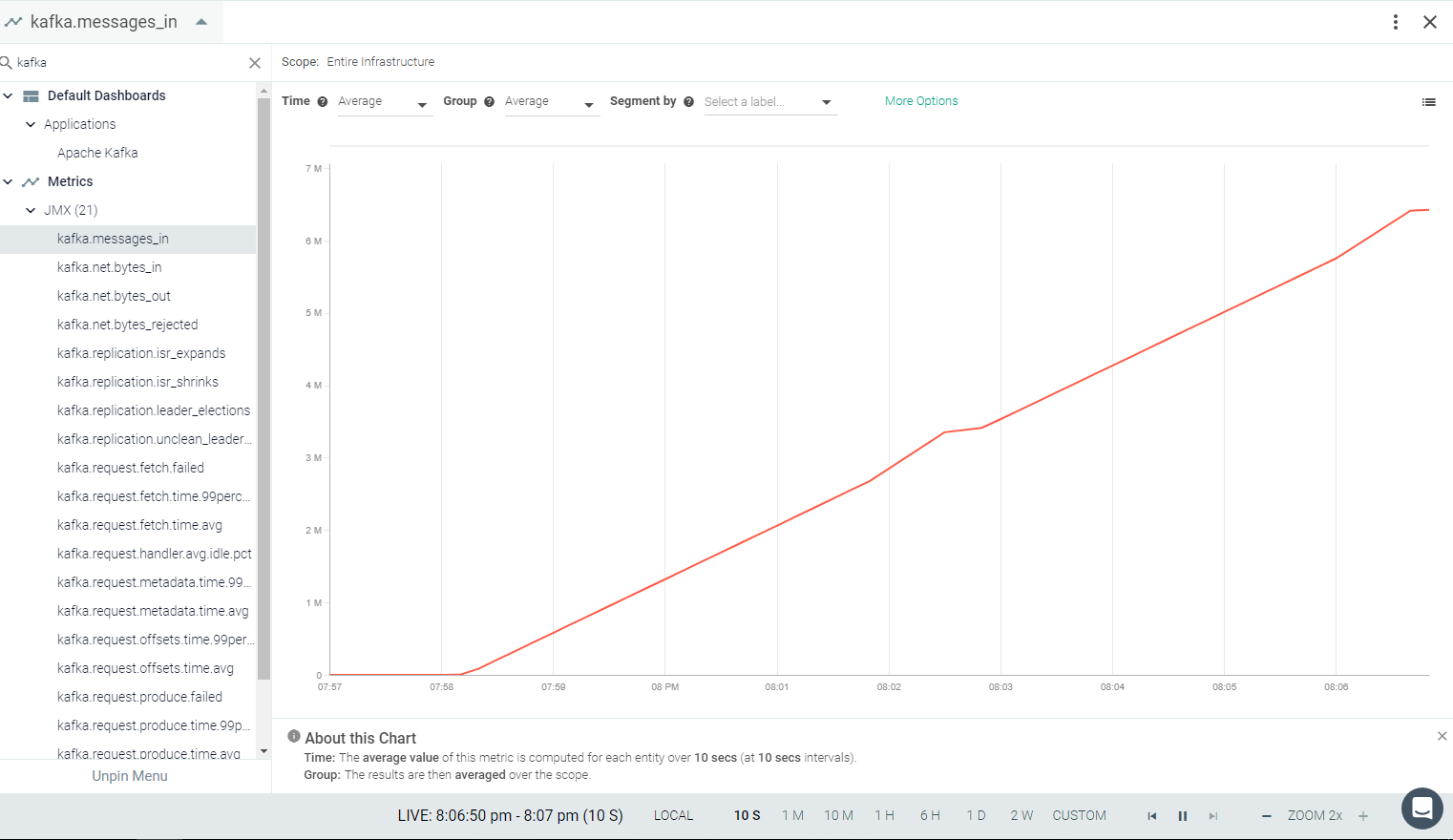
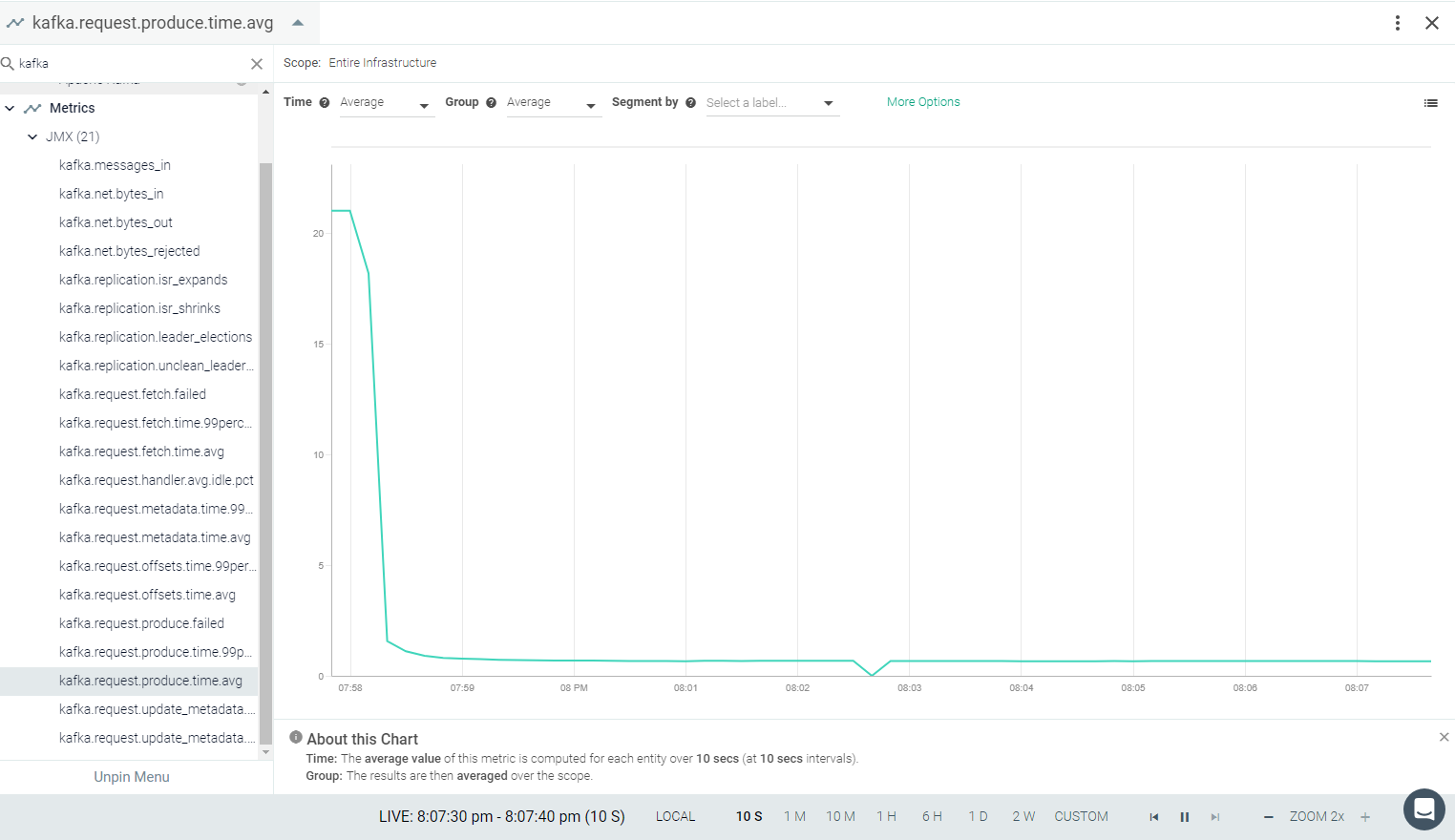
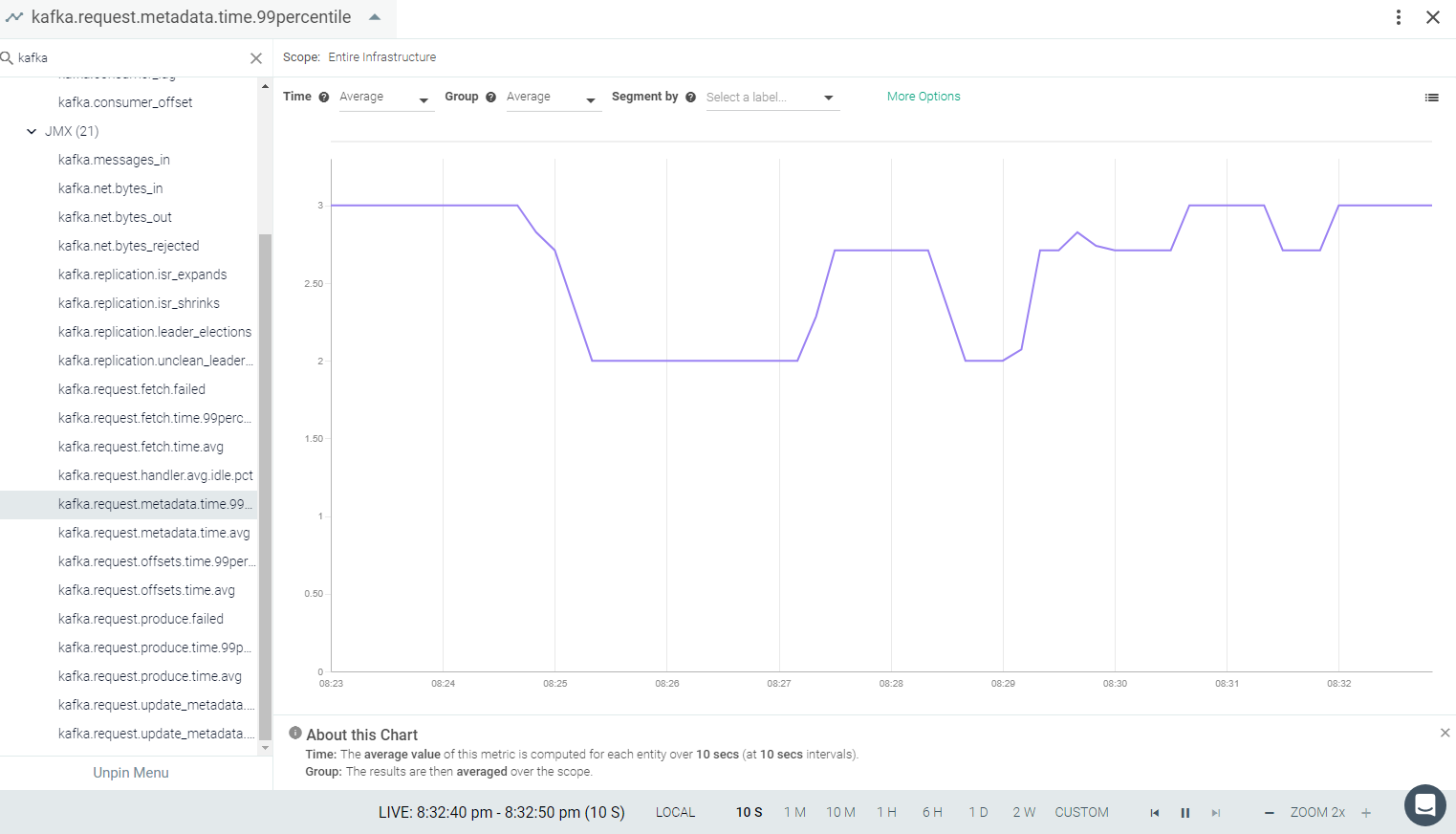
See Apache Kafka Consumer Metrics.
 |
 |
 |
 |
 |
Consul
Consul is a distributed service mesh to connect, secure, and configure services across any runtime platform and public or private cloud. If Consul is installed on your environment, the Sysdig agent will automatically connect and collect basic metrics. If the Consul Access Control List (ACL) is configured, you may need to edit the default entries to connect. Also, additional latency metrics can be collected by modifying default entries. See the Sysdig Agent Configuration section.
Note
It's easy! Sysdig automatically detects metrics from this app based on standard default configurations.
This page describes the default configuration settings, how to edit the configuration to collect additional information, the metrics available for integration, and a sample result in the Sysdig Monitor UI.
Consul is ready to expose metrics without any special configuration.
Review how to Edit dragent.yaml to Integrate or Modify Application Checks.
By default, Sysdig's dragent.default.yaml uses the following code to connect with Consul and collect basic metrics.
app_checks:
  - name: consul
    pattern:
      comm: consul
    conf:
      url: "http://localhost:8500"
      catalog_checks: yes
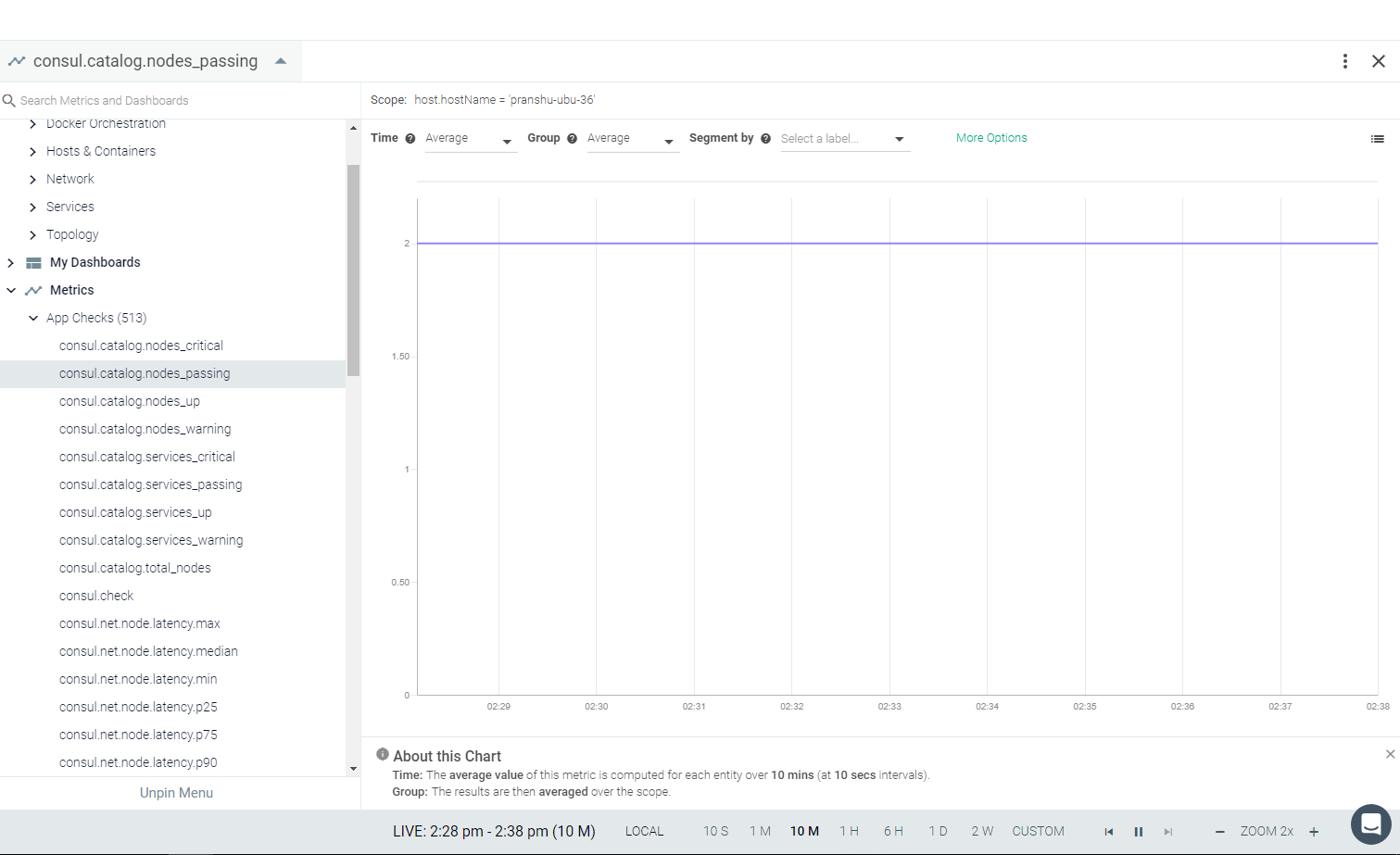
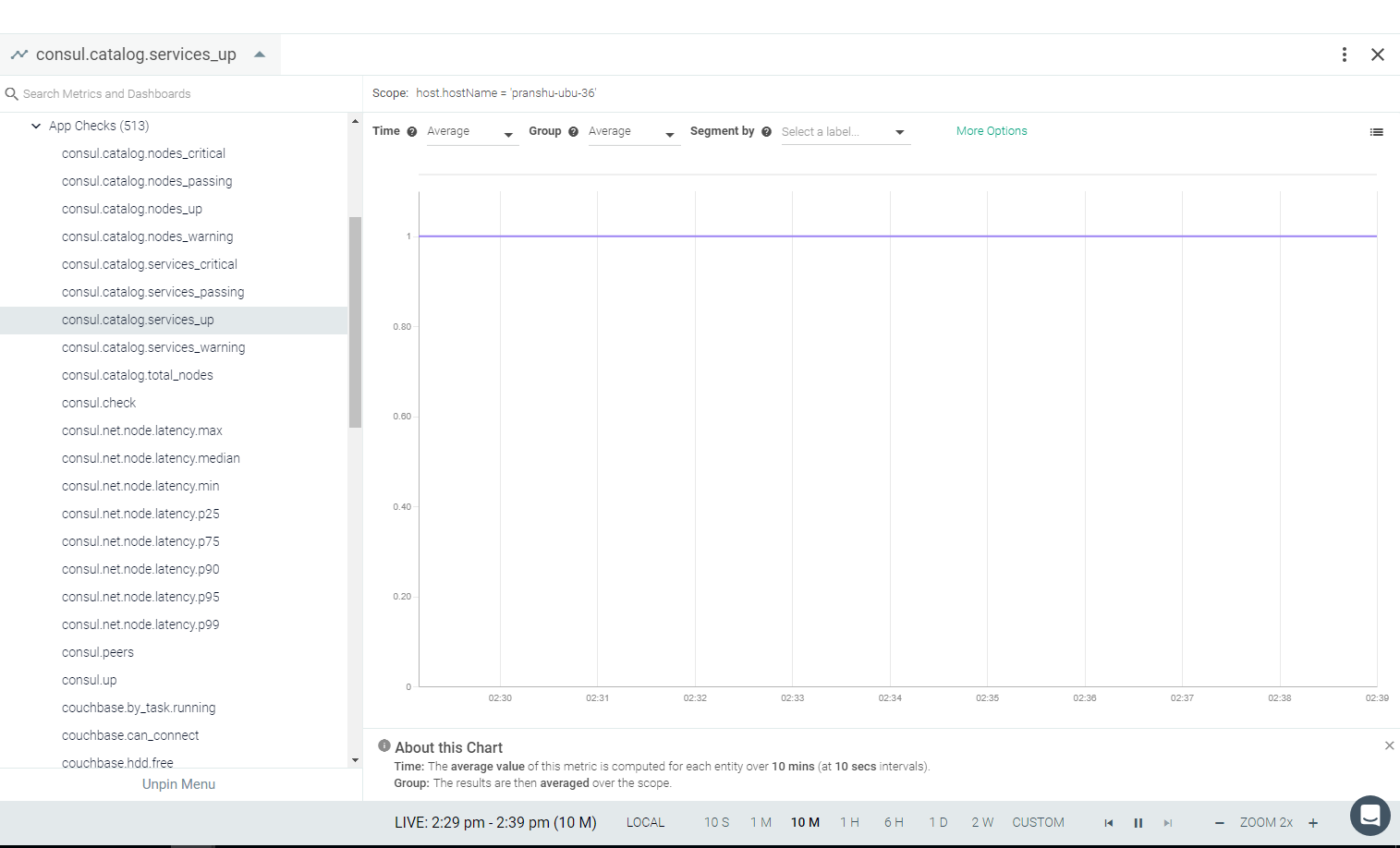
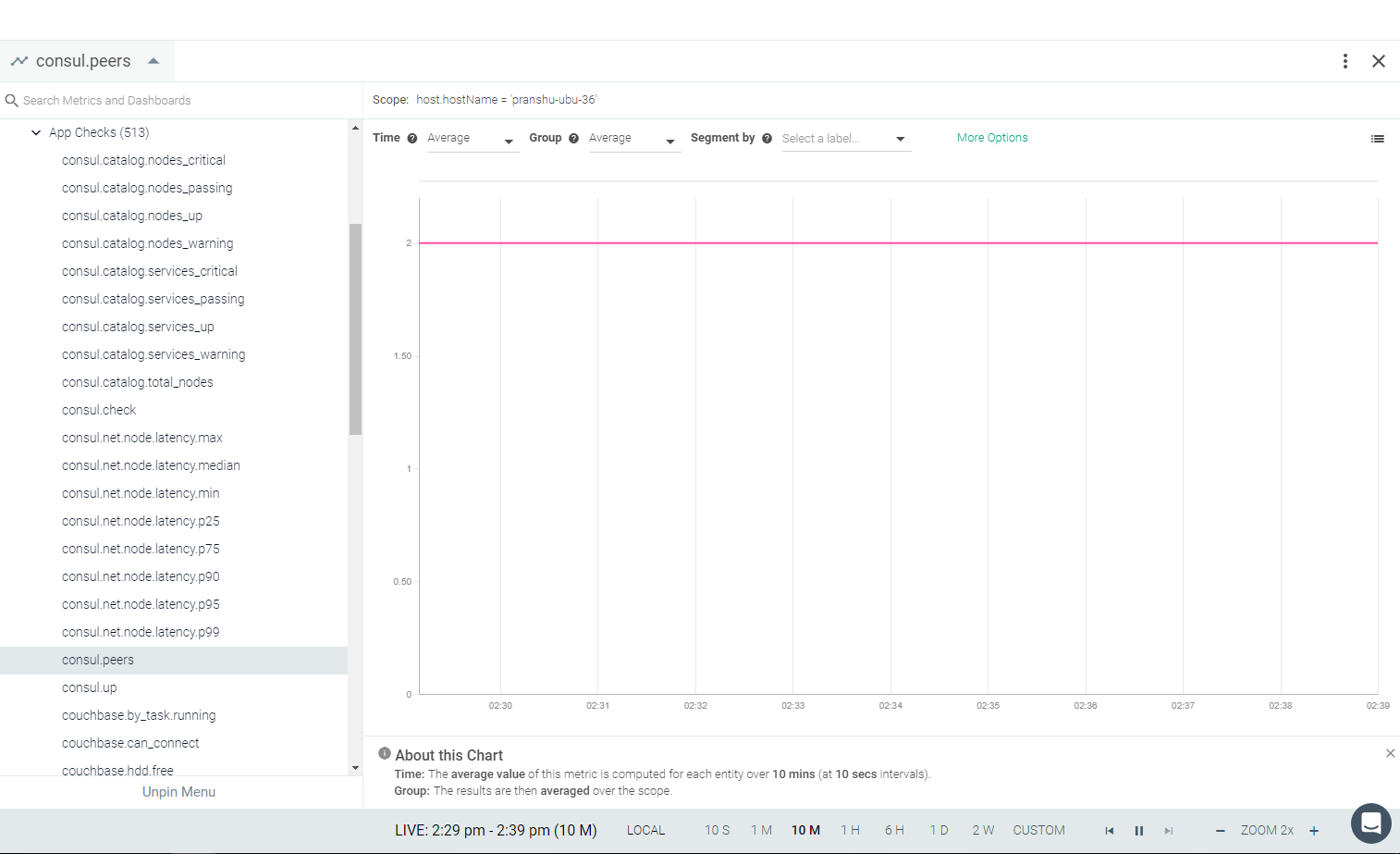
With the dragent.default.yaml file, the below set of metrics are available in the Sysdig Monitor UI:
Metrics name |
|---|
consul.catalog.nodes_critical |
consul.catalog.nodes_passing |
consul.catalog.nodes_up |
consul.catalog.nodes_warning |
consul.catalog.total_nodes |
consul.catalog.services_critical |
consul.catalog.services_passing |
consul.catalog.services_up |
consul.catalog.services_warning |
consul.peers |
Additional metrics and event can be collected by adding configuration in dragent.yaml file. The ACL token must be provided if enabled. See the following examples.
Warning
Remember! Never edit dragent.default.yaml directly; always edit only dragent.yaml.
self_leader_check An enabled node will watch for itself to become the leader and will emit an event when that happens. It can be enabled on all nodes.
app_checks:
  - name: consul
    pattern:
      comm: consul
    conf:
      url: "http://localhost:8500"
      catalog_checks: yes
      self_leader_check: yes
logs_enabled: trueIf the network_latency_checks flag is enabled, then the Consul network coordinates will be retrieved and the latency calculated for each node and between data centers.
app_checks:
  - name: consul
    pattern:
      comm: consul
    conf:
      url: "http://localhost:8500"
      catalog_checks: yes
      network_latency_checks: yes
    logs_enabled: true
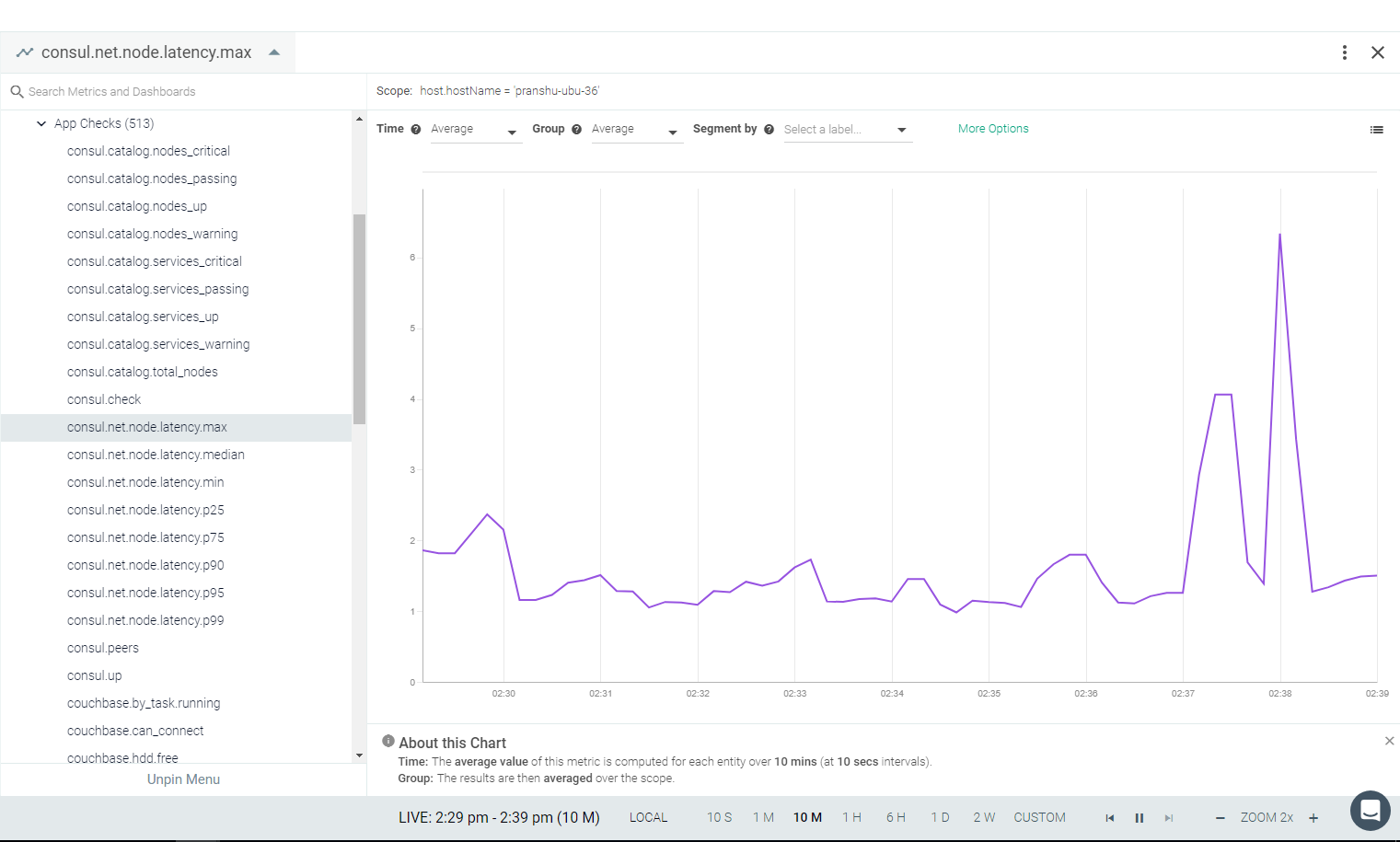
With the above changes, you can see the following additional metrics:
Metrics name |
|---|
consul.net.node.latency.min |
consul.net.node.latency.p25 |
consul.net.node.latency.median |
consul.net.node.latency.p75 |
consul.net.node.latency.p90 |
consul.net.node.latency.p95 |
consul.net.node.latency.p99 |
consul.net.node.latency.max |
When the ACL System is enabled in Consul, the ACL Agent Token must be added in dragent.yaml in order to collect metrics.
Follow Consul's official documentation to Configure ACL, Bootstrap ACL and Create Agent Token.
app_checks:
  - name: consul
    pattern:
      comm: consul
    conf:
      url: "http://localhost:8500"
      acl_token: "xxxxxxxx-xxxx-xxxx-xxxx-xxxxxxxxxxxx" #Add agent token
      catalog_checks: yes
logs_enabled: trueIn addition to the metrics from the Sysdig app-check, there are many other metrics that Consul can send using StatsD. Those metrics will be automatically collected by the Sysdig agent's StatsD integration if Consul is configured to send them.
Add statsd_address under telemetry to the Consul config file. The default config file location is /consul/config/local.json
{
...
  "telemetry": {
     "statsd_address": "127.0.0.1:8125"
  }
...
}
See Telemetry Metrics for more details.
See Consul Metrics.
 |
 |
 |
 |
Couchbase
Couchbase Server is a distributed, open-source, NoSQL database engine. The core architecture is designed to simplify building modern applications with a flexible data model and simpler high availability, high scalability, high performance, and advanced security. If Couchbase is installed on your environment, the Sysdig agent will automatically connect. If authentication is configured, you may need to edit the default entries to connect. See Default Configuration.
The Sysdig agent automatically collects all bucket and node metrics. You can also edit the configuration to collect query metrics.
This page describes the default configuration settings, how to edit the configuration to collect additional information, the metrics available for integration, and a sample result in the Sysdig Monitor UI.
Couchbase will automatically expose all metrics. You do not need to configure anything on the Couchbase instance.
Review how to Edit dragent.yaml to Integrate or Modify Application Checks.
By default, Sysdig's dragent.default.yaml uses the following code to connect with Couchbase and collect all bucket and node metrics.
app_checks:
  - name: couchbase
    pattern:
      comm: beam.smp
      arg: couchbase
      port: 8091
    conf:
      server: http://localhost:8091
If authentication is enabled, you need to edit dragent.yaml file to connect with Couchbase. See Example 1.
Warning
Remember! Never edit dragent.default.yaml directly; always edit only dragent.yaml.
Replace <username> and <password> with appropriate values and update the dragent.yaml file.
app_checks:
  - name: couchbase
    pattern:
      comm: beam.smp
      arg: couchbase
      port: 8091
    conf:
      server: http://localhost:8091
      user: <username>
      password: <password>
      # The following block is optional and required only if the 'path' and
      # 'port' need to be set to non-default values specified here
      cbstats:
        port: 11210
path: /opt/couchbase/bin/cbstatsAdditionally, you can configure query_monitoring_url to get query monitoring stats. This is available from Couchbase version 4.5. See Query Monitoring for more detail.
app_checks:
  - name: couchbase
    pattern:
      comm: beam.smp
      arg: couchbase
      port: 8091
    conf:
      server: http://localhost:8091
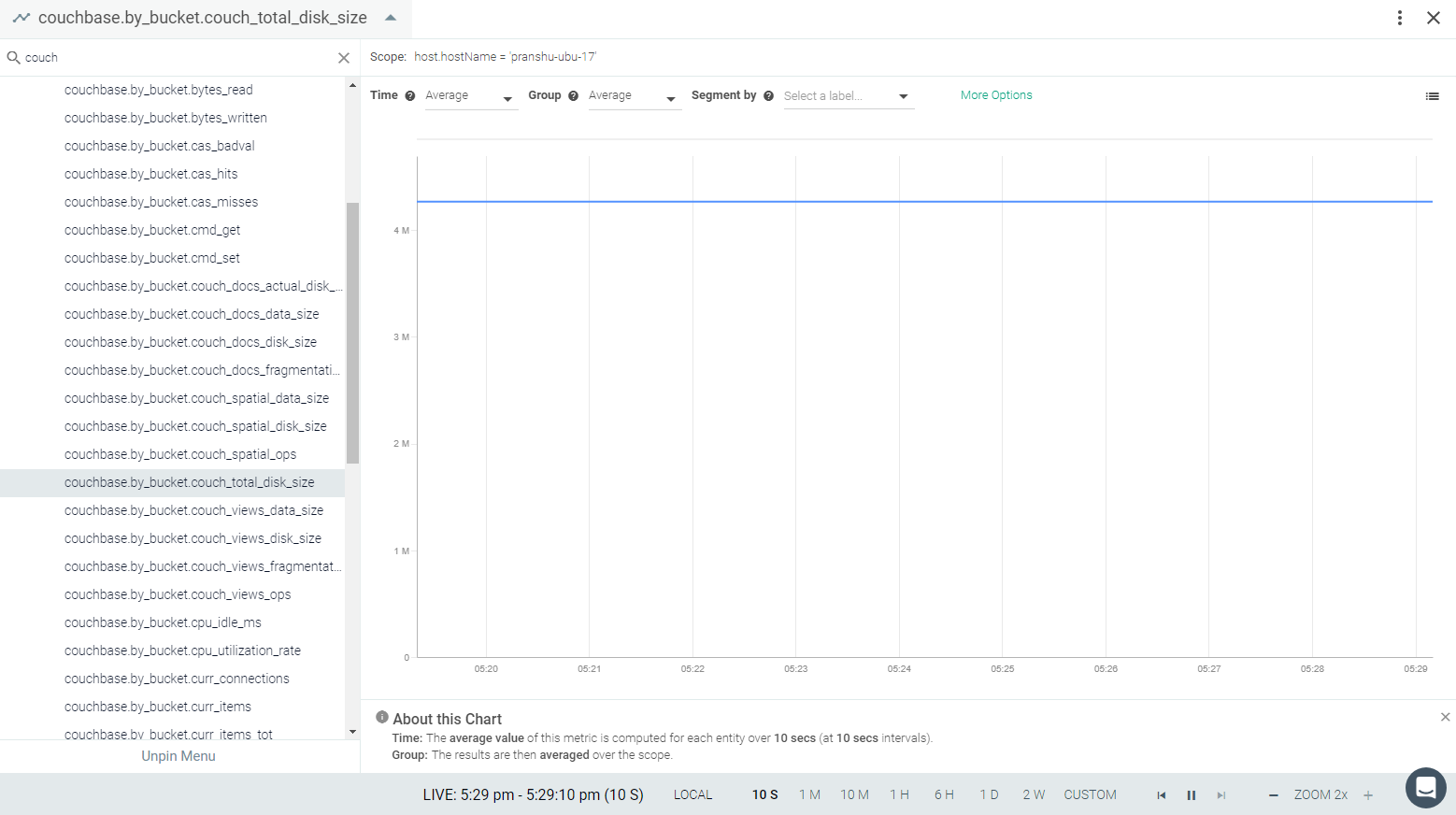
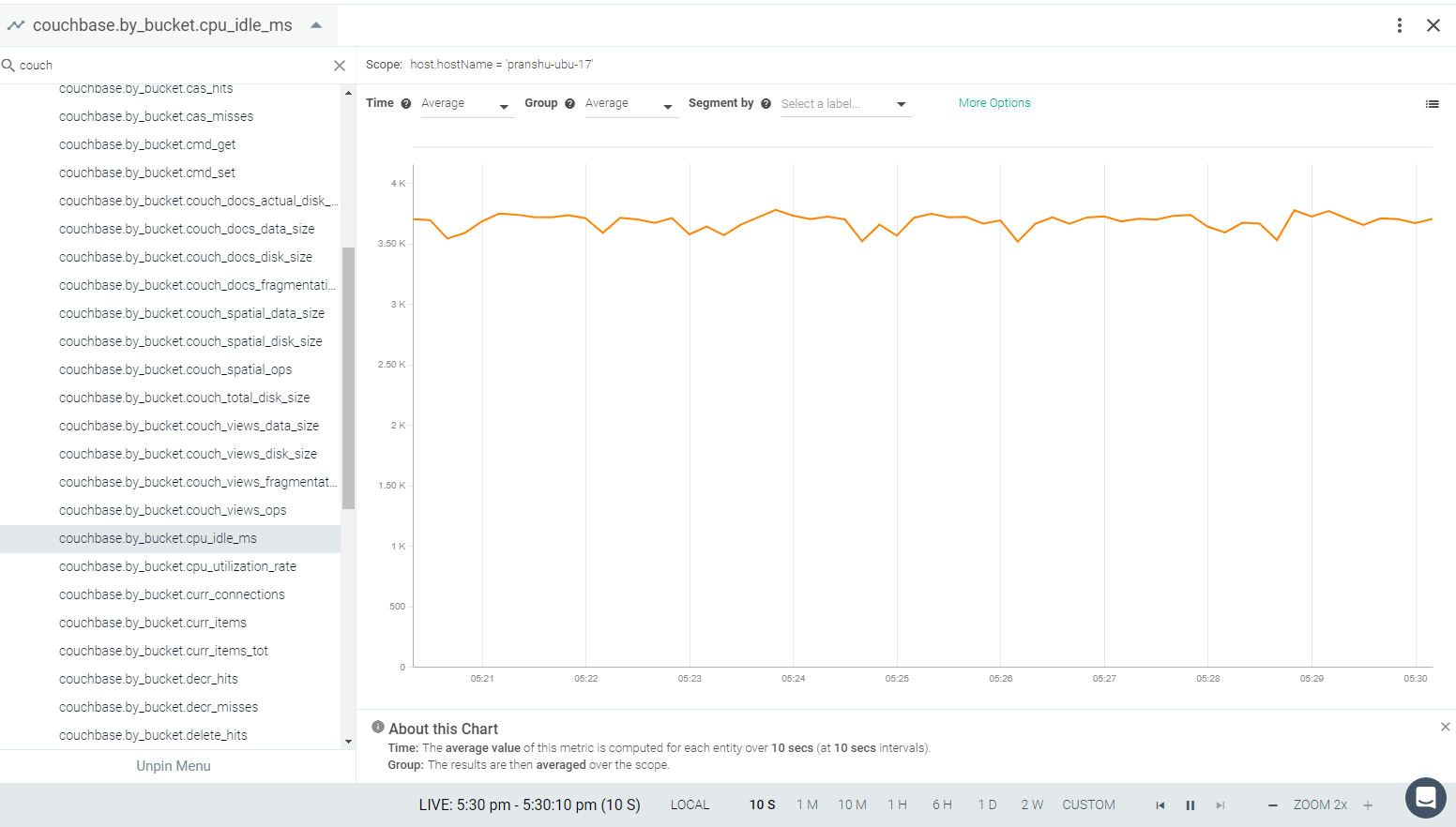
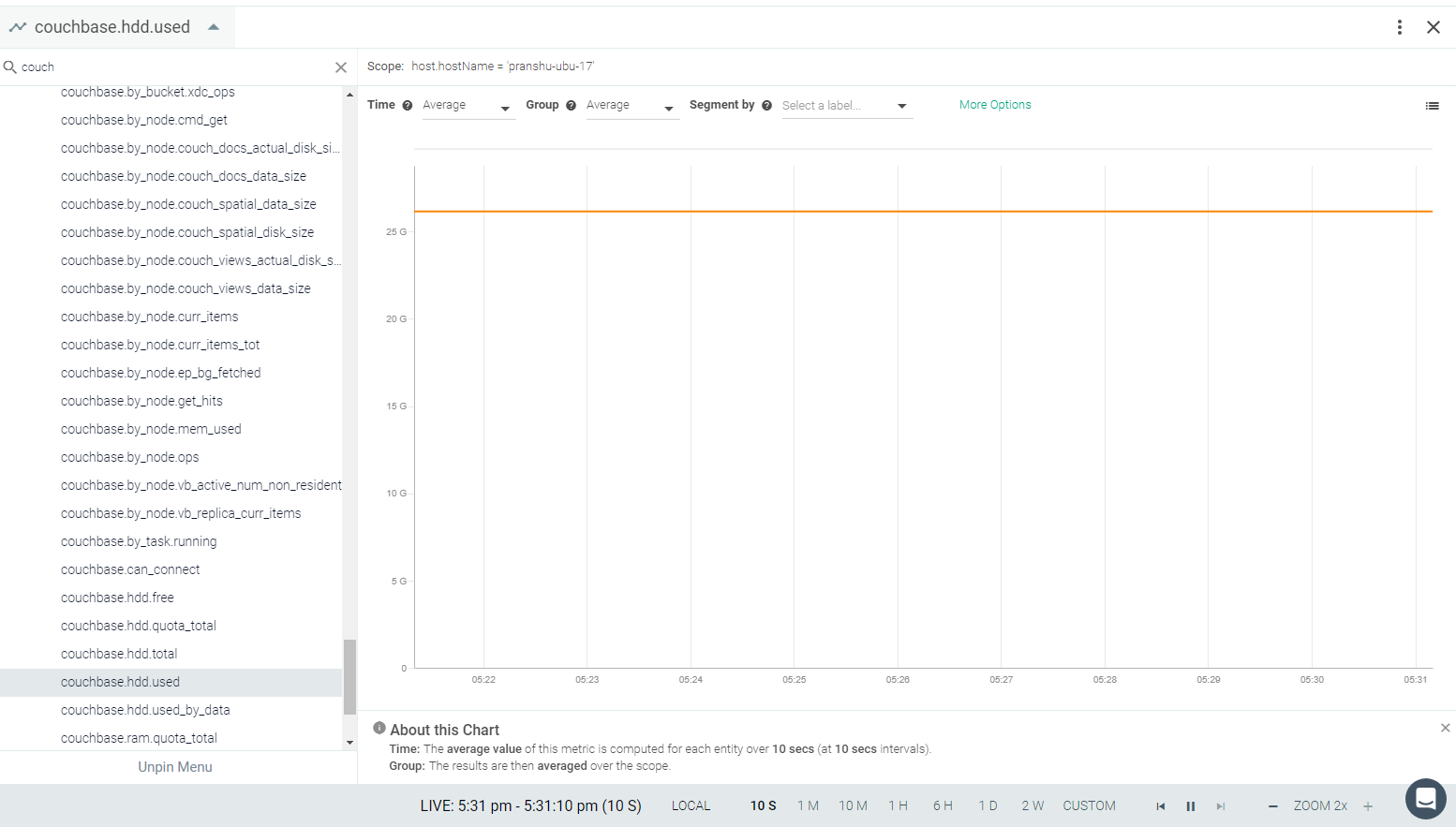
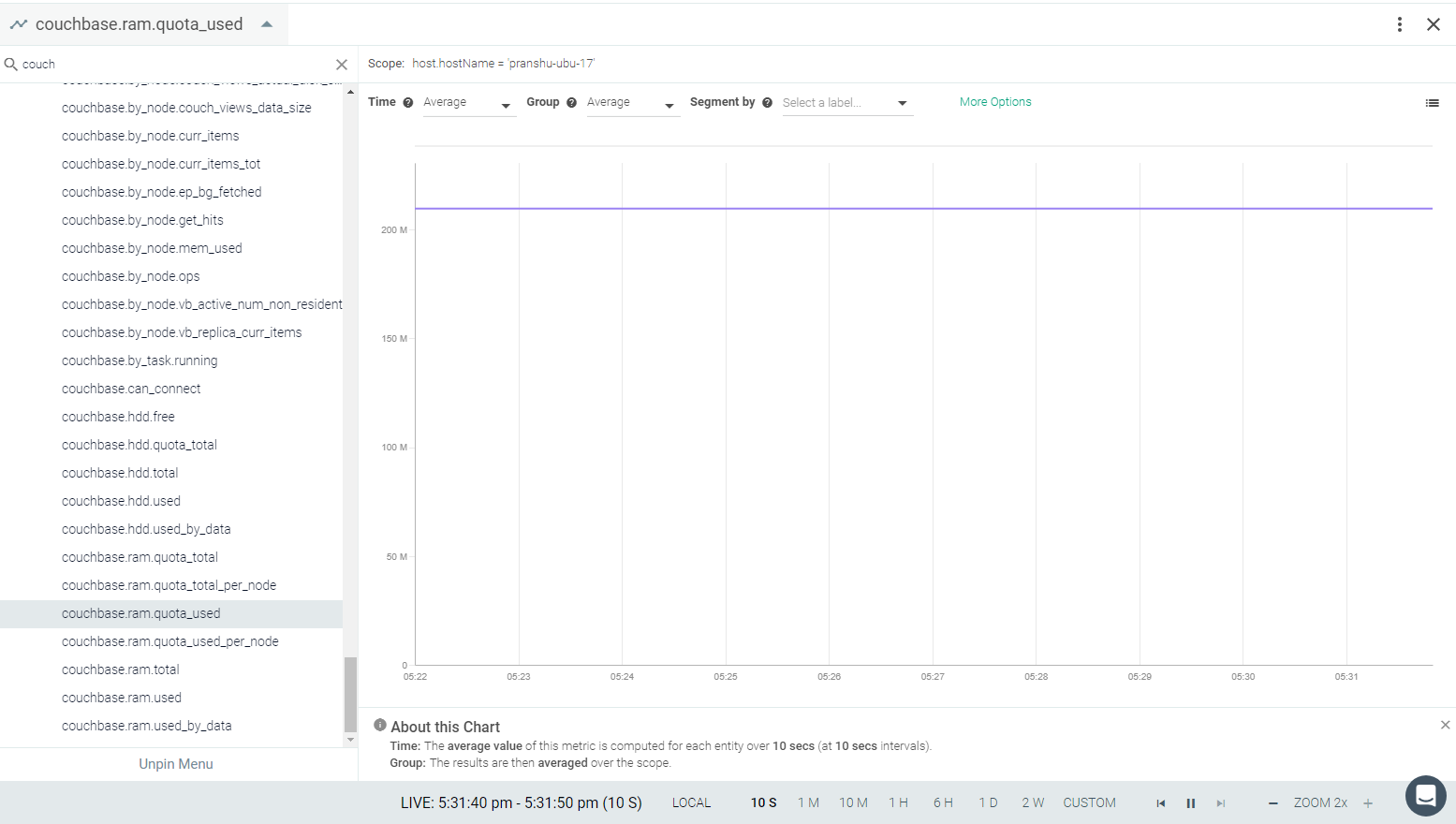
query_monitoring_url: http://localhost:8093See Couchbase Metrics.
 |
 |
 |
 |
Elasticsearch
Elasticsearch is an open-source, distributed, document storage and search engine that stores and retrieves data structures in near real-time.Elasticsearch represents data in the form of structured JSON documents, and makes full-text search accessible via RESTful API and web clients for languages like PHP, Python, and Ruby. It’s also elastic in the sense that it’s easy to scale horizontally—simply add more nodes to distribute the load. If Elasticsearch is installed on your environment, the Sysdig agent willautomatically connect in most of the cases. See Default Configuration.
The Sysdig Agent automatically collects default metrics. You can also edit the configuration to collect Primary Shard stats.
This page describes the default configuration settings, how to edit the configuration to collect additional information, the metrics available for integration, and a sample result in the Sysdig Monitor UI.
Elasticsearch is ready to expose metrics without any special configuration.
Review how to Edit dragent.yaml to Integrate or Modify Application Checks.
By default, Sysdig's dragent.default.yaml uses the following code to connect with Elasticsearch and collect basic metrics.
app_checks:
  - name: elasticsearch
    check_module: elastic
    pattern:
      port: 9200
      comm: java
    conf:
      url: http://localhost:9200
For more metrics, you may need to change the elasticsearch default setting in dragent.yaml:
Warning
Remember! Never edit dragent.default.yaml directly; always edit only dragent.yaml.
app_checks:
  - name: elasticsearch
    check_module: elastic
    pattern:
      port: 9200
      comm: java
    conf:
      url: http://localhost:9200
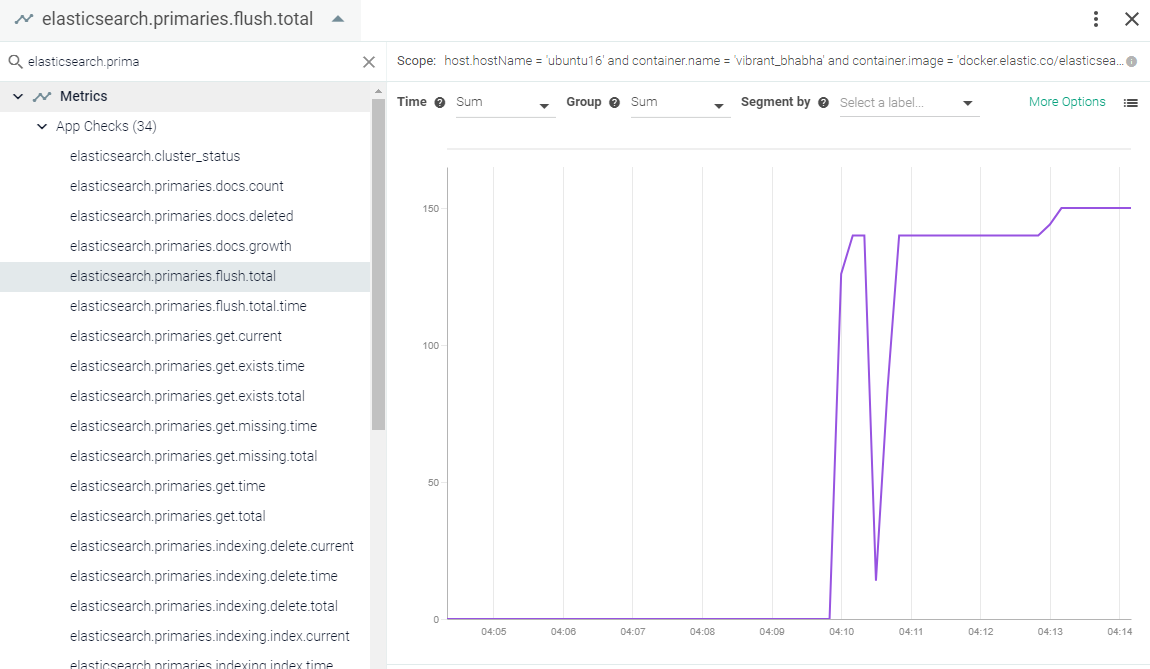
pshard_stats : trueEnable pshard_stats to monitor the following additional metrics:
Metric Name |
|---|
elasticsearch.primaries.flush.total |
elasticsearch.primaries.flush.total.time |
elasticsearch.primaries.docs.count |
elasticsearch.primaries.docs.deleted |
elasticsearch.primaries.get.current |
elasticsearch.primaries.get.exists.time |
elasticsearch.primaries.get.exists.total |
elasticsearch.primaries.get.missing.time |
elasticsearch.primaries.get.missing.total |
elasticsearch.primaries.get.time |
elasticsearch.primaries.get.total |
elasticsearch.primaries.indexing.delete.current |
elasticsearch.primaries.indexing.delete.time |
elasticsearch.primaries.indexing.delete.total |
elasticsearch.primaries.indexing.index.current |
elasticsearch.primaries.indexing.index.time |
elasticsearch.primaries.indexing.index.total |
elasticsearch.primaries.merges.current |
elasticsearch.primaries.merges.current.docs |
elasticsearch.primaries.merges.current.size |
elasticsearch.primaries.merges.total |
elasticsearch.primaries.merges.total.docs |
elasticsearch.primaries.merges.total.size |
elasticsearch.primaries.merges.total.time |
elasticsearch.primaries.refresh.total |
elasticsearch.primaries.refresh.total.time |
elasticsearch.primaries.search.fetch.current |
elasticsearch.primaries.search.fetch.time |
elasticsearch.primaries.search.fetch.total |
elasticsearch.primaries.search.query.current |
elasticsearch.primaries.search.query.time |
elasticsearch.primaries.search.query.total |
elasticsearch.primaries.store.size |
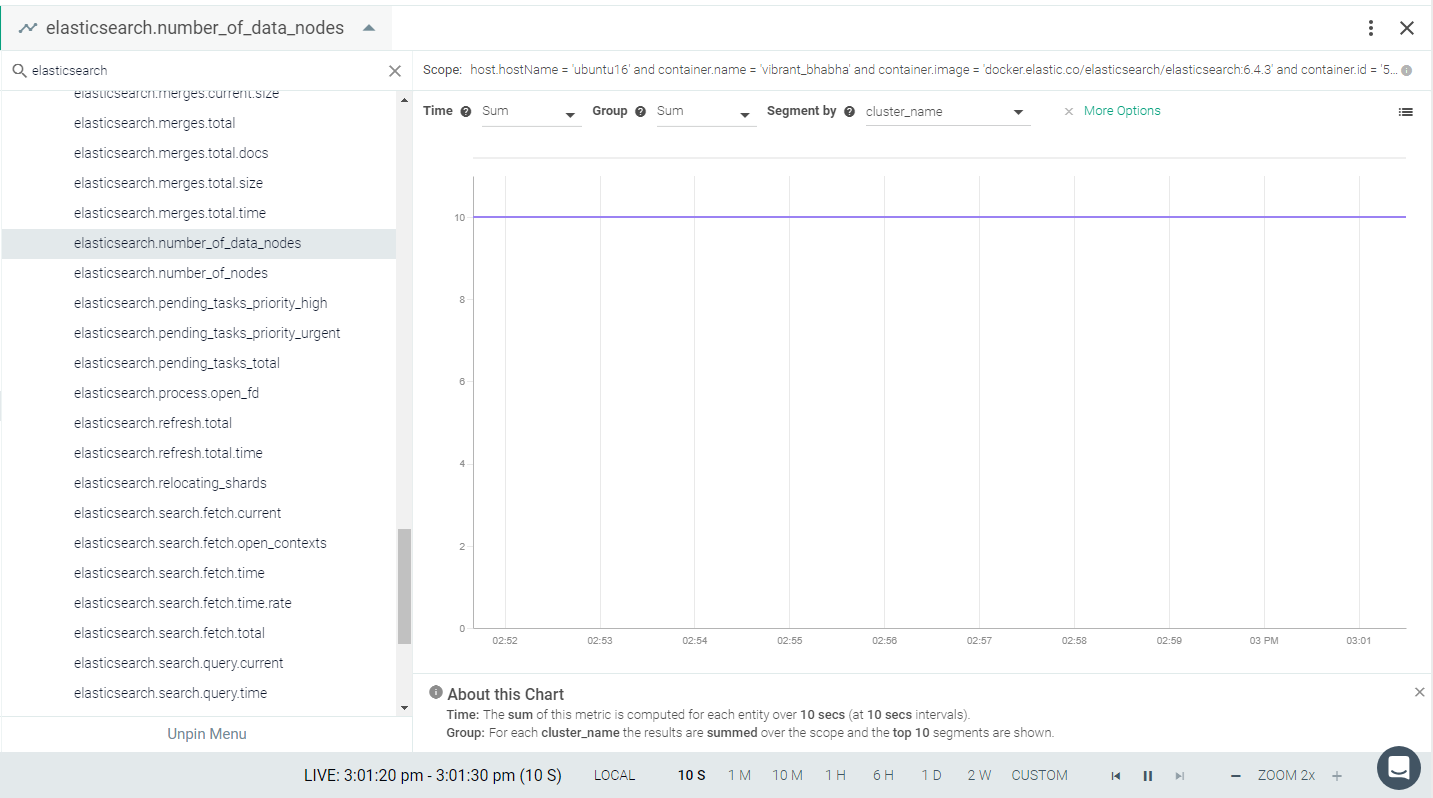
With the default settings and the pshard setting, the total available metrics are listed here: Elasticsearch Metrics.
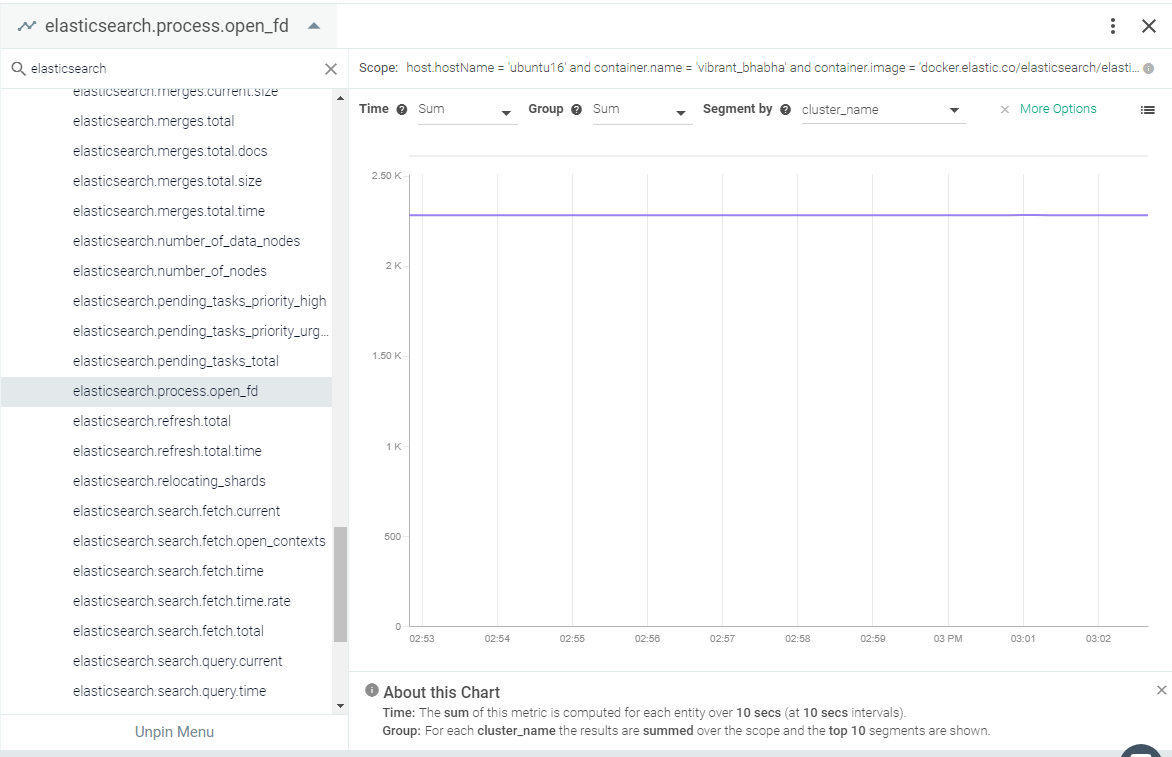
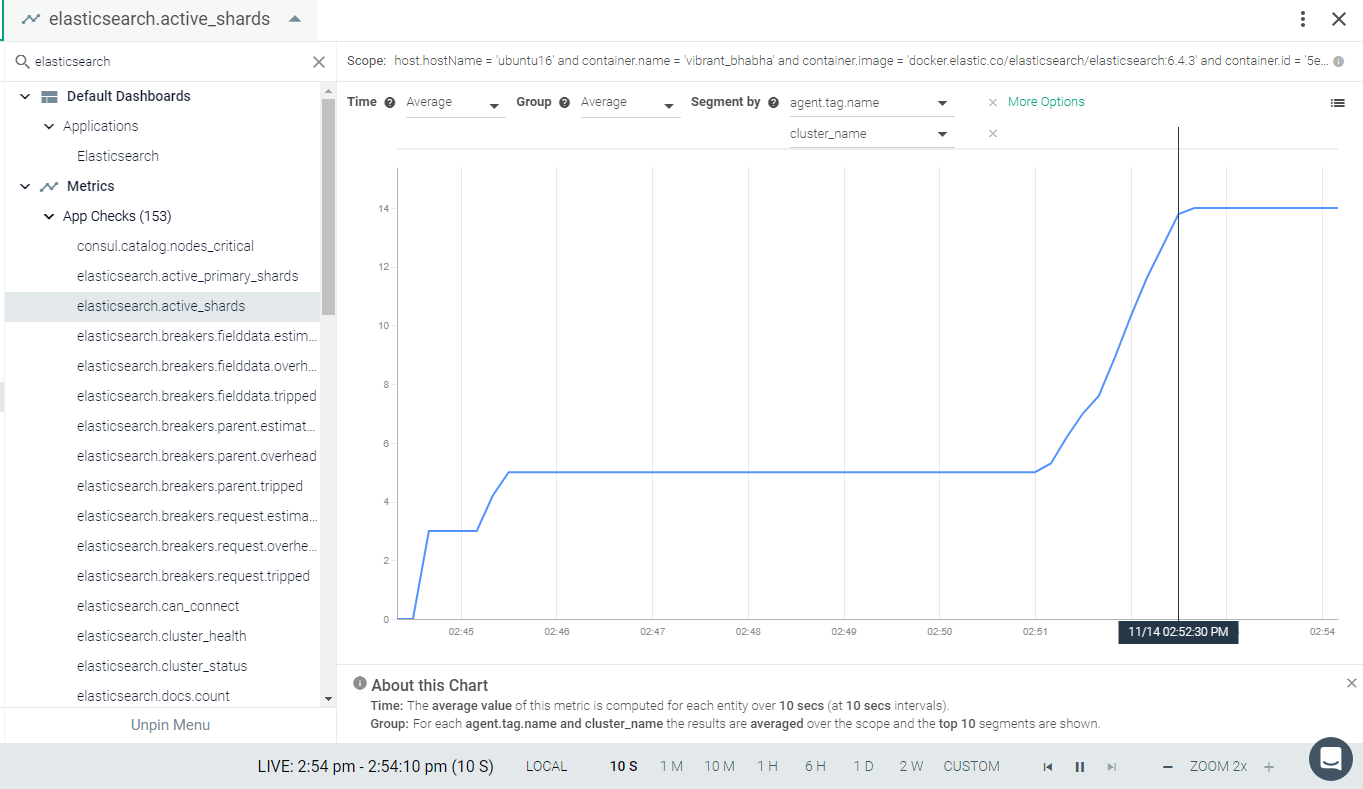
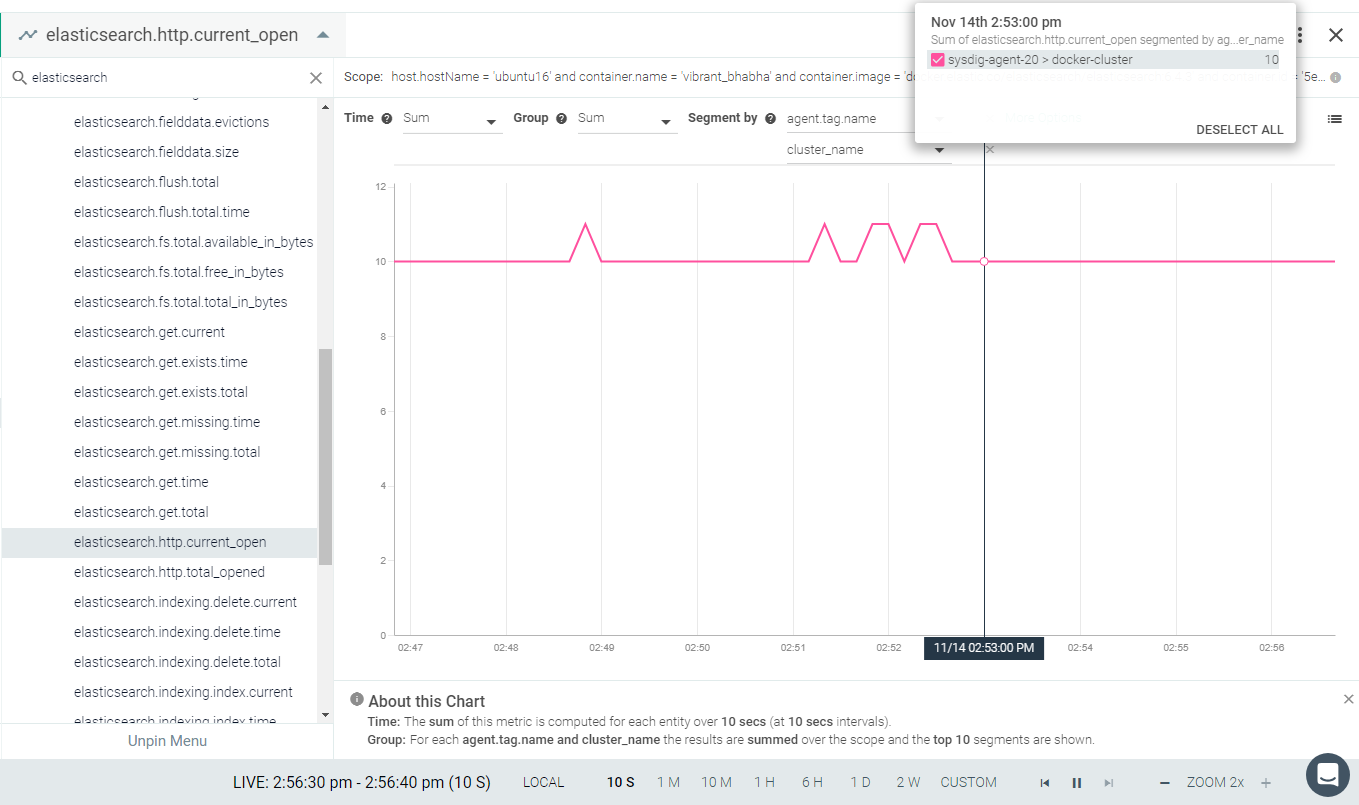 |
 |
 |
 |
 |
etcd
etcdis a distributed key-value store that provides a reliable way to store data across a cluster of machines. If etcd is installed on your environment, the Sysdig agent will automatically connect. If you are using ectd older than version 2, you may need to edit the default entries to connect. See Default Configuration.
The Sysdig Agent automatically collects all metrics.
This page describes the default configuration settings, how to edit the configuration to collect additional information, the metrics available for integration, and a sample result in the Sysdig Monitor UI.
etcd will automatically expose all metrics. You do not need to add anything to the etcd instance.
Review how to Edit dragent.yaml to Integrate or Modify Application Checks.
The default agent configuration for etcd will look for the application on localhost, port 2379. No customization is required.
By default, Sysdig's dragent.default.yaml uses the following code to connect with etcd and collect all metrics.
app_checks:
  - name: etcd
    pattern:
      comm: etcd
    conf:
      url: "http://localhost:2379"
etcd (before version 2) does not listen on localhost, so the Sysdig agent will not connect to it automatically. In such case, you may need edit the dragent.yaml file with the hostname and port. See Example 1.
Alternatively, you can add the option -bind-addr 0.0.0.0:4001 to the etcd command line to allow the agent to connect.
Warning
Remember! Never edit dragent.default.yaml directly; always edit only dragent.yaml.
You can use {hostname} and {port} as a tokens in the conf: section. This is the recommended setting for Kubernetes customers.
app_checks:
  - name: etcd
    pattern:
      comm: etcd
    conf:
      url: "http://{hostname}:{port}"
Alternatively you can specify the real hostname and port.
app_checks:
  - name: etcd
    pattern:
      comm: etcd
    conf:
url: "http://my_hostname:4000" #etcd service listening on port 4000If encryption is used, add the appropriate SSL/TLS entries. Provide correct path of SSL/TLS key and certificates used in etcd configuration in fields ssl_keyfile, ssl_certfile, ssl_ca_certs.
app_checks:
  - name: etcd
    pattern:
      comm: etcd
    conf:
      url: "https://localhost:PORT"
      ssl_keyfile:  /etc/etcd/peer.key  # Path to key file
      ssl_certfile: /etc/etcd/peer.crt  # Path to SSL certificate
      ssl_ca_certs: /etc/etcd/ca.crt    # Path to CA certificate
ssl_cert_validation: TrueSee etcd Metrics.
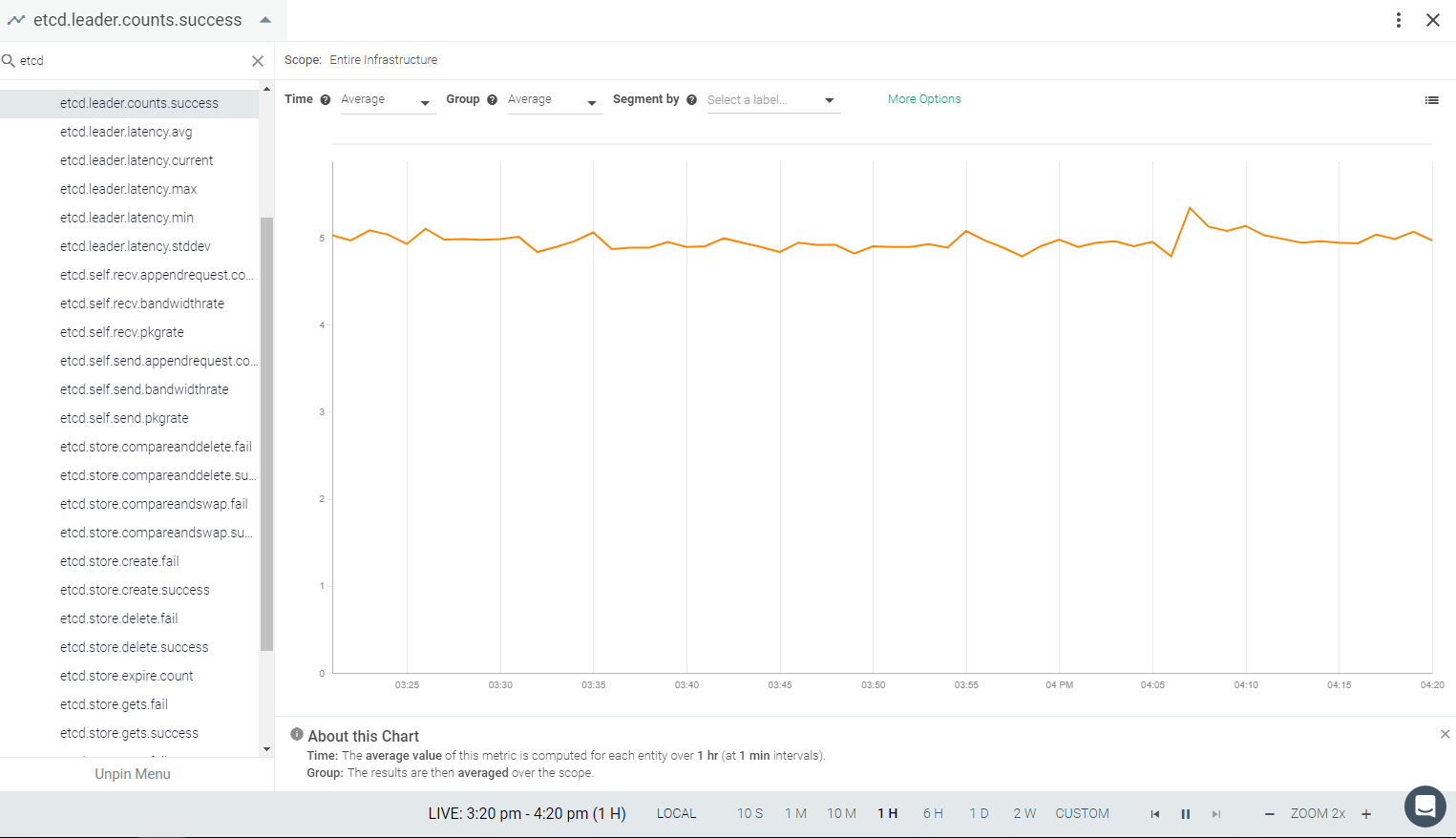 |
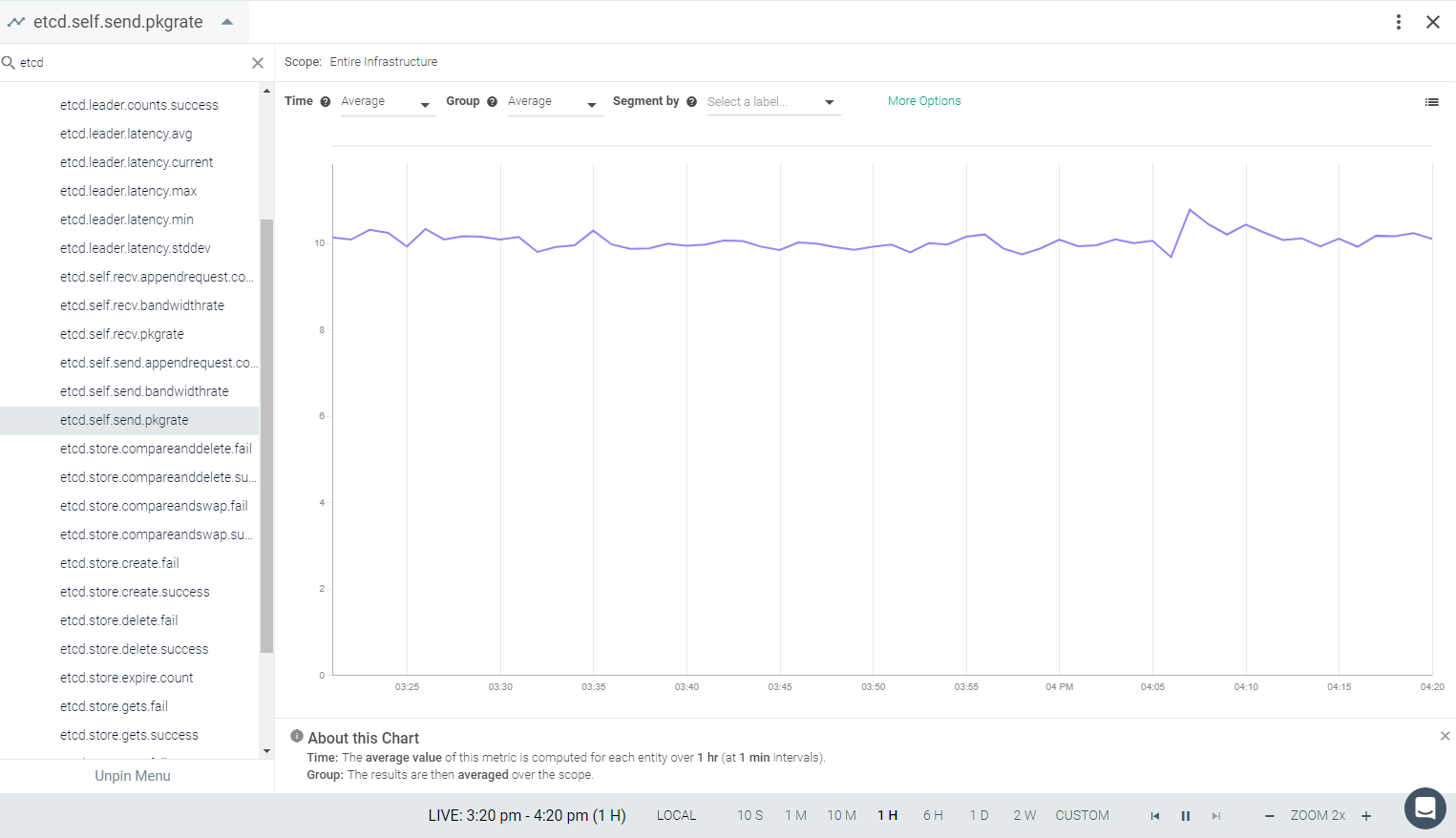 |
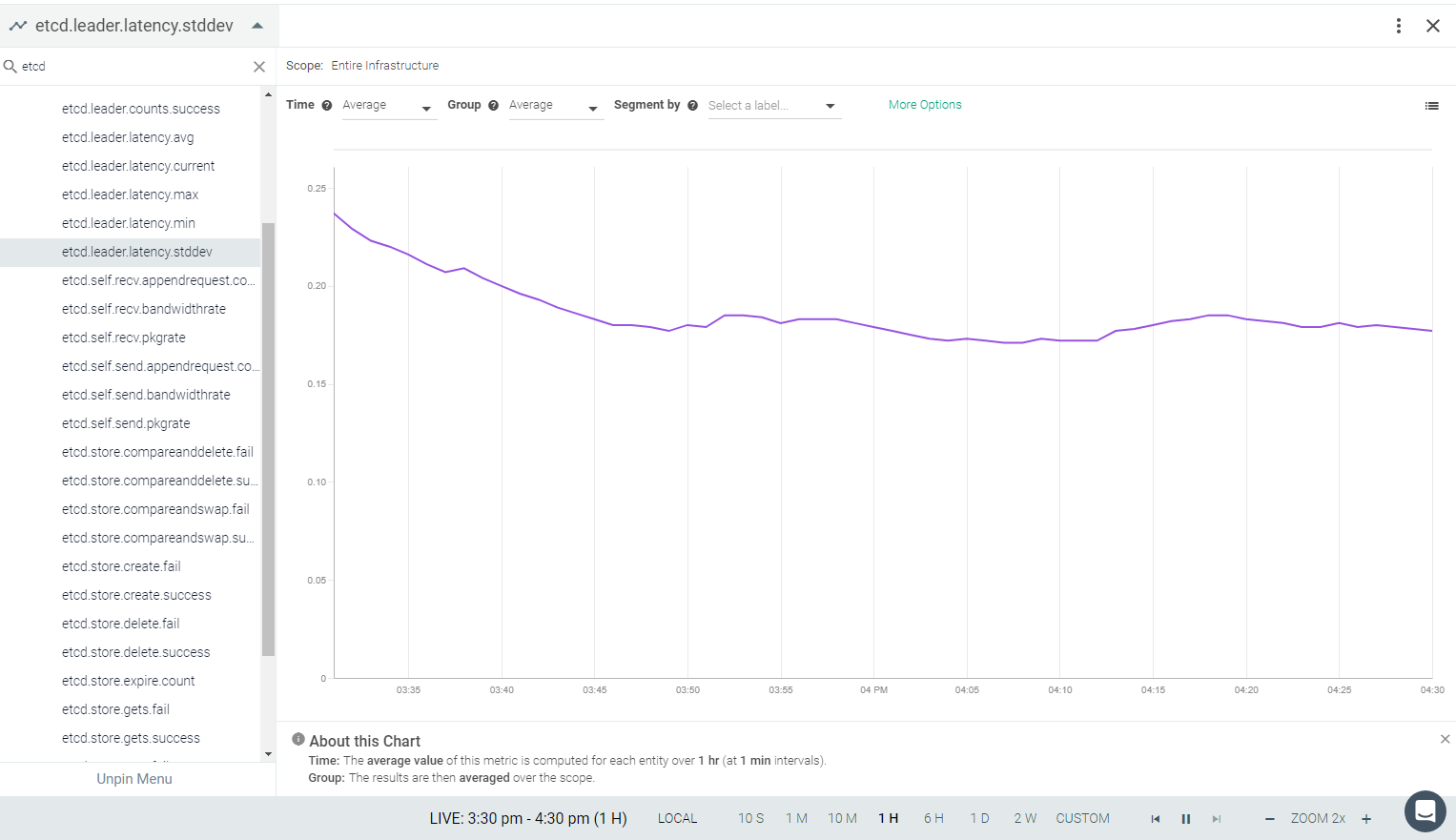 |
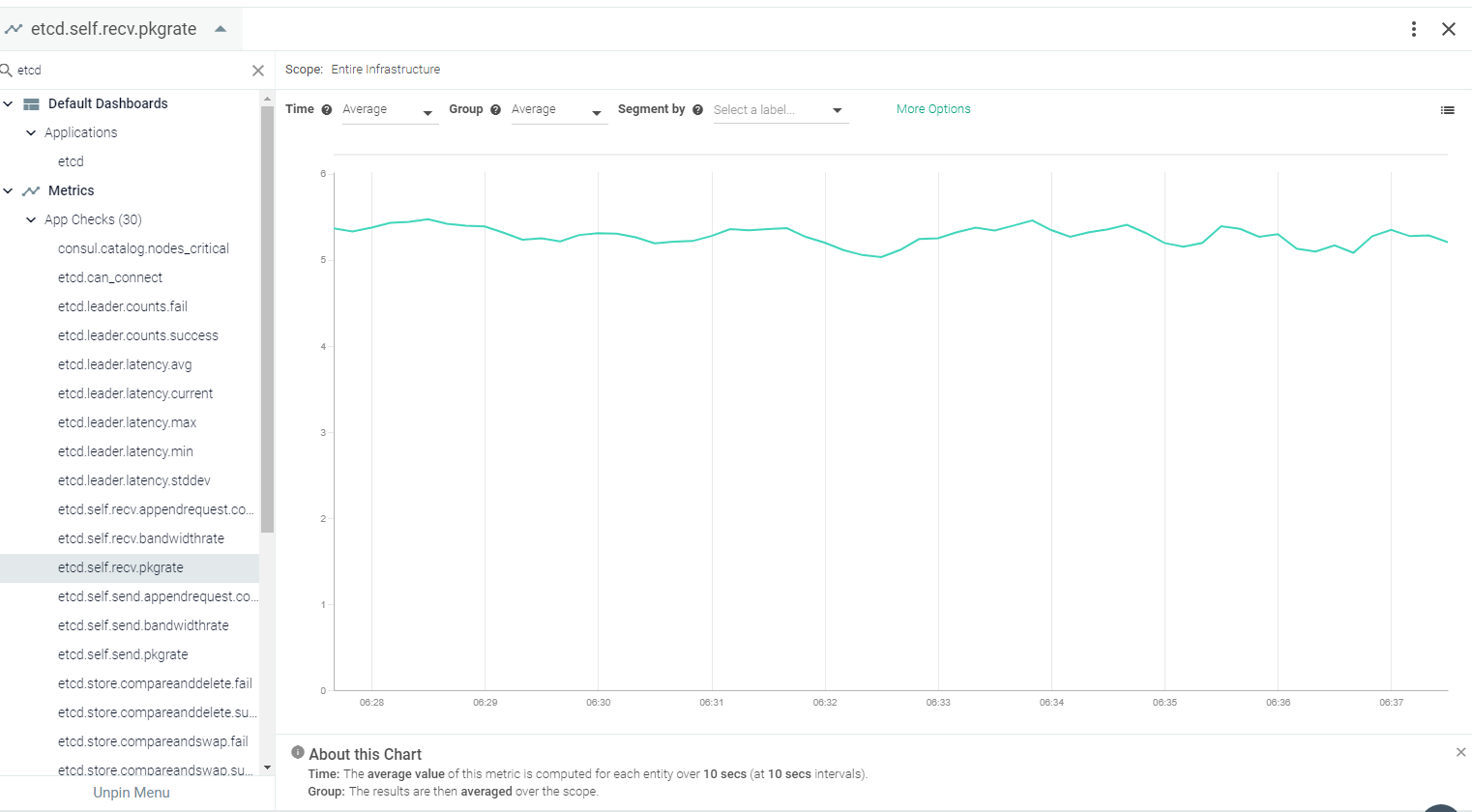 |
fluentd
Fluentd is an open source data collector, which allows unifying data collection and consumption to better use and understand data. Fluentd structures data as JSON as much as possible, to unify all facets of processing log data: collecting, filtering, buffering, and outputting logs across multiple sources and destinations. If Fluentd is installed on your environment, the Sysdig agent will automatically connect. See Default Configuration. The Sysdig agent automatically collects default metrics.
This page describes the default configuration settings, how to edit the configuration to collect additional information, the metrics available for integration, and a sample result in the Sysdig Monitor UI.
Fluentd can be installed as a package (.deb, .rpm, etc) depending on the OS flavor, or it can be deployed in a Docker container. Fluentd installation is documented here. For the examples on this page, a .deb package installation is used.
After installing Fluentd, add following lines in fluentd.conf :
<source>
  @type monitor_agent
  bind 0.0.0.0
  port 24220
</source>
Review how to Edit dragent.yaml to Integrate or Modify Application Checks.
By default, Sysdig'sdragent.default.yaml uses the following code to connect with Fluentd and collect default metrics.
(If you use a non-standard port for monitor_agent , you can configure it as usual in the agent config file dragent.yaml.)
  - name: fluentd
    pattern:
      comm: fluentd
    conf:
      monitor_agent_url: http://localhost:24220/api/plugins.json
Warning
Remember! Never edit dragent.default.yaml directly; always edit only dragent.yaml.
To generate the metric data, it is necessary to generate some logs through an application. In the following example, HTTP is used. (For more information, see Life of a Fluentd event.)
Execute following command on in the Fluentd environment:
$ curl -i -X POST -d 'json={"action":"login","user":2}' http://localhost:8888/test.cycleExpected output: (Note: Here the status code is 200 OK, as HTTP traffic is successfully generated; it will vary per application.)
HTTP/1.1 200 OK
Content-type: text/plain
Connection: Keep-Alive
Content-length: 0
Metrics Available
See fluentd Metrics.
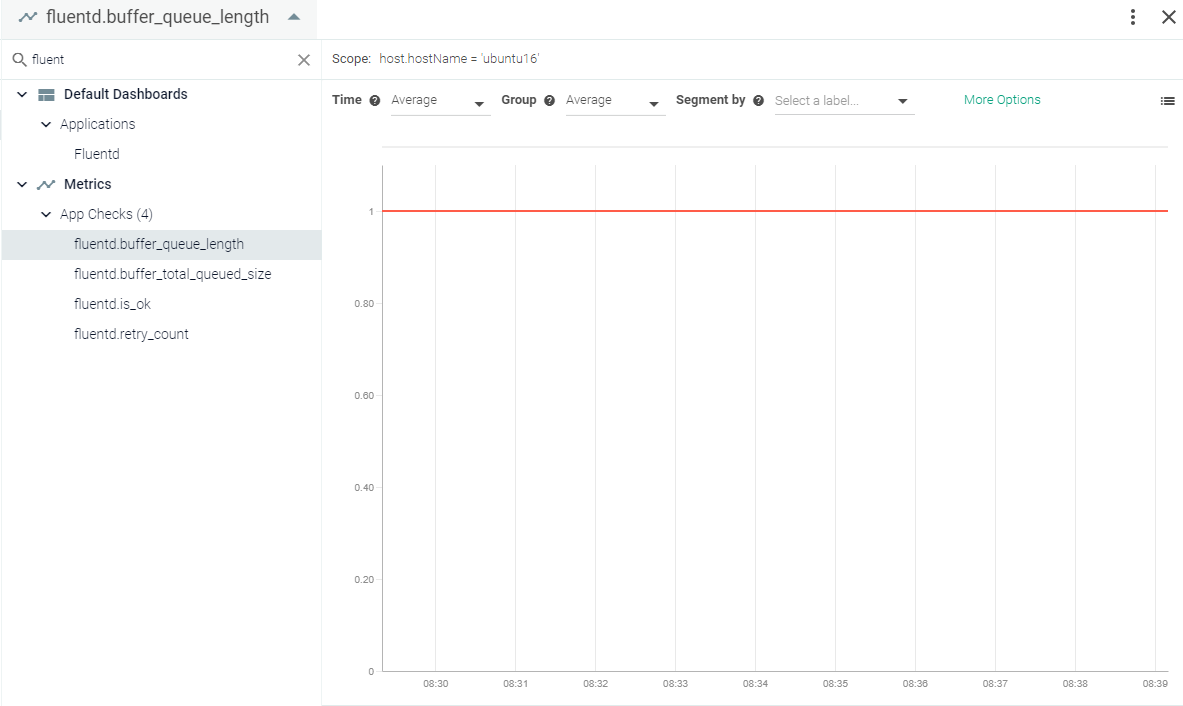 |
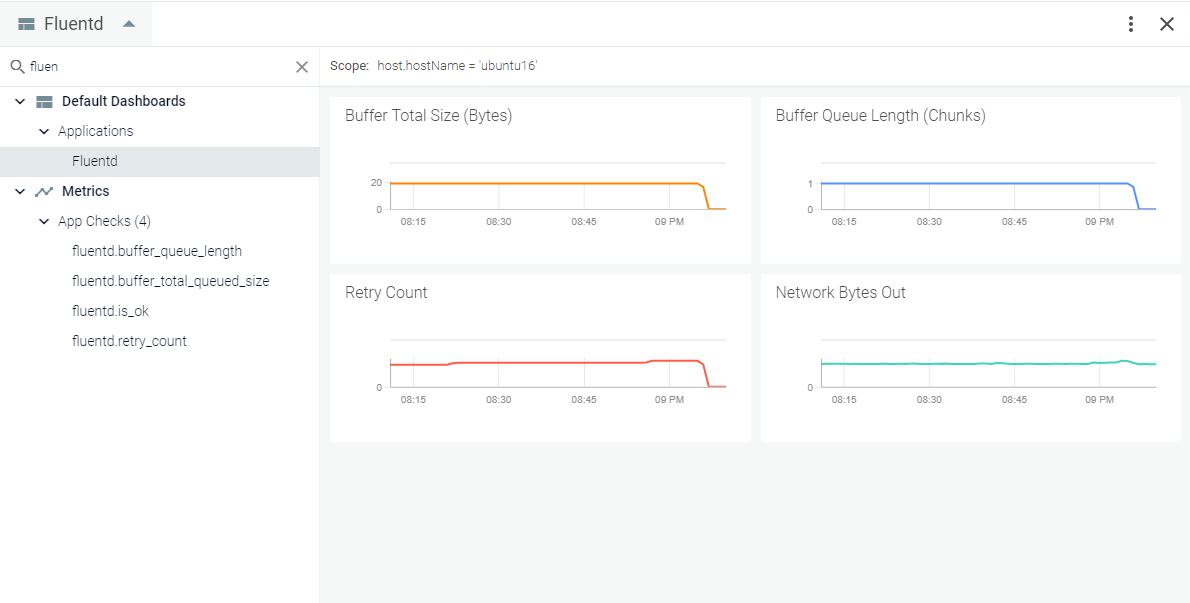 |
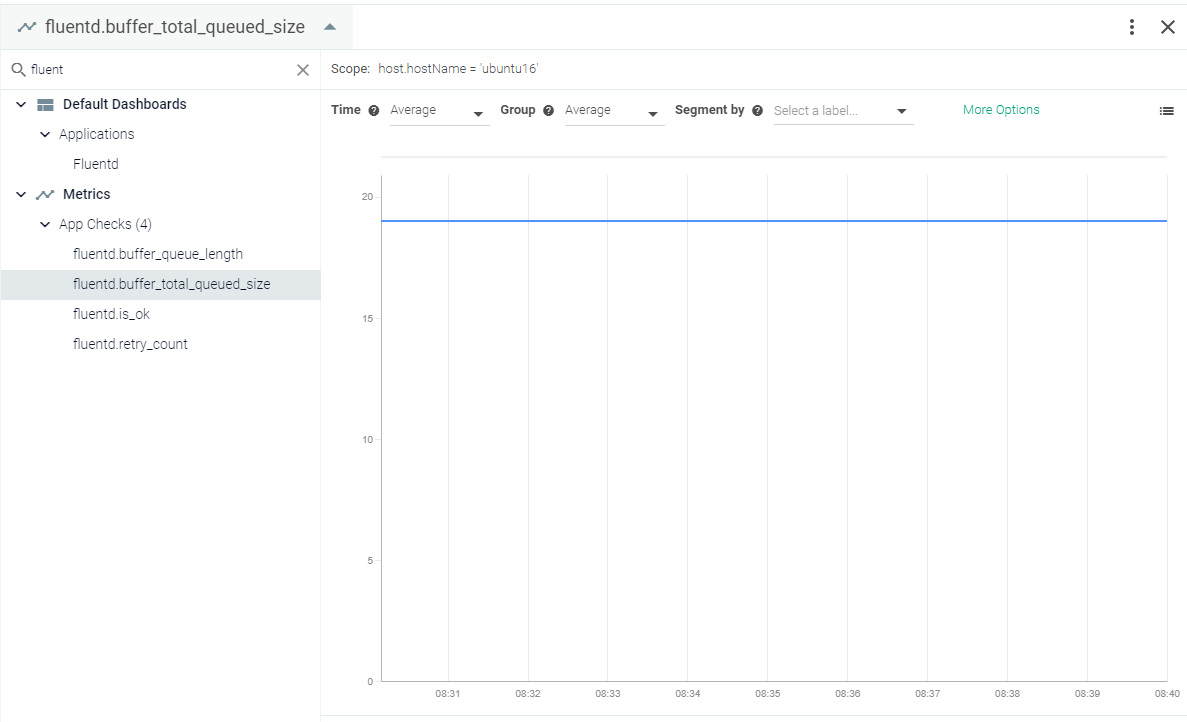 |
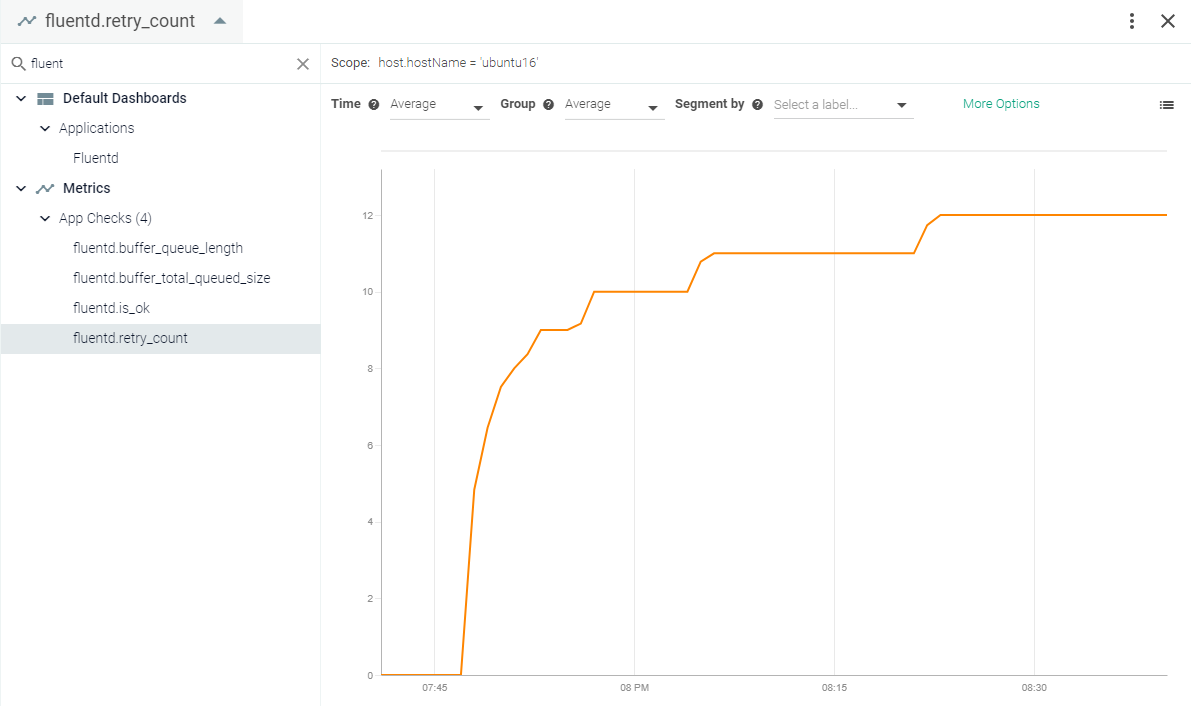 |
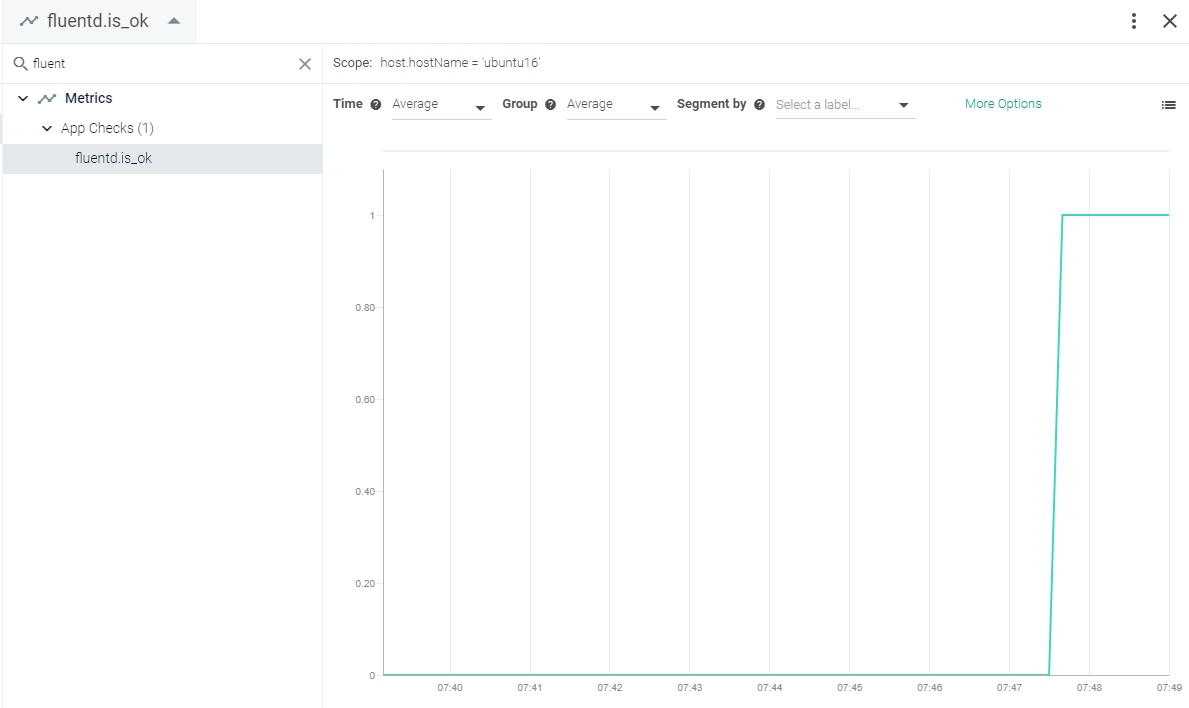 |
Go
Golang expvaris the standard interface designed to instrument and expose custom metrics from a Go program via HTTP. In addition to custom metrics, it also exports some metrics out-of-the-box, such as command line arguments, allocation stats, heap stats, and garbage collection metrics.
This page describes the default configuration settings, how to edit the configuration to collect additional information, the metrics available for integration, and a sample result in the Sysdig Monitor UI.
You will need to create a custom entry in the user settings config file for your Go application, due to the difficulty in determining if an application is written in Go by looking at process names or arguments. Be sure your app has expvars enabled, which means importing the expvar module and having an HTTP server started from inside your app, as follows:
import (
    ...
    "net/http"
    "expvar"
    ...
)

// If your application has no http server running for the DefaultServeMux,
// you'll have to have a http server running for expvar to use, for example
// by adding the following to your init function
func init() {
    go http.ServeAndListen(":8080", nil)
}

// You can also expose variables that are specific to your application
// See http://golang.org/pkg/expvar/ for more information

var (
    exp_points_processed = expvar.NewInt("points_processed")
)

func processPoints(p RawPoints) {
    points_processed, err := parsePoints(p)
    exp_points_processed.Add(points_processed)
    ...
}
See also the following blog entry: How to instrument Go code with custom expvar metrics.
Sysdig Agent Configuration
Review how to Edit dragent.yaml to Integrate or Modify Application Checks.
No default configuration for Go is provided in the Sysdig agent dragent.default.yaml file. You must edit the agent config file as described in Example 1.
Warning
Remember! Never edit dragent.default.yaml directly; always edit only dragent.yaml.
Add the following code sample to dragent.yaml to collect Go metrics.
app_checks:
  - name: go-expvar
    check_module: go_expvar
    pattern:
          comm: go-expvar
    conf:
      expvar_url: "http://localhost:8080/debug/vars" # automatically match url using the listening port
      # Add custom metrics if you want
      metrics:
        - path: system.numberOfSeconds
          type: gauge # gauge or rate
          alias: go_expvar.system.numberOfSeconds
        - path: system.lastLoad
          type: gauge
          alias: go_expvar.system.lastLoad
        - path: system.numberOfLoginsPerUser/.* # You can use / to get inside the map and use .* to match any record inside
          type: gauge
        - path: system.allLoad/.*
type: gaugeSee Go Metrics.
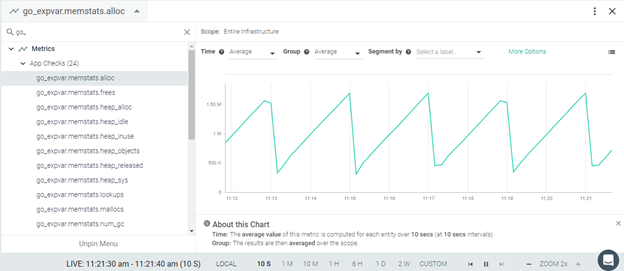 |
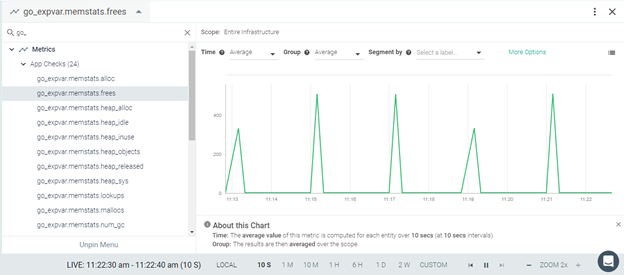 |
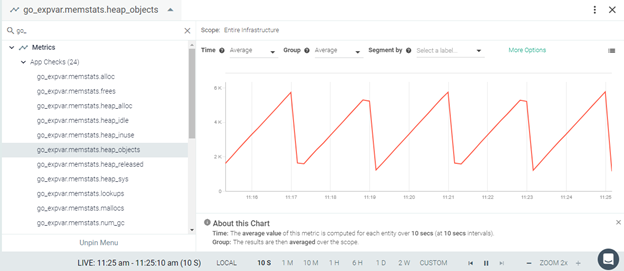 |
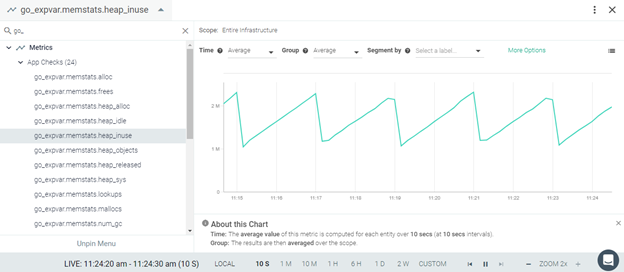 |
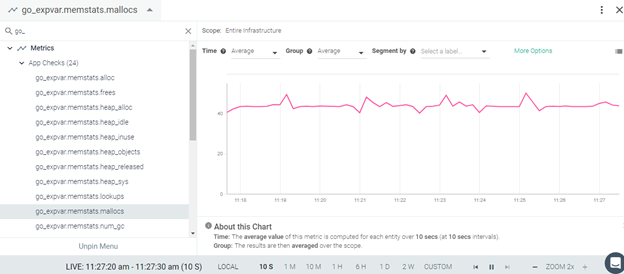 |
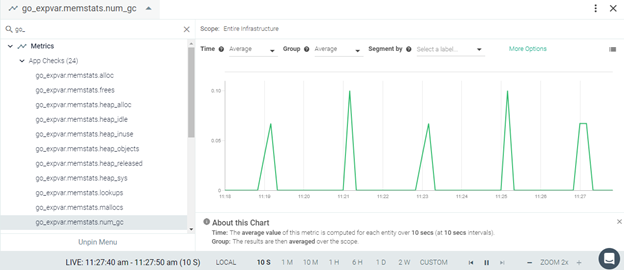 |
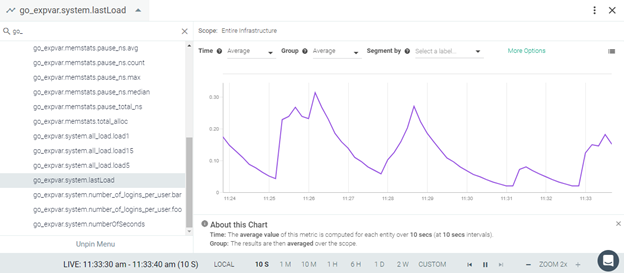 |
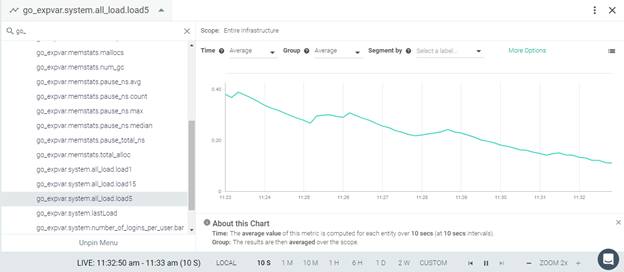 |
HAProxy
HAProxy provides a high-availability load balancer and proxy server for TCP- and HTTP-based applications which spreads requests across multiple servers.
The Sysdig agent automatically collects haproxy metrics. You can also edit the agent configuration file to collect additional metrics.
This page describes the default configuration settings, how to edit the configuration to collect additional information, the metrics available for integration, and a sample result in the Sysdig Monitor UI.
The stats feature must be enabled on your HAProxy instance. This can be done by adding the following entry to the HAProxy configuration file /etc/haproxy/haproxy.cfg
listen stats
  bind :1936
  mode http
  stats enable
  stats hide-version
  stats realm Haproxy\ Statistics
  stats uri /haproxy_stats
  stats auth stats:stats
Review how to Edit dragent.yaml to Integrate or Modify Application Checks.
By default, Sysdig's dragent.default.yaml uses the following code to connect with HAProxy and collect haproxy metrics:
app_checks:
  - name: haproxy
    pattern:
      comm: haproxy
      port: 1936
    conf:
      username: stats
      password: stats
      url: http://localhost:1936/
      collect_aggregates_only: True
    log_errors: false
You can get a few additional status metrics by editing the configuration in dragent.yaml,as in the following examples.
Warning
Remember! Never edit dragent.default.yaml directly; always edit only dragent.yaml
Enable the collect_status_metrics flag to collect the metrics haproxy.count_per_status, and haproxy.backend_hosts.
app_checks:
  - name: haproxy
    pattern:
      comm: haproxy
      port: 1936
    conf:
      username: stats
      password: stats
      url: http://localhost:1936/haproxy_stats
      collect_aggregates_only: True
      collect_status_metrics: True
    log_errors: false
Example 2 Collect Status Metrics Per Host
Enable:
collect_status_metrics_by_host:Instructs the check to collect status metrics per host, instead of per service. This only applies if`collect_status_metrics`istrue.tag_service_check_by_host:When this flag is set, the hostname is also passed with the service check 'haproxy.backend_up'.By default, only the backend name and service name are associated with it.
app_checks:
  - name: haproxy
    pattern:
      comm: haproxy
      port: 1936
    conf:
      username: stats
      password: stats
      url: http://localhost:1936/haproxy_stats
      collect_aggregates_only: True
      collect_status_metrics: True
      collect_status_metrics_by_host: True
      tag_service_check_by_host: True
log_errors: falseIf you’ve configured HAProxy to report statistics to a UNIX socket, you can set the url in dragent.yaml to the socket’s path (e.g., unix:///var/run/haproxy.sock).
Edit your HAProxy configuration file ( /etc/haproxy/haproxy.cfg ) to add the following lines to the global section:
global
    [snip]
       stats socket /run/haproxy/admin.sock mode 660 level admin
       stats timeout 30s
[snip]Add the socket URL from the HAProxy config to the dragent.yaml file:
app_checks:
      - name: haproxy
        pattern:
          comm: haproxy
        conf:
          url: unix:///run/haproxy/admin.sock
        log_errors: True
Metrics Available
See HAProxy Metrics.
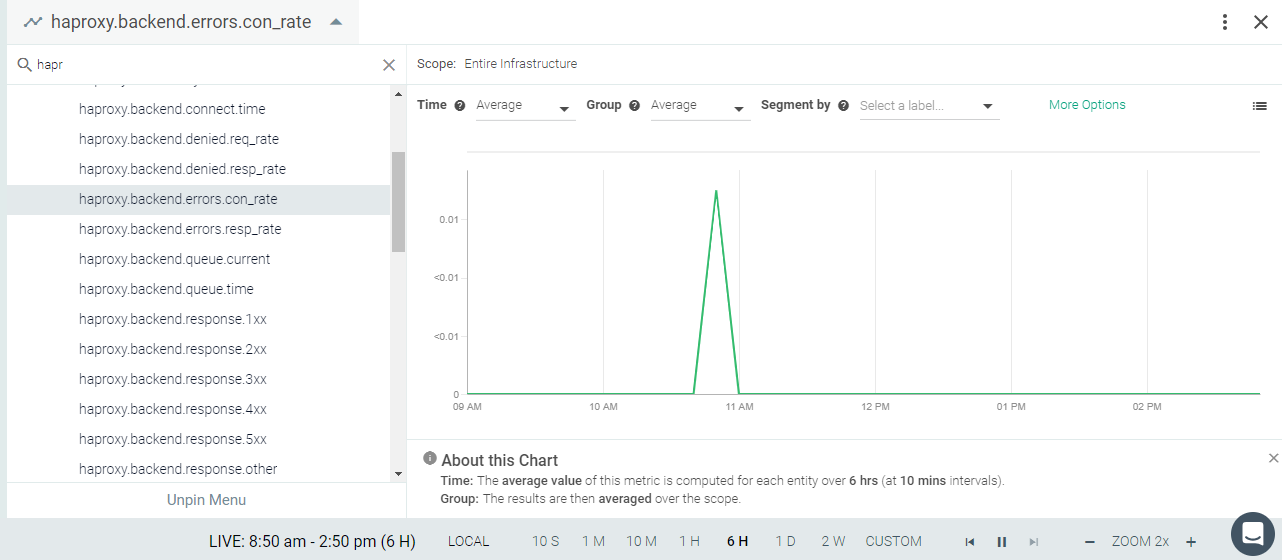 |
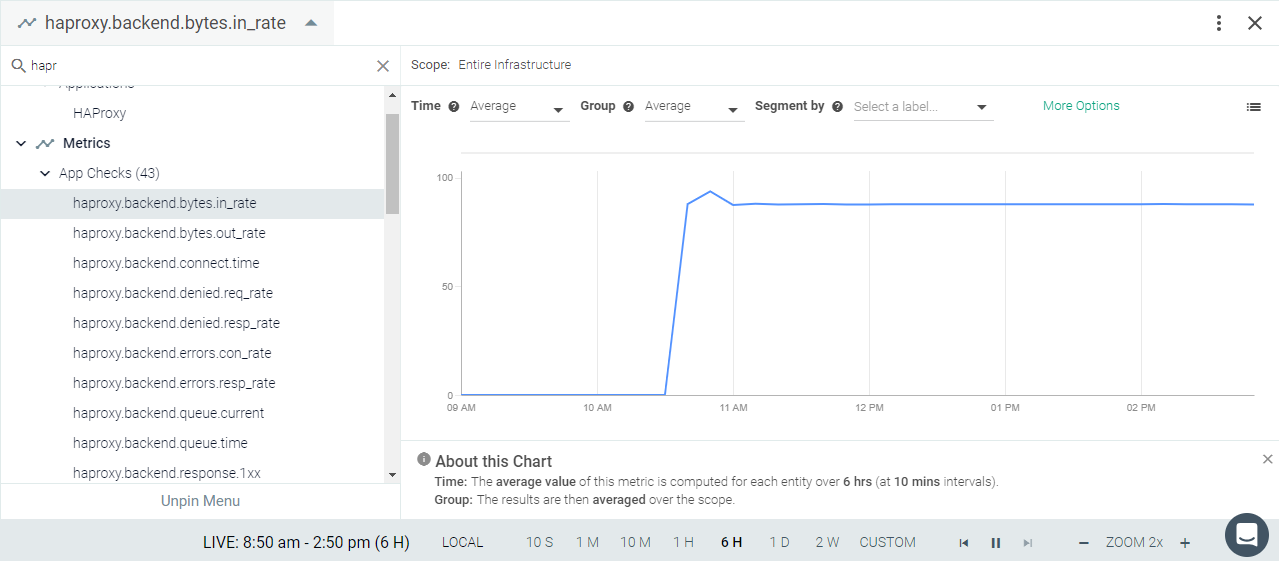 |
 |
 |
 |
 |
HTTP
The HTTP check monitors HTTP-based applications for URL availability.
This page describes the default configuration settings, how to edit the configuration to collect additional information, the metrics available for integration, and a sample result in the Sysdig Monitor UI.
You do not need to configure anything on HTTP-based applications for the Sysdig agent to connect.
Review how to Edit dragent.yaml to Integrate or Modify Application Checks.
No default entry is present in the dragent.default.yaml for the HTTP check. You need to add an entry in dragent.yaml as shown in following examples.
Warning
Remember! Never edit dragent.default.yaml directly; always edit only dragent.yaml.
First you must identify the process pattern (comm:). It must match an actively running process for the HTTP check to work. Sysdig recommends the process be the one that is serving the URL being checked.
If the URL is is remote from the agent, the user should use a process that is always running, such as "systemd".
Confirm the "comm" value using the following command:
cat /proc/1/comm
Add the following entry to the dragent.yaml file and modify the 'name:''comm:' and 'url:' parameters as needed:
app_checks:
  - name: EXAMPLE_WEBSITE
    check_module: http_check
    pattern:
      comm:  systemd
    conf:
url: https://www.MYEXAMPLE.comThere are multiple configuration options available with the HTTP check. A full list is provided in the table following Example 2. These keys should be listed under the conf: section of the configuration in Example 1.
app_checks:
  - name: EXAMPLE_WEBSITE
    check_module: http_check
    pattern:
      comm:  systemd
    conf:
      url: https://www.MYEXAMPLE.com
      # timeout: 1
      #  method: get
      #  data:
      #    <KEY>: <VALUE>
      #  content_match: '<REGEX>''
      #  reverse_content_match: false
      #  username: <USERNAME>
      #  ntlm_domain: <DOMAIN>
      #  password: <PASSWORD>
      #  client_cert: /opt/client.crt
      #  client_key: /opt/client.key
      #  http_response_status_code: (1|2|3)\d\d
      #  include_content: false
      #  collect_response_time: true
      #  disable_ssl_validation: true
      #  ignore_ssl_warning: false
      #  ca_certs: /etc/ssl/certs/ca-certificates.crt
      #  check_certificate_expiration: true
      #  days_warning: <THRESHOLD_DAYS>
      #  check_hostname: true
      #  ssl_server_name: <HOSTNAME>
      #  headers:
      #    Host: alternative.host.example.com
      #    X-Auth-Token: <AUTH_TOKEN>
      #  skip_proxy: false
      #  allow_redirects: true
      #  include_default_headers: true
      #  tags:
      #    - <KEY_1>:<VALUE_1>
      #    - <KEY_2>:<VALUE_2>
Key | Description |
|---|---|
| The URL to test. |
| The time in seconds to allow for a response. |
| The HTTP method. This setting defaults to GET, though many other HTTP methods are supported, including POST and PUT. |
| The data option is only available when using the POST method. Data should be included as key-value pairs and will be sent in the body of the request. |
| A string or Python regular expression. The HTTP check will search for this value in the response and will report as DOWN if the string or expression is not found. |
| When true, reverses the behavior of the |
| If your service uses basic authentication, you can provide the username and password here. |
| A string or Python regular expression for an HTTP status code. This check will report DOWN for any status code that does not match. This defaults to 1xx, 2xx and 3xx HTTP status codes. For example: |
| When set to |
| By default, the check will collect the response time (in seconds) as the metric |
| This setting will skip SSL certificate validation and is enabled by default. If you require SSL certificate validation, set this to |
| When SSL certificate validation is enabled (see setting above), this setting allows you to disable security warnings. |
| This setting allows you to override the default certificate path as specified in |
| When Note that this will cause the SSL certificate to be validated, regardless of the value of the |
| When |
| When |
| This parameter allows you to send additional headers with the request. e.g. |
| If set, the check will bypass proxy settings and attempt to reach the check URL directly. This defaults to |
| This setting allows the service check to follow HTTP redirects and defaults to |
| A list of arbitrary tags that will be associated with the check. |
HTTP metrics concern response time and SSL certificate expiry information.
See HTTP Metrics.
http.can_connect:
Returns DOWN when any of the following occur:
the request to URL times out
the response code is
4xx/5xx,or it doesn’t match the pattern provided in thehttp_response_status_codethe response body does not contain the pattern in
content_matchreverse_content_matchistrueand the response body does contain the pattern incontent_matchURI contains
httpsanddisable_ssl_validationisfalse, and the SSL connection cannot be validatedOtherwise, returns UP.
Segmentation of the http.can_connect can be done by URL.
http.ssl_cert:
The check returns:
DOWN if the URL's certificate has already expired
WARNING if the URL's certificate expires in less than
days_warningdaysOtherwise, returns UP.
To disable this check, set check_certificate_expiration to false.
 |
 |
 |
Jenkins
Jenkins is an open-source automation server which helps to automate part of the software development process, permitting continuous integration and facilitating the technical aspects of continuous delivery. It supports version control tools (such as Subversion, Git, Mercurial, etc), can execute Apache Ant, Apache Maven and SBT-based projects, and allows shell scripts and Windows batch commands. If Jenkins is installed on your environment, the Sysdig agent will automatically connect and collect all Jenkins metrics. See Default Configuration.
This page describes the default configuration settings, the metrics available for integration, and a sample result in the Sysdig Monitor UI.
Requires the standard Jenkins server setup with one or more Jenkins Jobs running on it.
Review how to Edit dragent.yaml to Integrate or Modify Application Checks.
Warning
Remember! Never edit dragent.default.yaml directly; always edit only dragent.yaml.
By default, Sysdig's dragent.default.yaml uses the following code to connect with Jenkins and collect basic metrics.
  - name: jenkins
    pattern:
      comm: java
      port: 50000
    conf:
      name: default
jenkins_home: /var/lib/jenkins #this depends on your environmentThe following metrics will be available only after running one or more Jenkins jobs. They handle queue size, job duration, and job waiting time.
See Jenkins Metrics.
 |
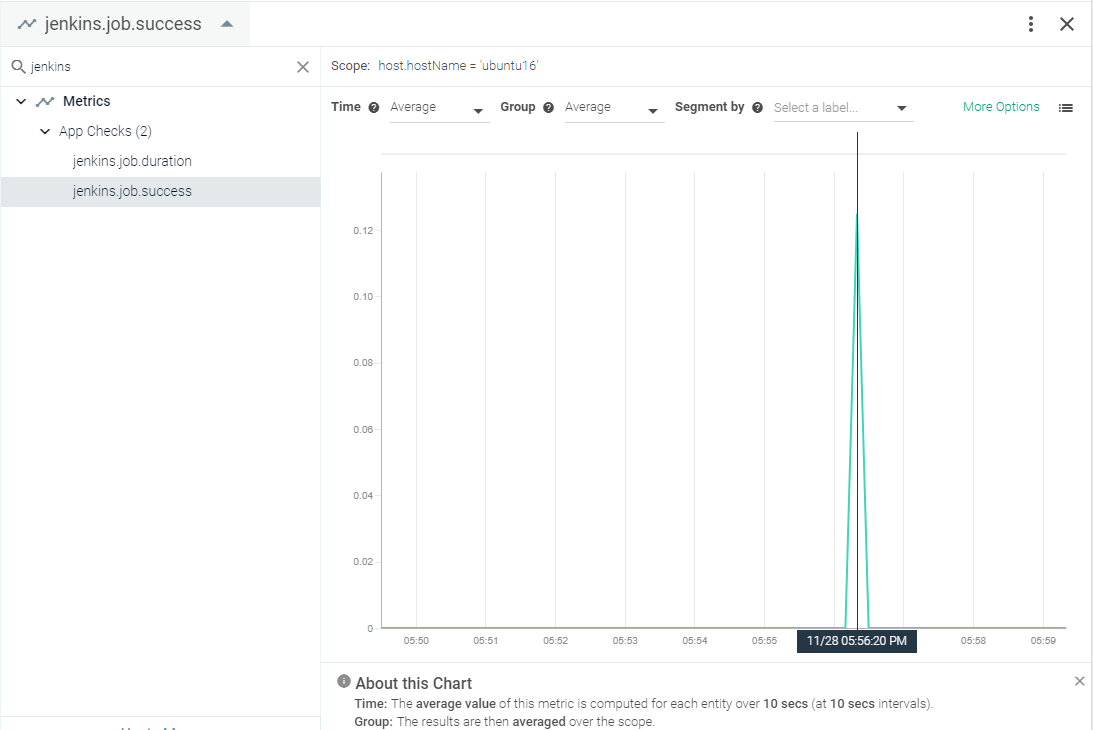 |
Lighttpd
Lighttpd is a secure, fast, compliant, and very flexible web server that has been optimized for high-performance environments. It has a very low memory footprint compared to other web servers and takes care of CPU load. Its advanced feature set (FastCGI, CGI, Auth, Output Compression, URL Rewriting, and many more) make Lighttpd the perfect web server software for every server that suffers load problems. If Lighttpd is installed on your environment, the Sysdig agent will automatically connect. See Default Configuration. The Sysdig agent automatically collects the default metrics.
This page describes the default configuration settings, how to edit the configuration to collect additional information, the metrics available for integration, and a sample result in the Sysdig Monitor UI.
Note
At this time, the Sysdig app check for Lighttpd supports Lighttpd version 1.x.x only.
For Lighttpd, the status page must be enabled. Add mod_status in the /etc/lighttpd/lighttpd.conf config file:
server.modules = ( ..., "mod_status", ... )
Then configure an endpoint for it. If (for security purposes) you want to open the status page only to users from the local network, it can be done by adding the following lines in the /etc/lighttpd/lighttpd.conf file :
$HTTP["remoteip"] == "127.0.0.1/8" {
    status.status-url = "/server-status"
  }
If you want an endpoint to be open for remote users based on authentication, then the mod_auth module should be enabled in the /etc/lighttpd/lighttpd.conf config file:
server.modules = ( ..., "mod_auth", ... )
Then you can add the auth.require parameter in the /etc/lighttpd/lighttpd.conf config file:
auth.require = ( "/server-status" => ( "method" => ... , "realm" => ... , "require" => ... ) )
For more information on the auth.require parameter, see the Lighttpd documentation..
Review how to Edit dragent.yaml to Integrate or Modify Application Checks.
By default, Sysdig's dragent.default.yaml uses the following code to connect with Lighttpd and collect basic metrics.
app_checks:
  - name: lighttpd
    pattern:
      comm: lighttpd
    conf:
      lighttpd_status_url: "http://localhost:{port}/server-status?auto"
log_errors: falseThese metrics are supported for Lighttpd version 1.x.x only. Lighttpd version 2.x.x is being built and is NOT ready for use as of this publication.
See Lighttpd Metrics.
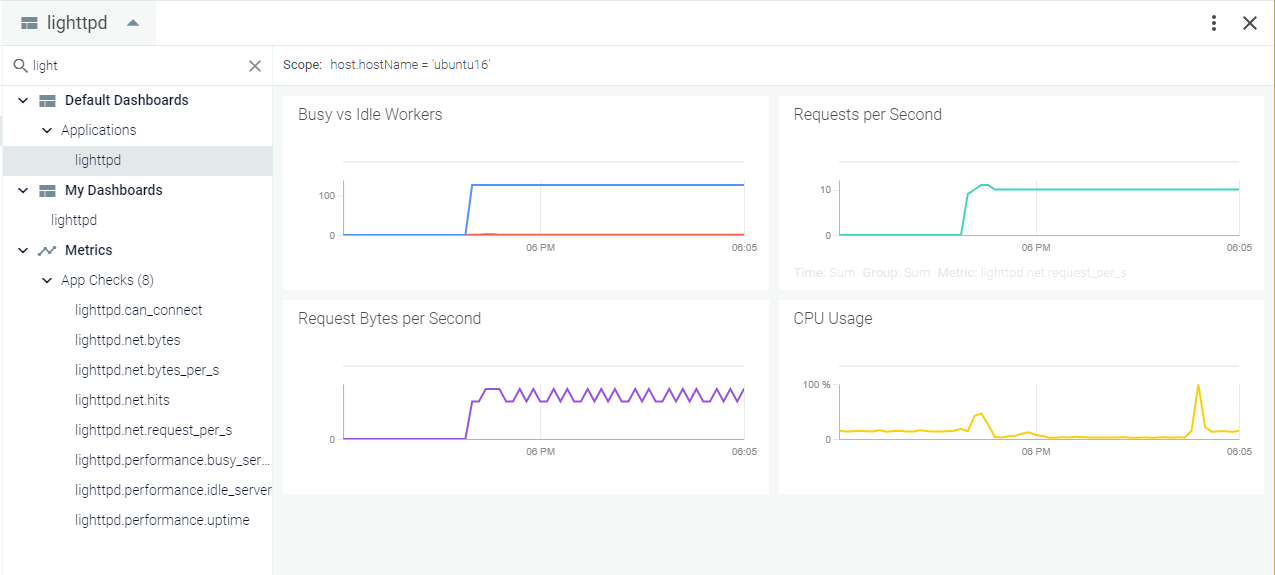 |
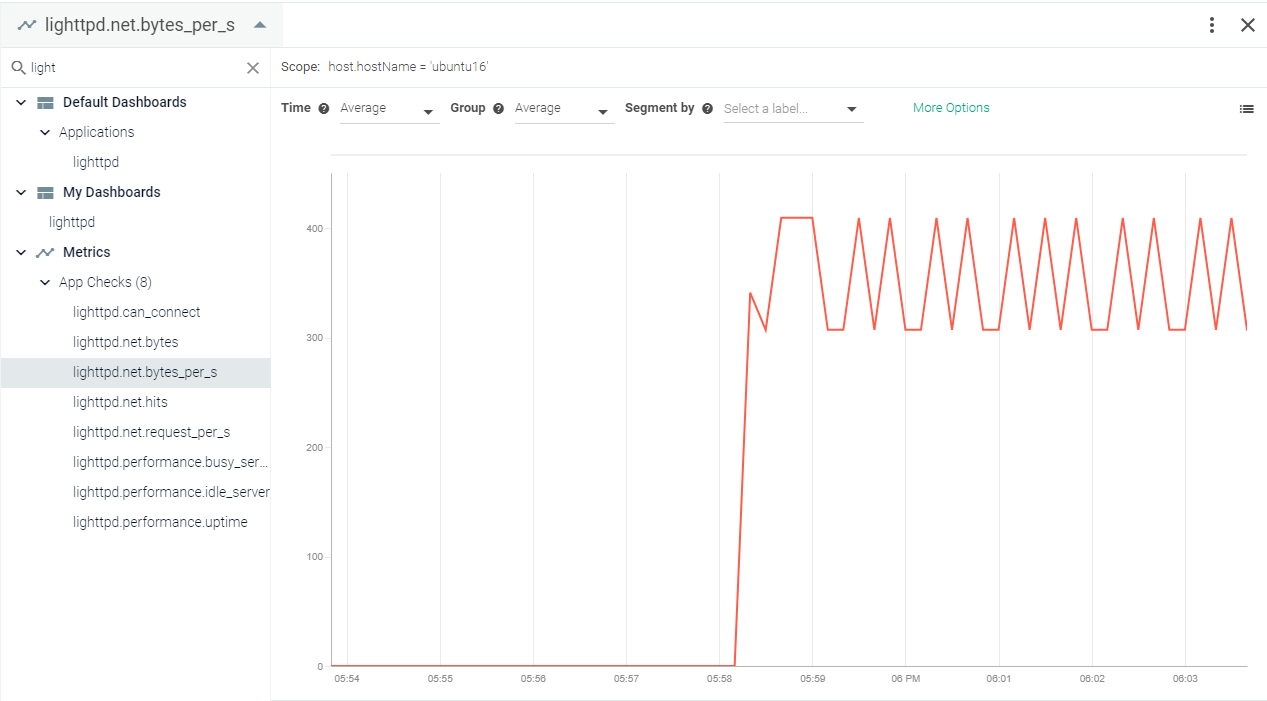 |
 |
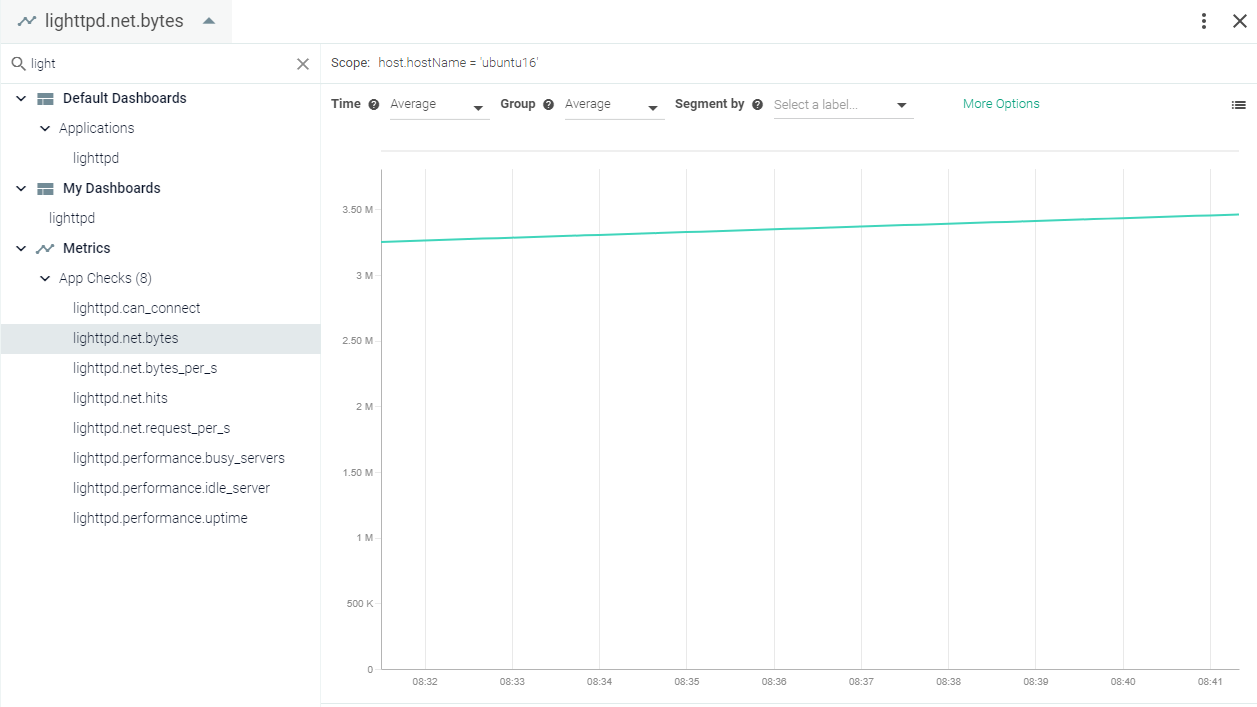 |
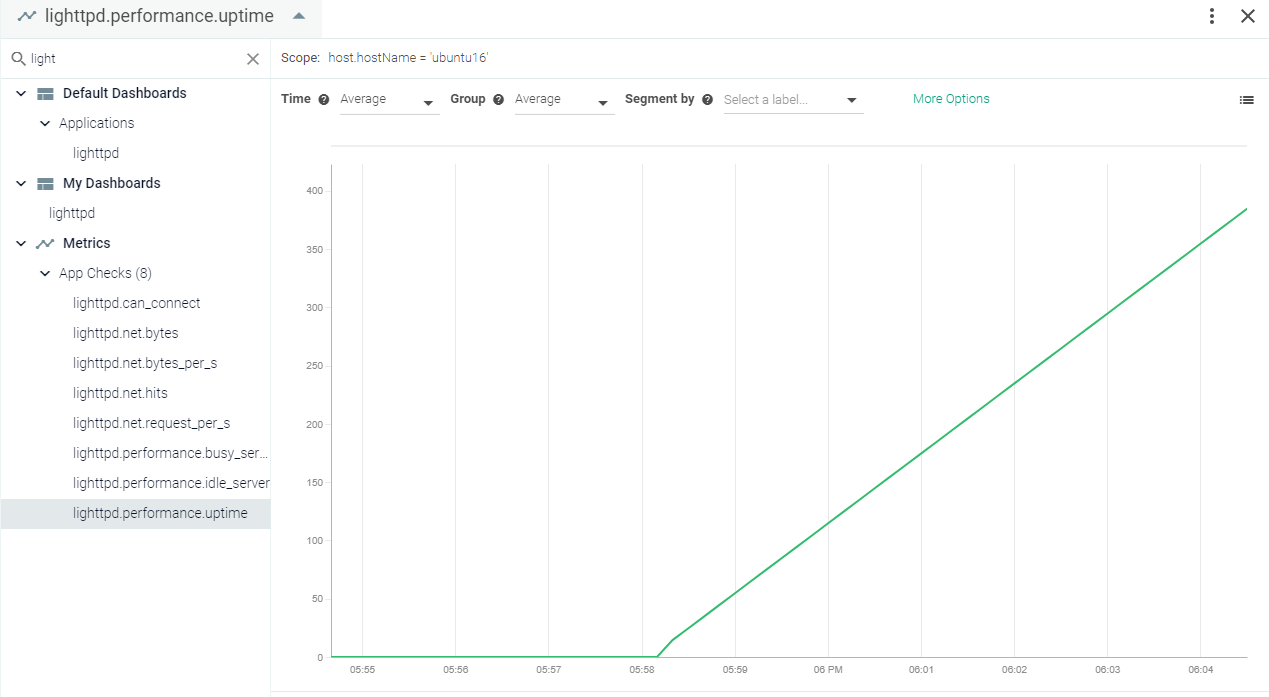 |
Memcached
Memcached is an in-memory key-value store for small chunks of arbitrary data (strings, objects) from the results of database calls, API calls, or page rendering. If Memcached is installed on your environment, the Sysdig agent will automatically connect. See Default Configuration. The Sysdig agent automatically collects basic metrics. You can also edit the configuration to collect additional metrics related to items and slabs.
This page describes the default configuration settings, how to edit the configuration to collect additional information, the metrics available for integration, and a sample result in the Sysdig Monitor UI.
Memcached will automatically expose all metrics. You do not need to add anything on Memcached instance.
Review how to Edit dragent.yaml to Integrate or Modify Application Checks.
By default, Sysdig's dragent.default.yaml uses the following code to connect with Memcached and collect basic metrics:
app_checks:
  - name: memcached
    check_module: mcache
    pattern:
      comm: memcached
    conf:
      url: localhost
      port: "{port}"
Additional metrics can be collected by editing Sysdig's configuration file dragent.yaml. If SASL is enabled, authentication parameters must be added to dragent.yaml.
Warning
Remember! Never edit dragent.default.yaml directly; always edit only dragent.yaml.
memcache.items.* and memcache.slabs.* can be collected by setting flags in the options section, as follows . Either value can be set to false if you do not want to collect metrics from them.
app_checks:
  - name: memcached
    check_module: mcache
    pattern:
      comm: memcached
    conf:
      url: localhost
      port: "{port}"
    options:
      items: true       # Default is false
slabs: true # Default is falseSASL authentication can be enabled with Memcached (see instructions here). If enabled, credentials must be provided against username and password fields as shown in Example 2.
app_checks:
  - name: memcached
    check_module: mcache
    pattern:
      comm: memcached
    conf:
      url: localhost
      port: "{port}"
      username: <username>
      # Some memcached version will support <username>@<hostname>.
      # If memcached is installed as a container, hostname of memcached container will be used as username
password: <password>See Memcached Metrics.
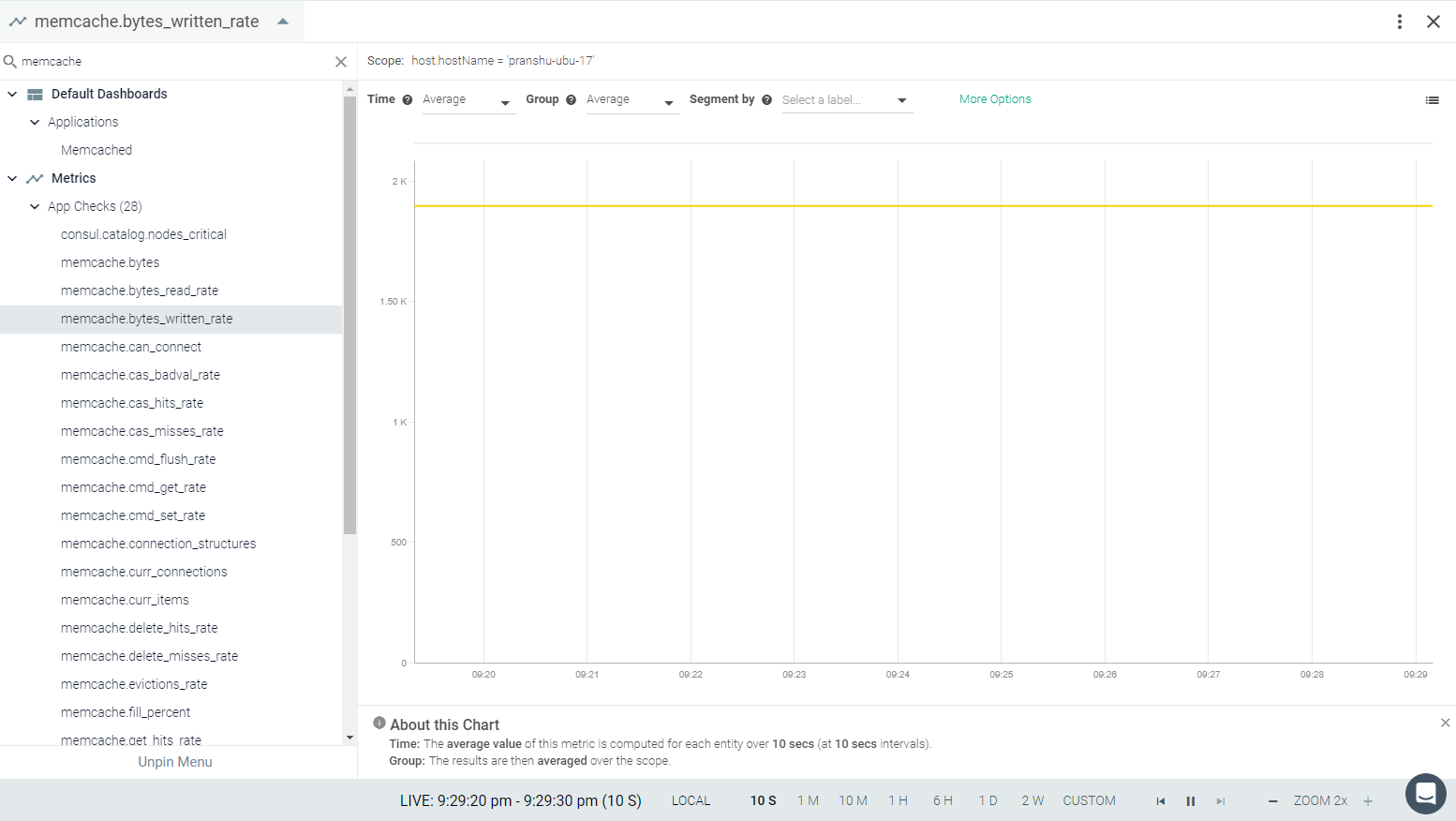 |
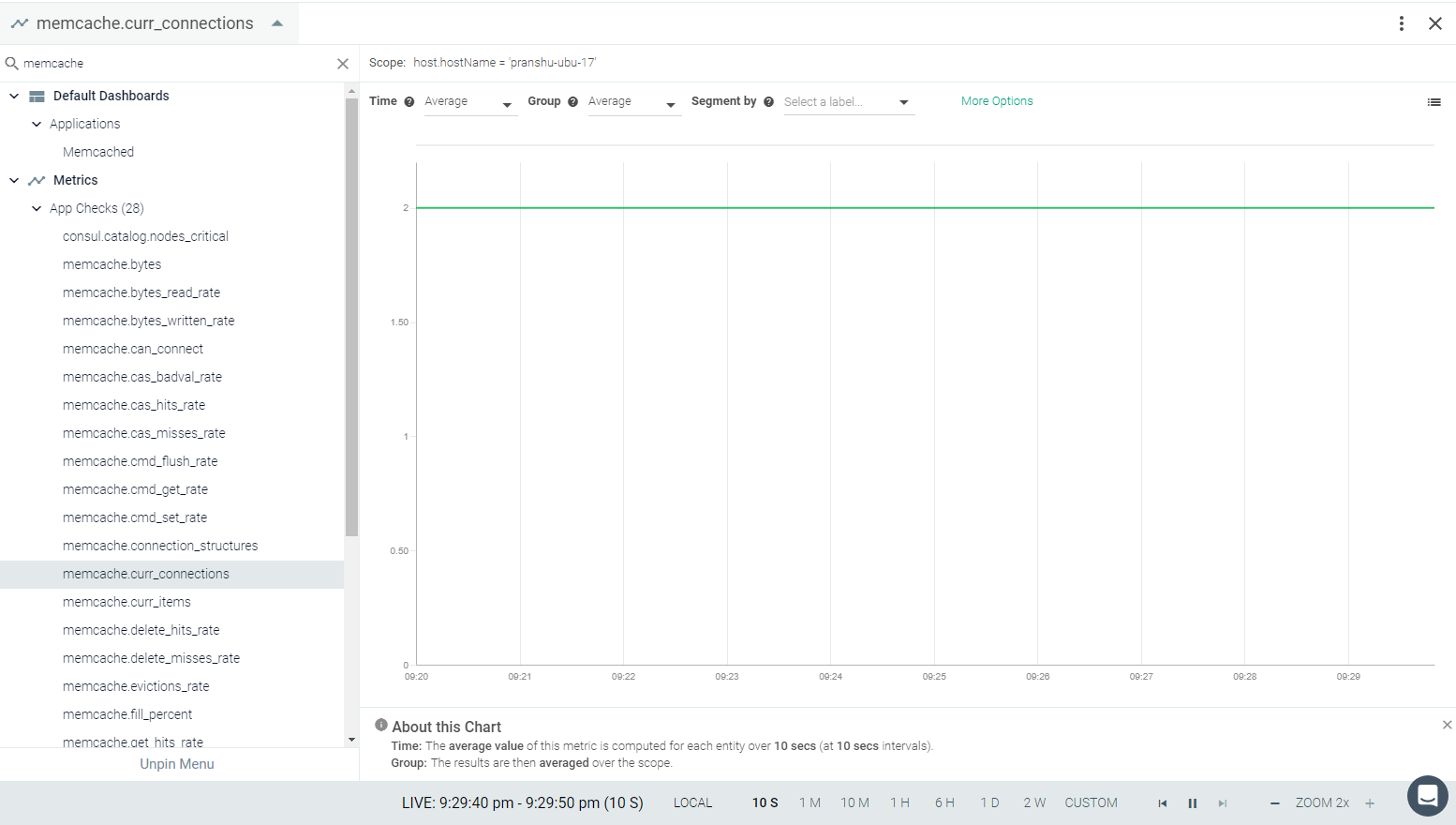 |
 |
 |
 |
Mesos/Marathon
Mesos is built using the same principles as the Linux kernel, only at a different level of abstraction. The Mesos kernel runs on every machine and provides applications (e.g., Hadoop, Spark, Kafka, Elasticsearch) with APIs for resource management and scheduling across entire datacenter and cloud environments. The Mesos metrics are divided into master and agent. Marathon is a production-grade container orchestration platform for Apache Mesos.
If Mesos and Marathon are installed in your environment, the Sysdig agent will automatically connect and start collecting metrics.You may need to edit the default entries to add a custom configuration if the default does not work. See Default Configuration.
This page describes the default configuration settings, how to edit the configuration to collect additional information, the metrics available for integration, and a sample result in the Sysdig Monitor UI.
Both Mesos and Marathon will automatically expose all metrics. You do not need to add anything to the Mesos/Marathon instance.
Review how to Edit dragent.yaml to Integrate or Modify Application Checks.
The Sysdig agent has different entries for mesos-master, mesos-slave and marathon in its configuration file. Default entries are present in Sysdig's dragent.default.yaml file and collect all metrics for Mesos. For Marathon, it collects basic metrics. You may need add configuration to collect additional metrics.
In the URLs for mesos-master and mesos-slave, {mesos_url} will be replaced with either the hostname of the auto-detected mesos master/slave (if auto-detection is enabled), or with an explicit value from mesos_state_uri otherwise.
In the URLs for marathon, {marathon_url} will be replaced with the hostname of the first configured/discovered Marathon framework.
For all Mesos and Marathon apps, {auth_token} will either be blank or an auto-generated token obtained via the /acs/api/v1/auth/login endpoint.
|
Mesos Agent
|
Marathon
|
Warning
Remember! Never edit dragent.default.yaml directly; always edit only dragent.yaml.
Example 1
Enable the flag full_metrics to collect all metrics for marathon.
The following additional metrics are collected with this configuration:
marathon.cpusmarathon.diskmarathon.instancesmarathon.mem
|
Metrics Available
See Mesos Master Metrics.
See Mesos Agent Metrics.
See Marathon Metrics.
 |
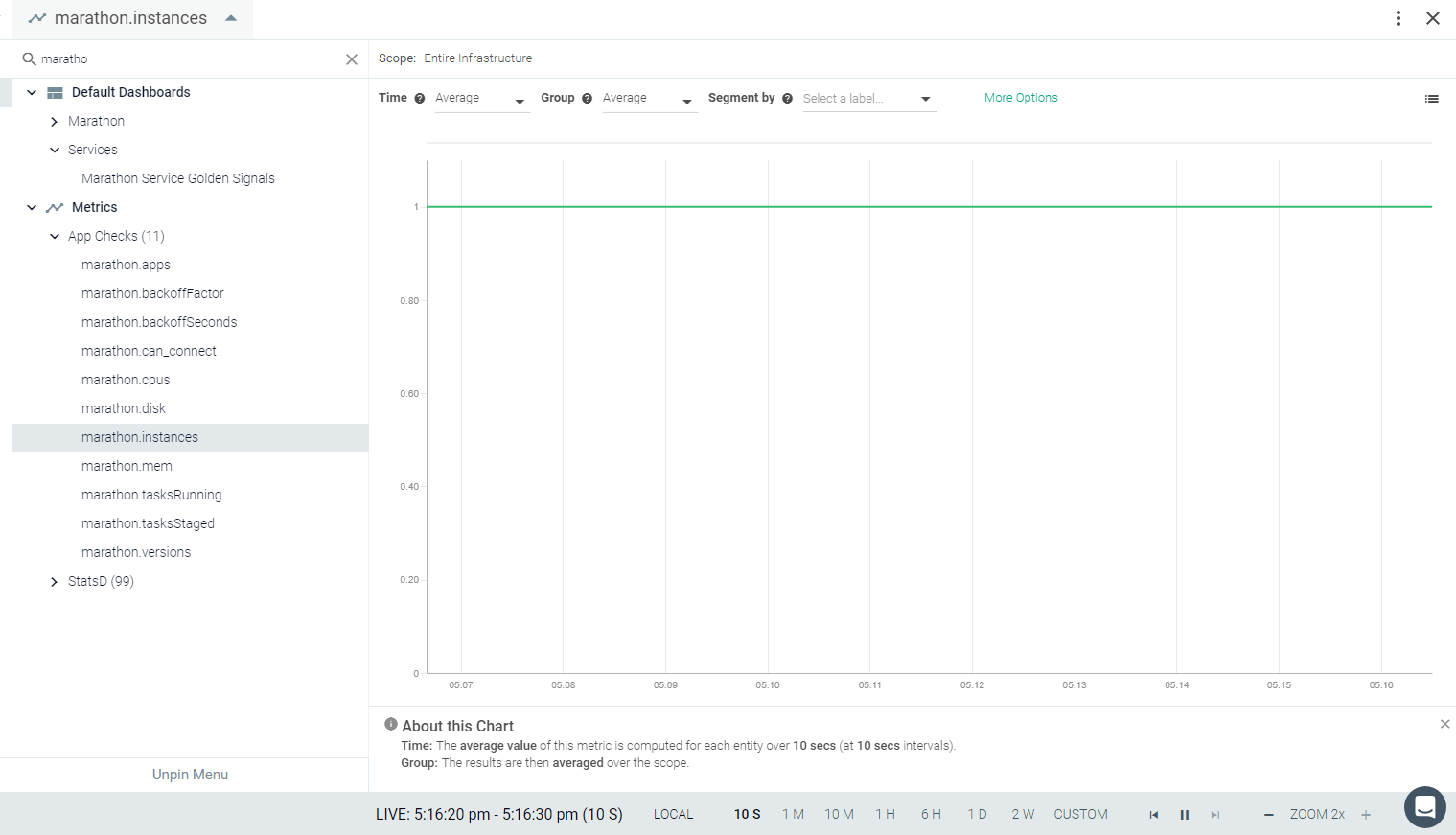 |
MongoDB
MongoDB is an open-source database management system (DBMS) that uses a document-oriented database model which supports various forms of data. If MongoDB is installed in your environment, the Sysdig agent will automatically connect and collect basic metrics (if authentication is not used). You may need to edit the default entries to connect and collect additional metrics. See Default Configuration.
This page describes the default configuration settings, how to edit the configuration to collect additional information, the metrics available for integration, and a sample result in the Sysdig Monitor UI.
Create a read-only user for the Sysdig agent.
# Authenticate as the admin user.
use admin
db.auth("admin", "<YOUR_MONGODB_ADMIN_PASSWORD>")

# On MongoDB 2.x, use the addUser command.
db.addUser("sysdig-cloud", "sysdig-cloud-password", true)

# On MongoDB 3.x or higher, use the createUser command.
db.createUser({
  "user":"sysdig-cloud",
  "pwd": "sysdig-cloud-password",
  "roles" : [
    {role: 'read', db: 'admin' },
    {role: 'clusterMonitor', db: 'admin'},
    {role: 'read', db: 'local' }
  ]
})Review how to Edit dragent.yaml to Integrate or Modify Application Checks.
By default, Sysdig's dragent.default.yaml uses the following code to connect with MongoDB.
app_checks:
  - name: mongodb
    check_module: mongo
    pattern:
      comm: mongod
    conf:
      server: "mongodb://localhost:{port}/admin"
The default MongoDB entry should work for without modification if authentication is not configured. If you have enabled password authentication, the entry will need to be changed.
Some metrics are not available by default. Additional configuration needs to be provided to collect them as shown in following examples.
Warning
Remember! Never edit dragent.default.yaml directly; always edit only dragent.yaml.
Replace <username> and <password> with actual username and password.
app_checks:
  - name: mongodb
    check_module: mongo
    pattern:
      comm: mongod
    conf:
      server: mongodb://<username>:<password>@localhost:{port}/admin
replica_check: trueSome metrics are not collected by default. These can be collected by adding additional_metrics section in the dragent.yaml file under the app_checks mongodb configuration.
Available options are:
collection - Metrics of the specified collections
metrics.commands - Use of database commands
tcmalloc - TCMalloc memory allocator
top - Usage statistics for each collection
app_checks:
  - name: mongodb
    check_module: mongo
    pattern:
      comm: mongod
    conf:
      server: mongodb://<username>:<password>@localhost:{port}/admin
      replica_check: true
      additional_metrics:
        - collection
        - metrics.commands
        - tcmalloc
        - top
List of metrics with respective entries in dragent.yaml:
metric prefix | Entry under |
|---|---|
mongodb.collection | collection |
mongodb.usage.commands | top |
mongodb.usage.getmore | top |
mongodb.usage.insert | top |
mongodb.usage.queries | top |
mongodb.usage.readLock | top |
mongodb.usage.writeLock | top |
mongodb.usage.remove | top |
mongodb.usage.total | top |
mongodb.usage.update | top |
mongodb.usage.writeLock | top |
mongodb.tcmalloc | tcmalloc |
mongodb.metrics.commands | metrics.commands |
See MongoDB Metrics.
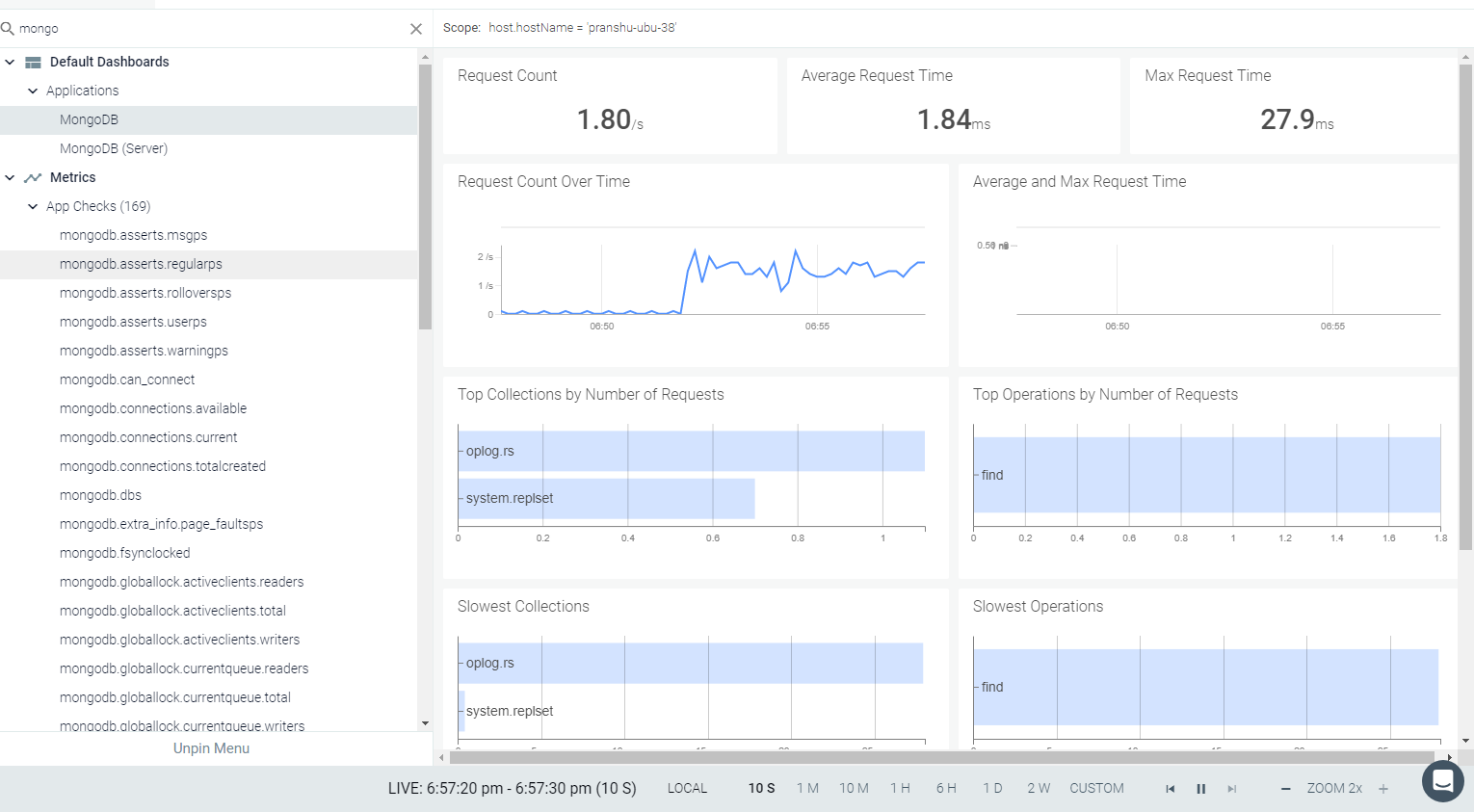 |
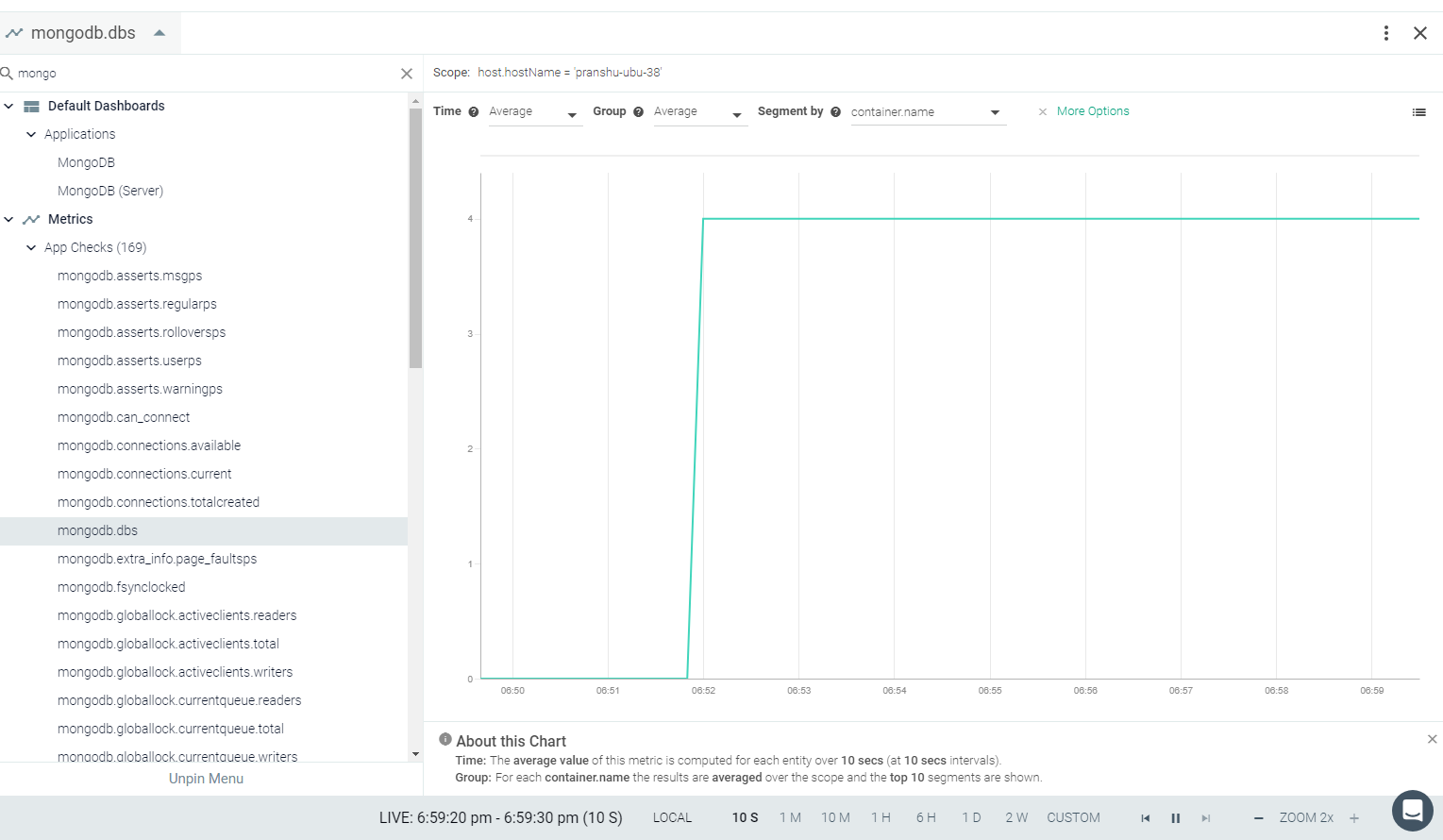 |
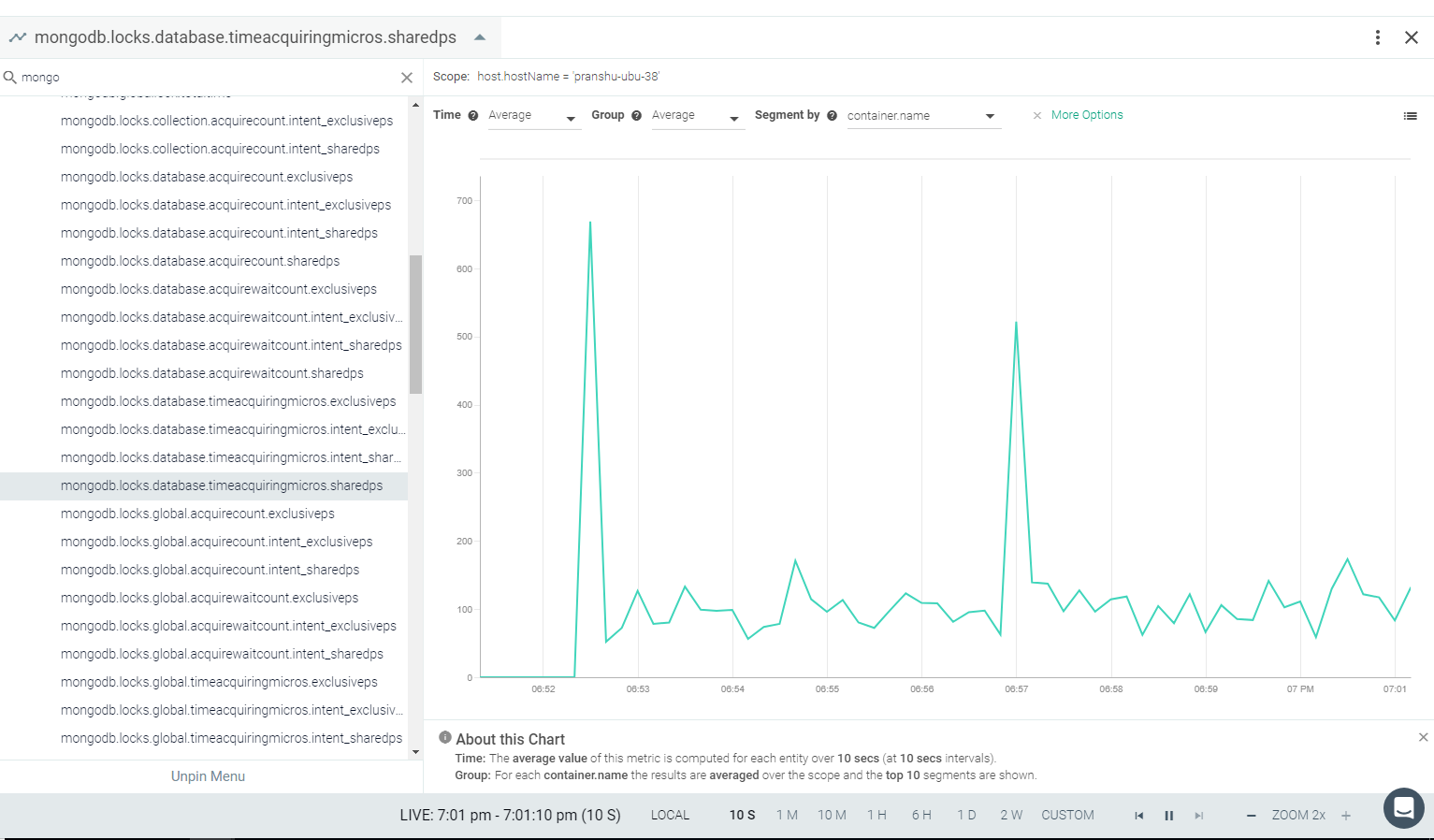 |
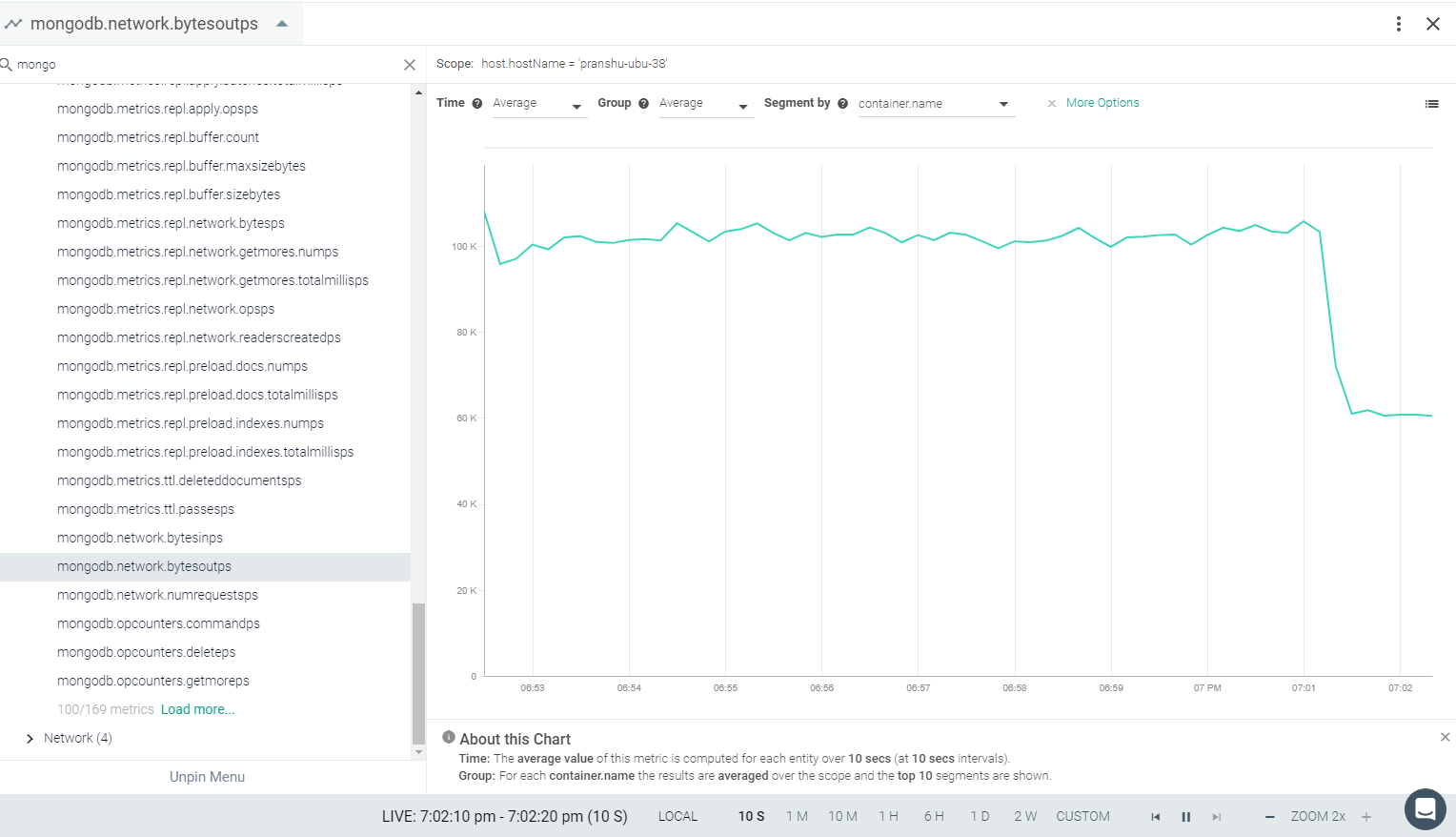 |
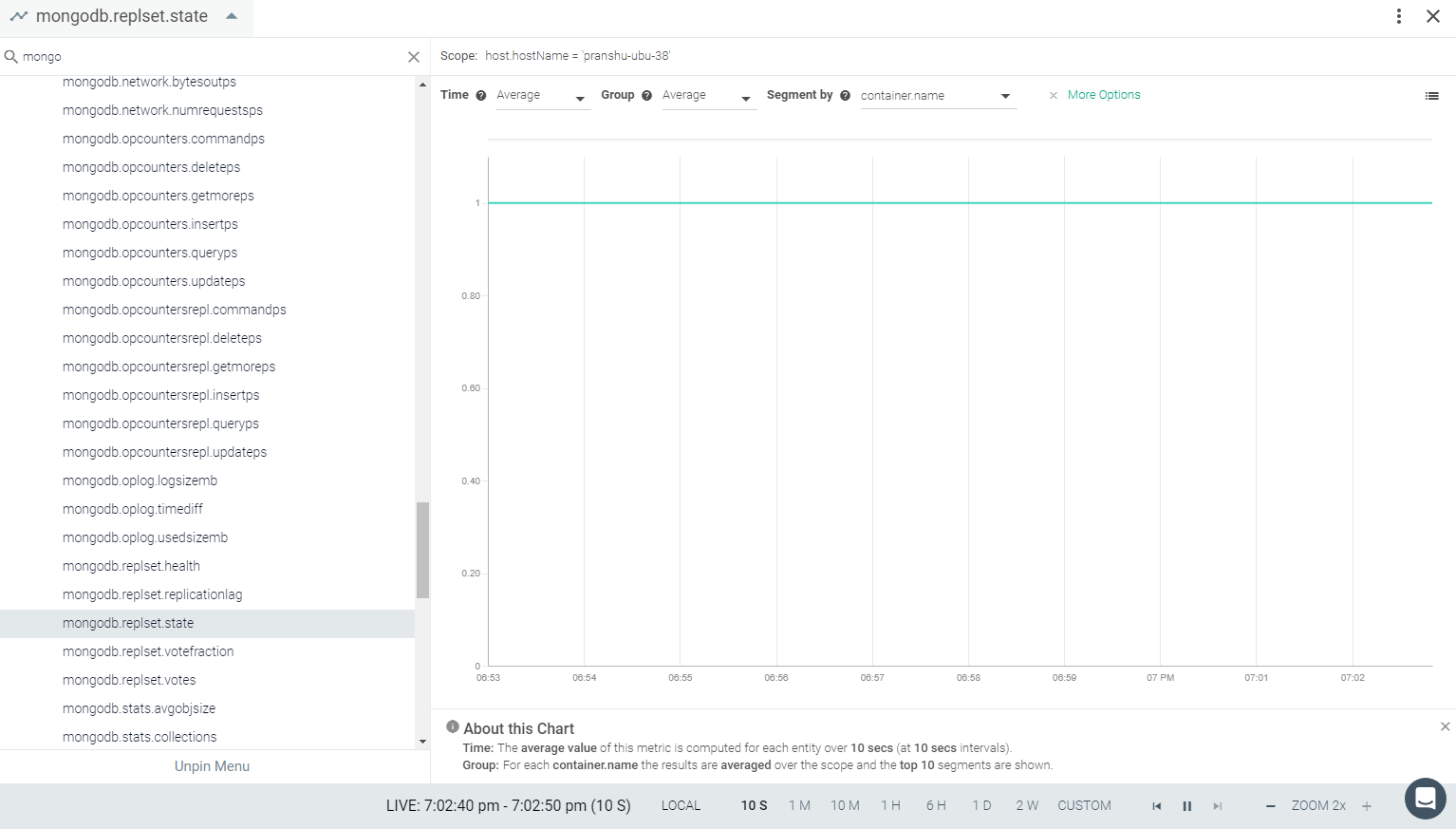 |
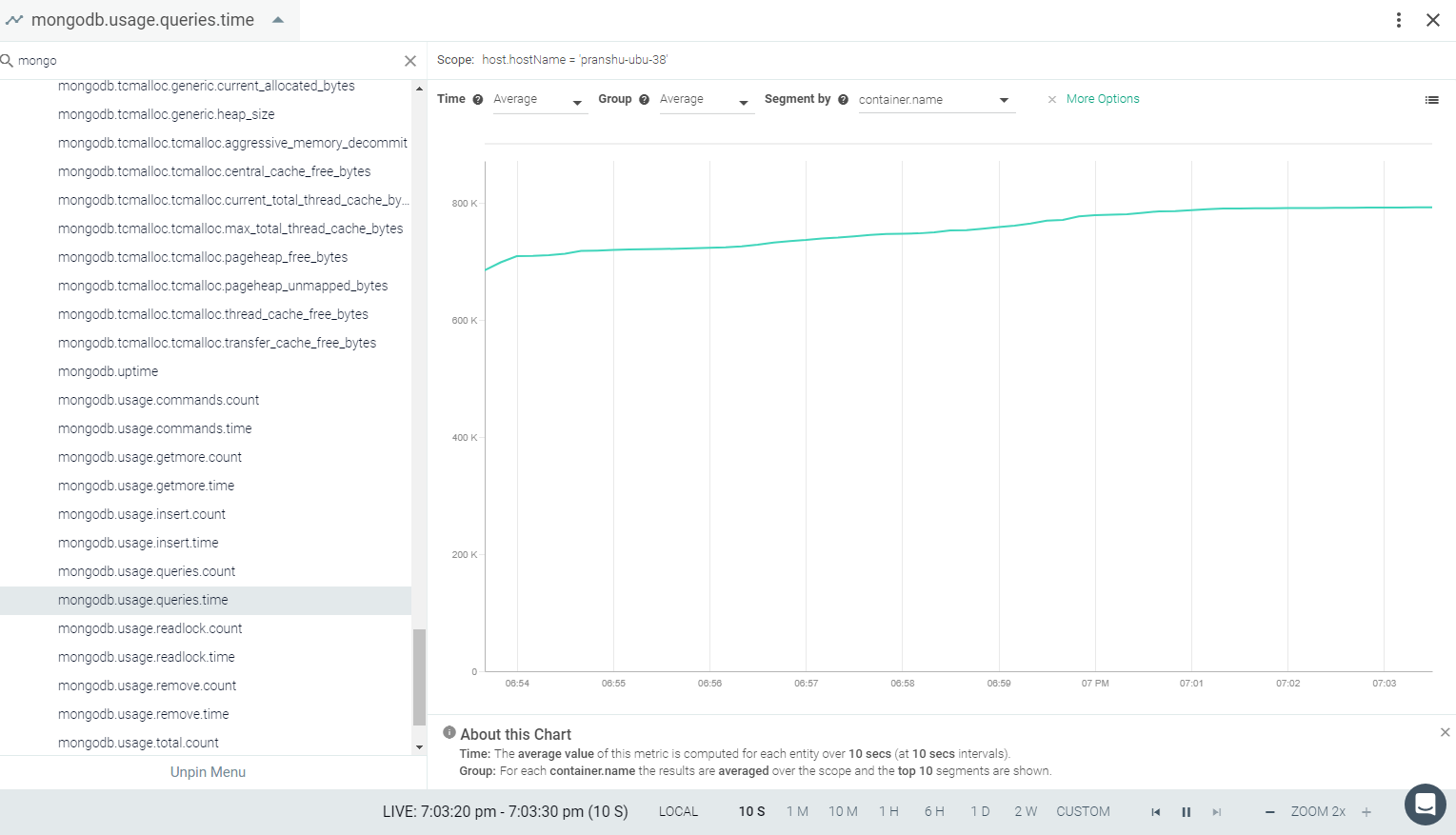 |
MySQL
MySQL is the world’s most popular open-source database. With its proven performance, reliability, and ease-of-use, MySQL has become the leading database choice for web-based applications, used by high profile web properties including Facebook, Twitter, YouTube. Additionally, it is an extremely popular choice as embedded database, distributed by thousands of ISVs and OEMs.
The MySQL AppCheck is supported for following MySQL versions.
If the Sysdig agent is installed as a Process:
Host with Python 2.7: MySQL versions supported - 5.5 to 8
Host with Python 2.6: MySQL versions supported - 4.1 to 5.7 (tested with v5.x only)
NOTE: This implies that MySQL 5.5, 5.6 and 5.7 are supported on both the Python 2.6 and 2.7 environments.
If the Sysdig agent is installed as a Docker container:
The Docker container of the Sysdig agent has Python 2.7 installed. If it is installed, respective versions against Python 2.7 will be supported.
The following environments have been tested and are supported. Tests environments include both the Host/Process and Docker environment.
Python | MySQL | ||||
|---|---|---|---|---|---|
5.1 | 5.5 | 5.6 | 5.7 | 8 | |
2.7 (Ubuntu 16/ CentOS 7) | No | Yes | Yes | Yes | Yes |
2.6 (CentOS 6) | Yes | Yes | Yes | Yes | No |
A user must be created on MySQL so the Sysdig agent can collect metrics. To configure credentials, run the following commands on your server, replacing the sysdig-clouc-password parameter.
MySQL version-specific commands to create a user are provided below.
# MySQL 5.6 and earlier
CREATE USER 'sysdig-cloud'@'127.0.0.1' IDENTIFIED BY 'sysdig-cloud-password';
GRANT PROCESS, REPLICATION CLIENT ON *.* TO 'sysdig-cloud'@'127.0.0.1' WITH MAX_USER_CONNECTIONS 5;

## OR ##

# MySQL 5.7 and 8
CREATE USER 'sysdig-cloud'@'127.0.0.1' IDENTIFIED BY 'sysdig-cloud-password' WITH MAX_USER_CONNECTIONS 5;
GRANT PROCESS, REPLICATION CLIENT ON *.* TO 'sysdig-cloud'@'127.0.0.1';
Review how to Edit dragent.yaml to Integrate or Modify Application Checks.
There is no default configuration for MySQL, as a unique user and password are required for metrics polling.
Add the entry for MySQL into dragent.yaml , updating the user and pass field credentials.
app_checks:
  - name: mysql
    pattern:
      comm: mysqld
    conf:
      server: 127.0.0.1
      user: sysdig-cloud
      pass: sysdig-cloud-password
See MySQL Metrics.
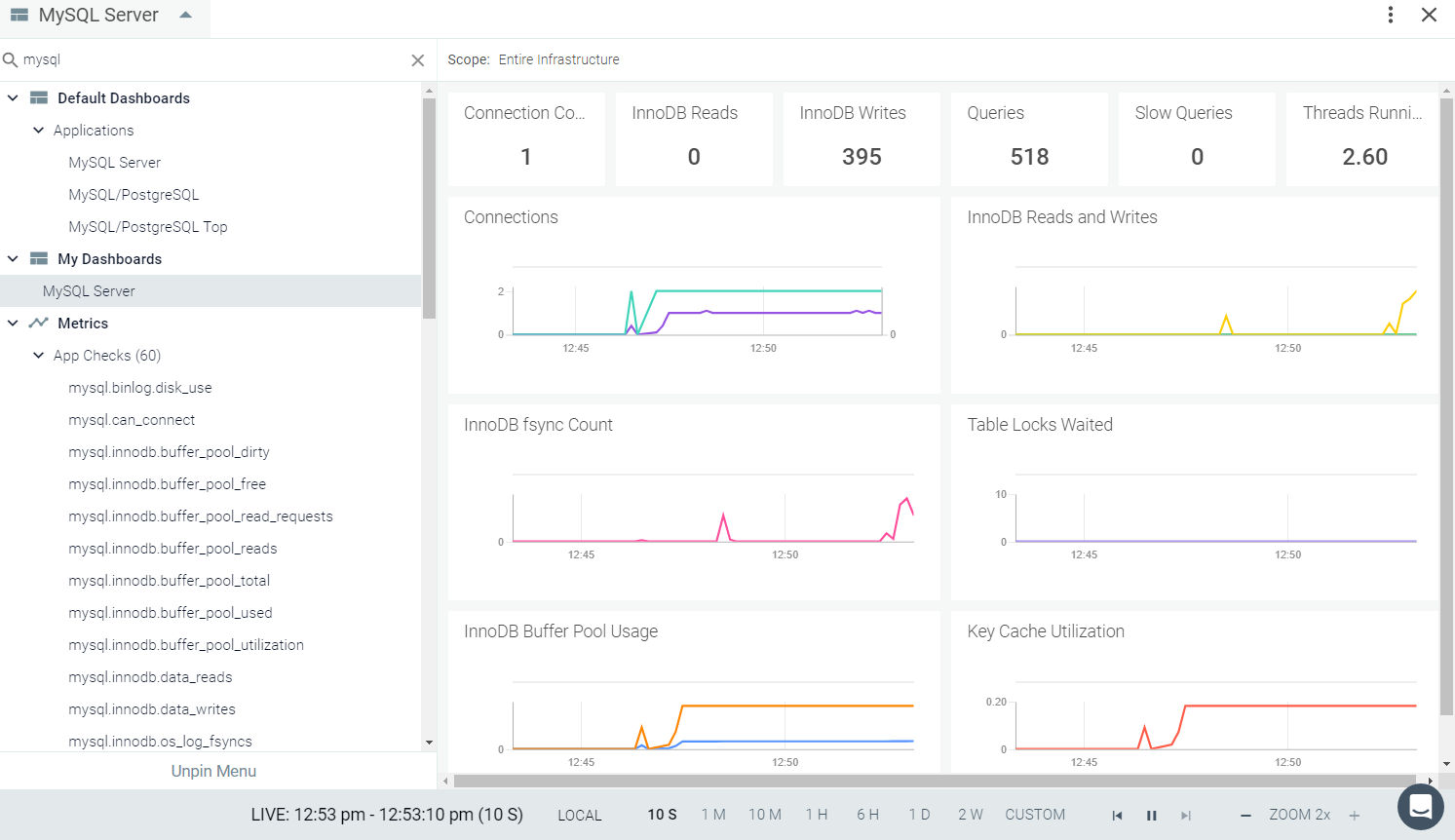 |
 |
 |
 |
 |
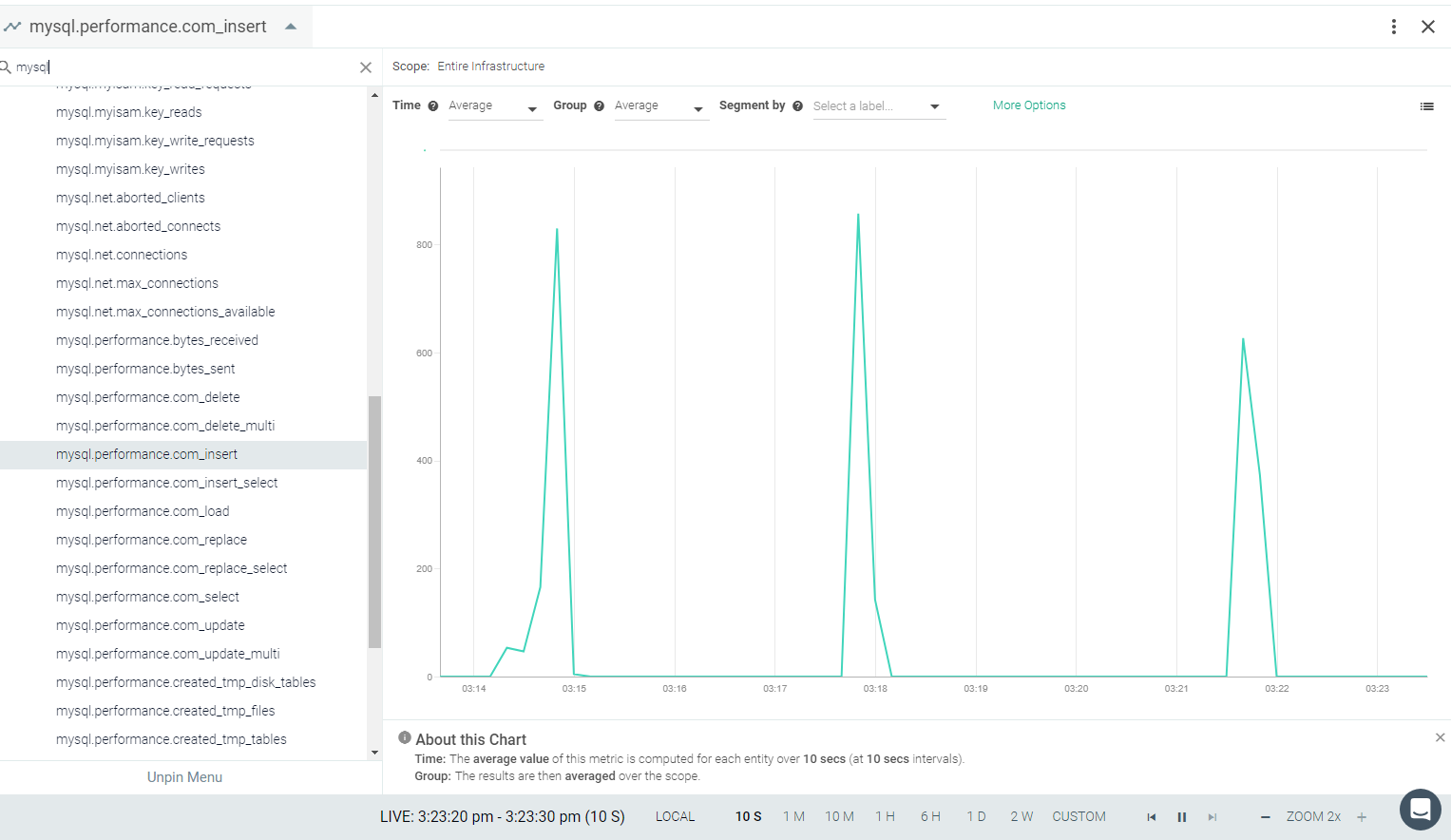 |
NGINX and NGINX Plus
NGINX is open source software for web serving, reverse proxying, caching, load balancing, media streaming, and more. It started out as a web server designed for maximum performance and stability. In addition to its HTTP server capabilities, NGINX can also function as a proxy server for email (IMAP, POP3, and SMTP) and a reverse proxy and load balancer for HTTP, TCP, and UDP servers.
NGINX Plus isa software load balancer, web server, and content cache built on top of open source NGINX. NGINX Plus has exclusive enterprise‑grade features beyond what's available in the open source offering, including session persistence, configuration via API, and active health checks.
The Sysdig agent has a default configuration to collect metrics for open-source NGINX, provided that you have the HTTP stub status module enabled. NGINX exposes basic metrics about server activity on a simple status page with this status module. If NGINX Plus is installed, a wide range of metrics are available with the NGINX Plus API.
This page describes the setup steps for NGINX/NGINX Plus, the default configuration settings, how to edit the configuration to collect additional information, the metrics available for integration, and sample results in the Sysdig Monitor UI.
This section describes the configuration required on the NGINX server.
The Sysdig agent will not collect metrics until the required endpoint is added to the NGINX configuration, per one of the following methods:
For NGINX (Open Source): use the stub status module
For NGINX Plus: use the Plus API
Configuration examples of each are provided below
The ngx_http_stub_status_module provides access to basic status information. It is compiled by default on most distributions. If not, it should be enabled with the --with-http_stub_status_module configuration parameter.
To check if the module is already compiled, run the following command:
nginx -V 2>&1 | grep -o with-http_stub_status_module
If
with-http_stub_status_moduleis listed, the status module is enabled. (For more information, see http://nginx.org/en/docs/http/ngx_http_stub_status_module.html.)Update the NGINX configuration file with
/nginx_statusendpoint as follows. The default NGINX configuration file is present at/etc/nginx/nginx.confor/etc/nginx/conf.d/default.conf.# HTTP context server { ... # Enable NGINX status module location /nginx_status { # freely available with open source NGINX stub_status; access_log off; # for open source NGINX < version 1.7.5 # stub_status on; } ... }
When NGINX Plus is configured, the Plus API can be enabled by adding /api endpoint in the NGINX configuration file as follows.
The default NGINX configuration file is present at /etc/nginx/nginx.conf or /etc/nginx/conf.d/default.conf.
# HTTP context
server {
...
  # Enable NGINX Plus API
  location /api {
    api write=on;
    allow all;
  }
...
}Configuration Examples:
Example 1 (Default): When only open-source Nginx is configured.
Example 2: When only NginxPlus node is configured.
Example 3: When Nginx and NginxPlus are installed in different containers on same host.
Flag
use_plus_apiand is used for differentiating NGINX & NGINXPlus metrics.NGINXPlus metrics are differentiated with prefix
nginx.plus.*When
use_plus_api = true,nginx_plus_api_urlis used to fetch NginxPlus metrics from the NginxPlus node.nginx_status_urlis used to fetch Nginx metrics from the Nginx node (If single host is running two separate containers for Nginx and NginxPlus).
With the default configuration, only NGINX metrics will be available once the ngx_http_stub_status_module is configured.
app_checks:
  - name: nginx
    check_module: nginx
    pattern:
      exe: "nginx: worker process"
    conf:
      nginx_status_url: "http://localhost:{port}/nginx_status"
log_errors: trueWith this example only NGINX Plus Metrics will be available.
app_checks:
  - name: nginx
    check_module: nginx
    pattern:
      exe: "nginx: worker process"
    conf:
      nginx_plus_api_url: "http://localhost:{port}/api"
      use_plus_api: true
      user: admin
      password: admin
log_errors: trueThis is special case where NGINX open-source and NGINX PLUS are installed on same host but in different containers. With this configuration, respective metrics will be available for NGINX and NGINX Plus containers.
app_checks:
  - name: nginx
    check_module: nginx
    pattern:
      exe: "nginx: worker process"
    conf:
      nginx_plus_api_url: "http://localhost:{port}/api"
      nginx_status_url: "http://localhost:{port}/nginx_status"
      use_plus_api: true
      user: admin
      password: admin
    log_errors: true
List of Metrics
See NGINX Metrics.
See NGINX Plus Metrics.
NTP
NTP stands for Network Time Protocol. It is used to synchronize the time on your Linux system with a centralized NTP server. A local NTP server on the network can be synchronized with an external timing source to keep all the servers in your organization in-sync with an accurate time.
If the NTP check is enabled in the Sysdig agent, it reports the time offset of the local agent from an NTP server .
This page describes how to edit the configuration to collect information, the metrics available for integration, and a sample result in the Sysdig Monitor UI.
Review how to Edit dragent.yaml to Integrate or Modify Application Checks.
By default, Sysdig's dragent.default.yaml does not provide any configuration for NTP.
Add the configuration in Example 1 to the dragent.yaml file to enable NTP checks.
Warning
Remember! Never edit dragent.default.yaml directly; always edit only dragent.yaml.
- name: ntp
    interval: 60
    pattern:
      comm: systemd
    conf:
      host: us.pool.ntp.org
offset_threshold: 60host: (mandatory) provides the host name ofNTPserver.offset_threshold: (optional) provides the difference (in seconds) between the local clock and the NTP server, when thentp.in_syncservice check becomesCRITICAL. The default is60seconds.
ntp.offset, the time difference between the local clock and the NTP reference clock, is the primary NTP metric.
See also NTP Metrics.
Service Checks
ntp.in_sync:
Returns CRITICAL if the NTP offset is greater than the threshold specified in dragent.yaml, otherwise OK.
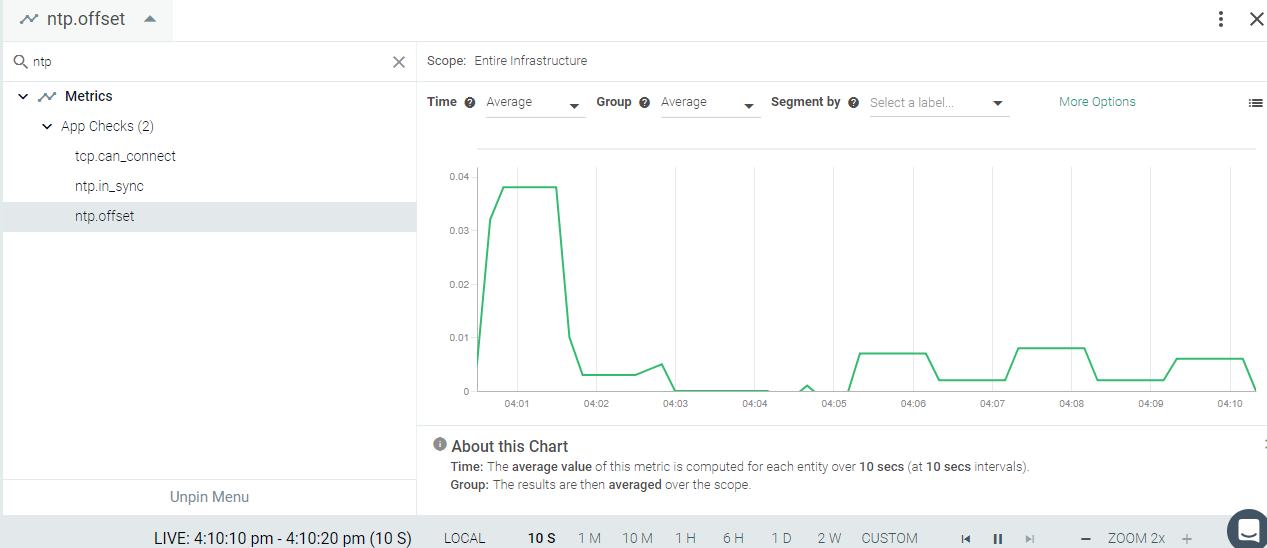 |
 |
PGBouncer
PgBouncer is a lightweight connection pooler for PostgreSQL. If PgBouncer is installed on your environment, you may need to edit the Sysdig agent configuration file to connect. See PGBouncer#Default Configuration.
This page describes the configuration settings, the metrics available for integration, and a sample result in the Sysdig Monitor UI.
PgBouncer does not ship with a default stats user configuration. To configure it, you need to add a user allowed to access PgBouncer stats. Do so by adding following line in pgbouncer.ini. The default file location is /etc/pgbouncer/pgbouncer.ini
stats_users = sysdig_cloud
For the same user you need the following entry in userlist.txt. The default file location is /etc/pgbouncer/userlist.txt
"sysdig_cloud" "sysdig_cloud_password"
Review how to Edit dragent.yaml to Integrate or Modify Application Checks.
No default configuration is present in Sysdig's dragent.default.yaml file for PgBouncer, as it requires a unique username and password. You must add a custom entry in dragent.yaml as follows:
Warning
Remember! Never edit dragent.default.yaml directly; always edit only dragent.yaml.
app_checks:
  - name: pgbouncer
    pattern:
      comm: pgbouncer
    conf:
      host: localhost # set if the bind ip is different
      port: 6432      # set if the port is not the default
      username: sysdig_cloud
password: sysdig_cloud_password #replace with appropriate passwordSee PGBouncer Metrics.
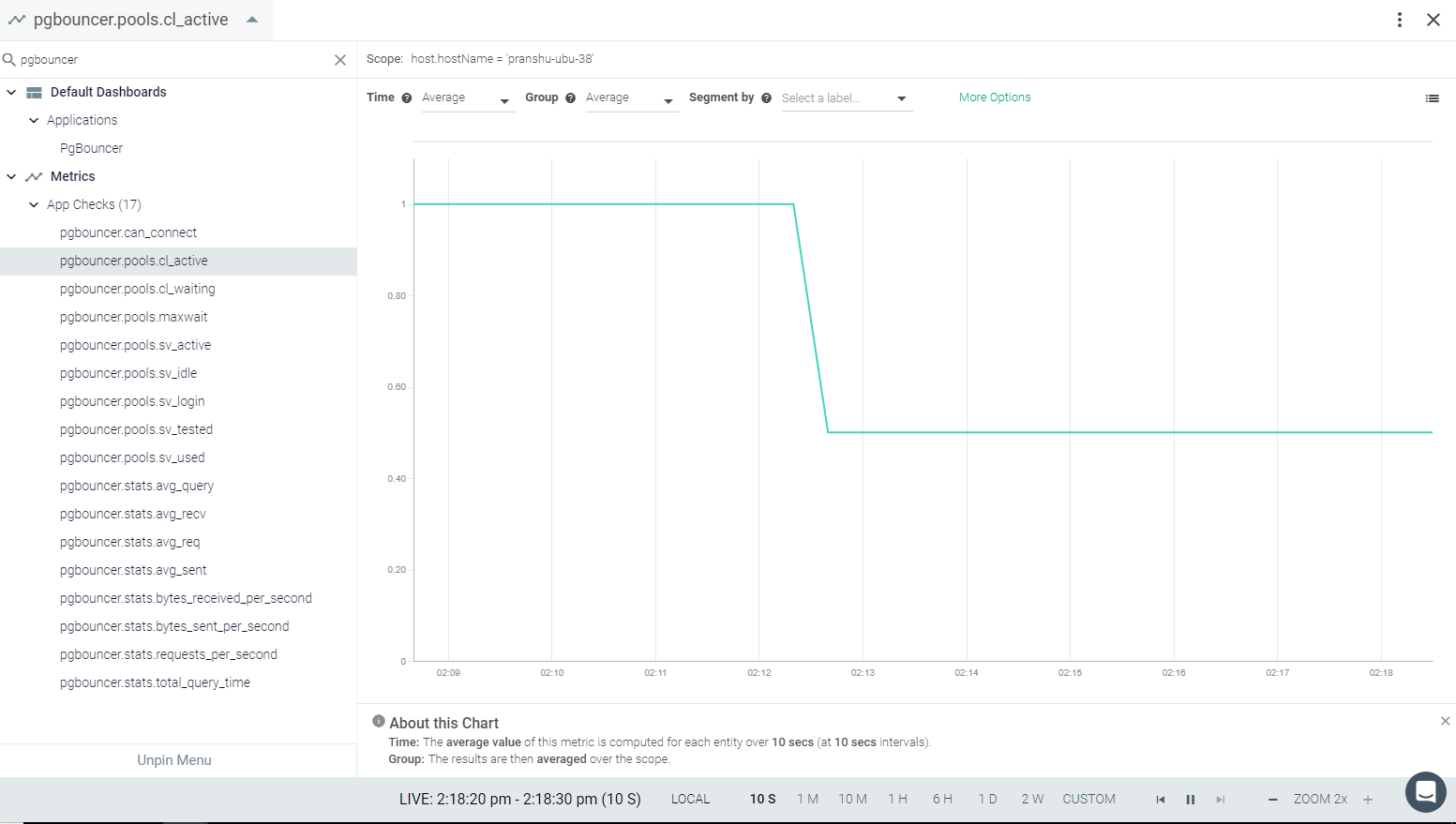 |
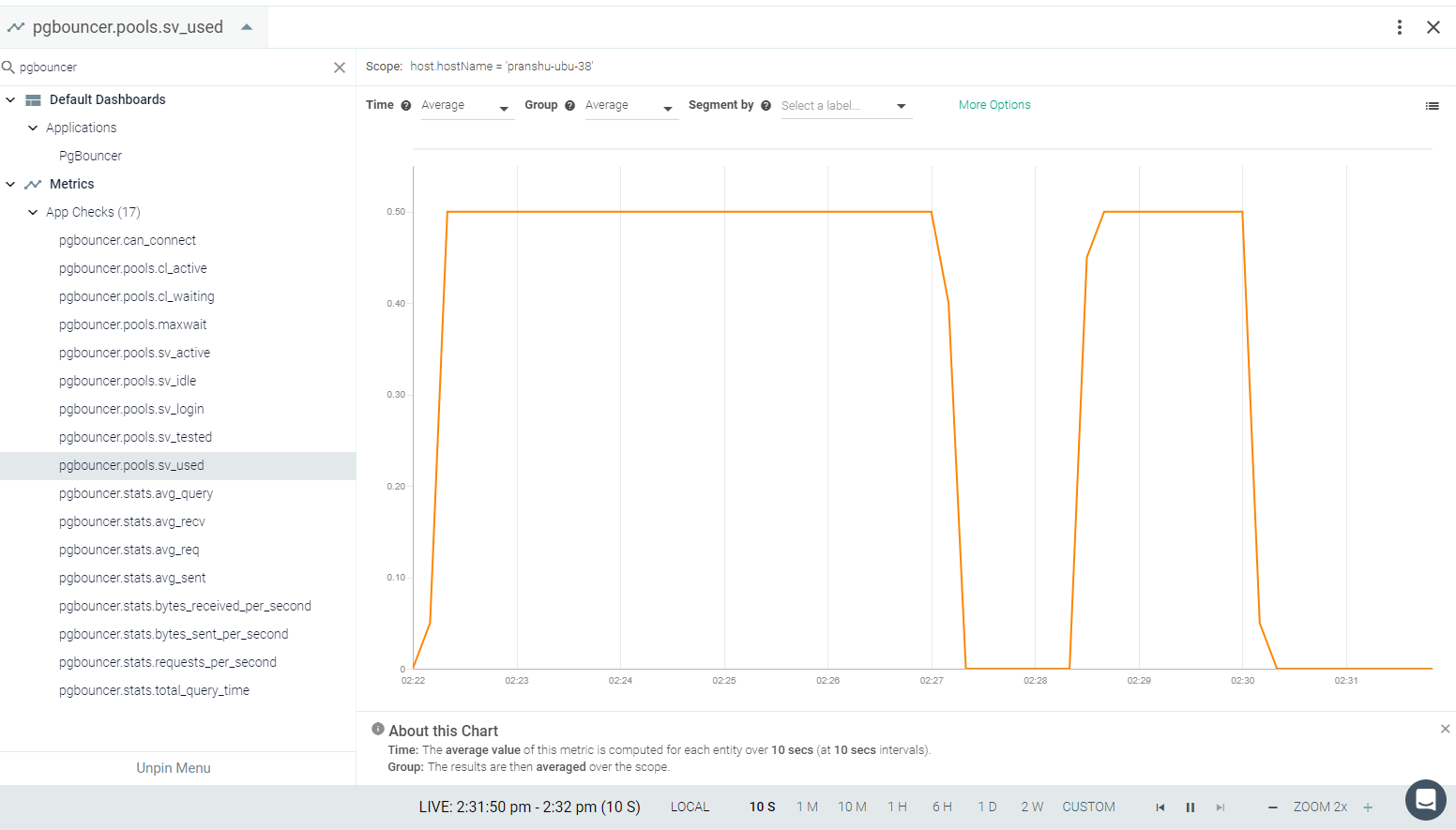 |
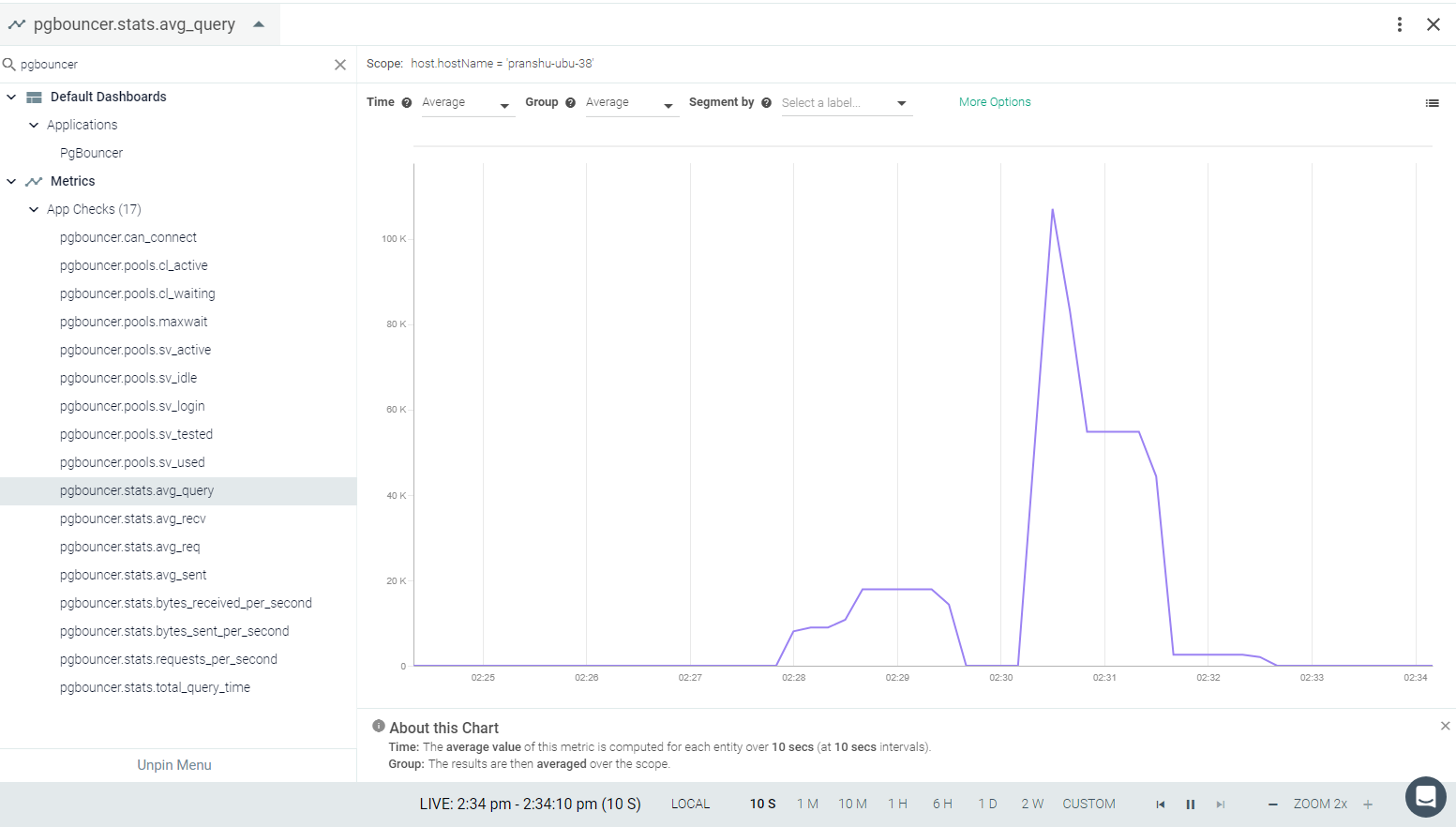 |
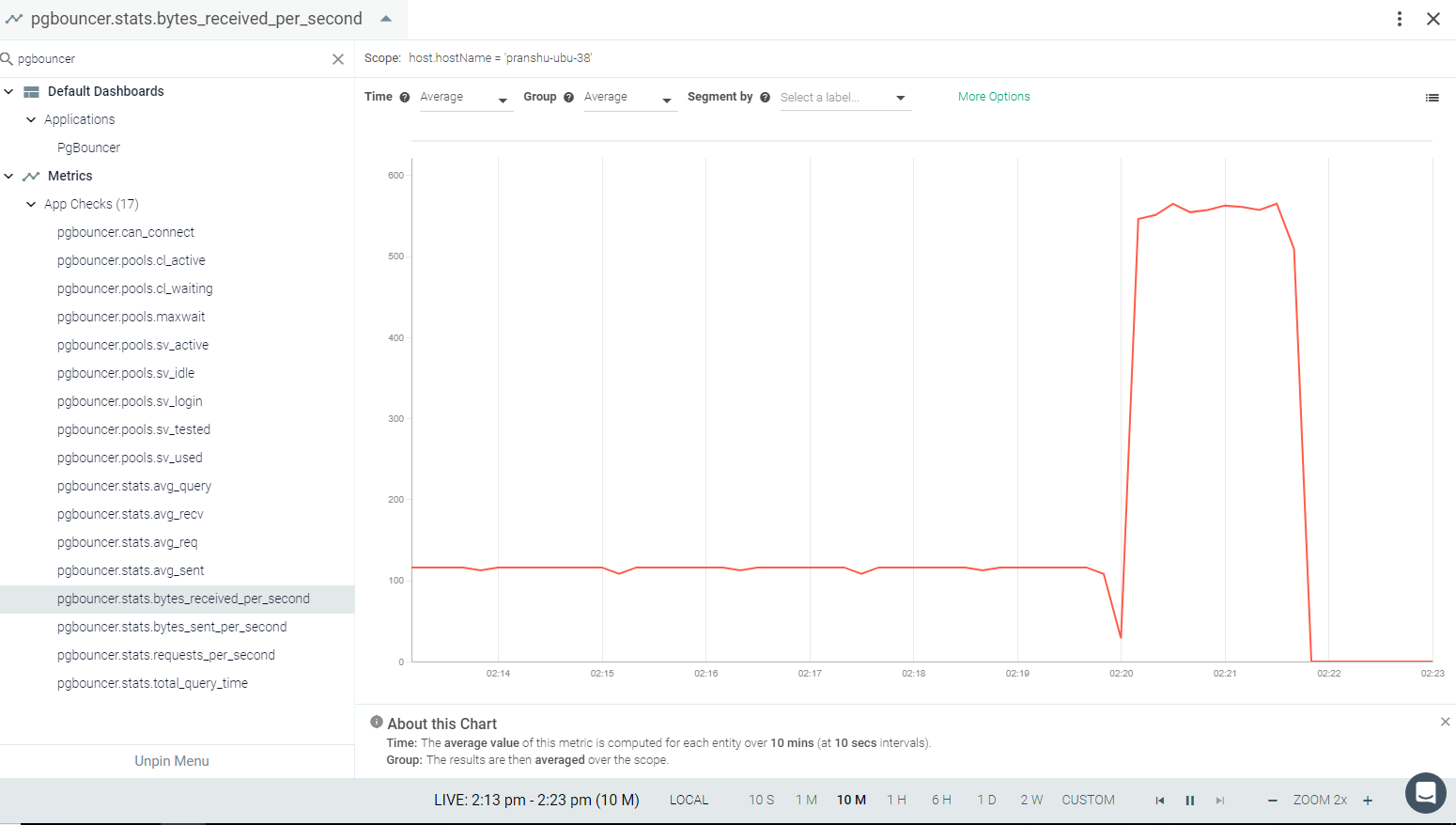 |
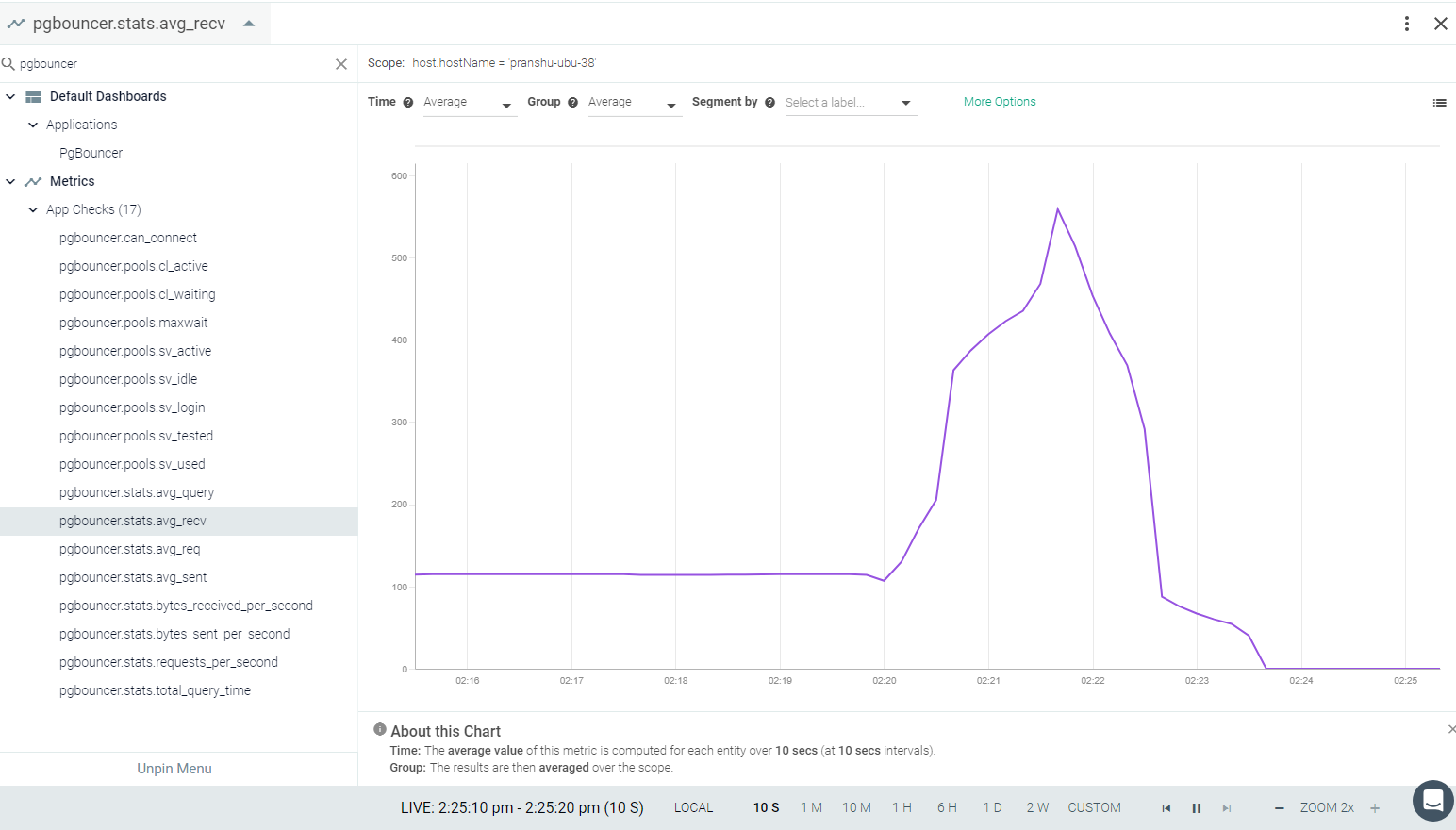 |
PHP-FPM
PHP-FPM (FastCGI Process Manager) is an alternative PHP FastCGI implementation, with some additional features useful for sites of any size, especially busier sites. If PHP-FPM is installed on your environment, the Sysdig agent will automatically connect. You may need to edit the default entries to connect if PHP-FPM has a custom setting in its config file. See Sysdig Agent Configuration.
The Sysdig agent automatically collects all metrics with default configuration.
This page describes the default configuration settings, how to edit the configuration to collect additional information, the metrics available for integration, and a sample result in the Sysdig Monitor UI.
This check has a default configuration that should suit most use cases. If it does not work for you, verify that you have added these lines to your php-fpm.conf file. The default location is /etc/
pm.status_path = /status
ping.path = /ping
Review how to Edit dragent.yaml to Integrate or Modify Application Checks.
By default, Sysdig's dragent.default.yaml uses the following code to connect with PHP-FPM and collect all metrics:
app_checks:
  - name: php-fpm
    check_module: php_fpm
    retry: false
    pattern:
      exe: "php-fpm: master process"
If you have a configuration other than those for PHP-FPM in php-fpm.conf, you can edit the Sysdig agent configuration in dragent.yaml, as shown in Example 1.
Warning
Remember! Never edit dragent.default.yaml directly; always edit only dragent.yaml.
Replace the values of status_url and ping_url below with the values set against pm.status_path and ping.path respectively in your php-fpm.conf:
app_checks:
  - name: php-fpm
    check_module: php_fpm
    pattern:
      exe: "php-fpm: master process"
    conf:
      status_url: /mystatus
      ping_url: /myping
ping_reply: mypingreplySee PHP-FPM Metrics.
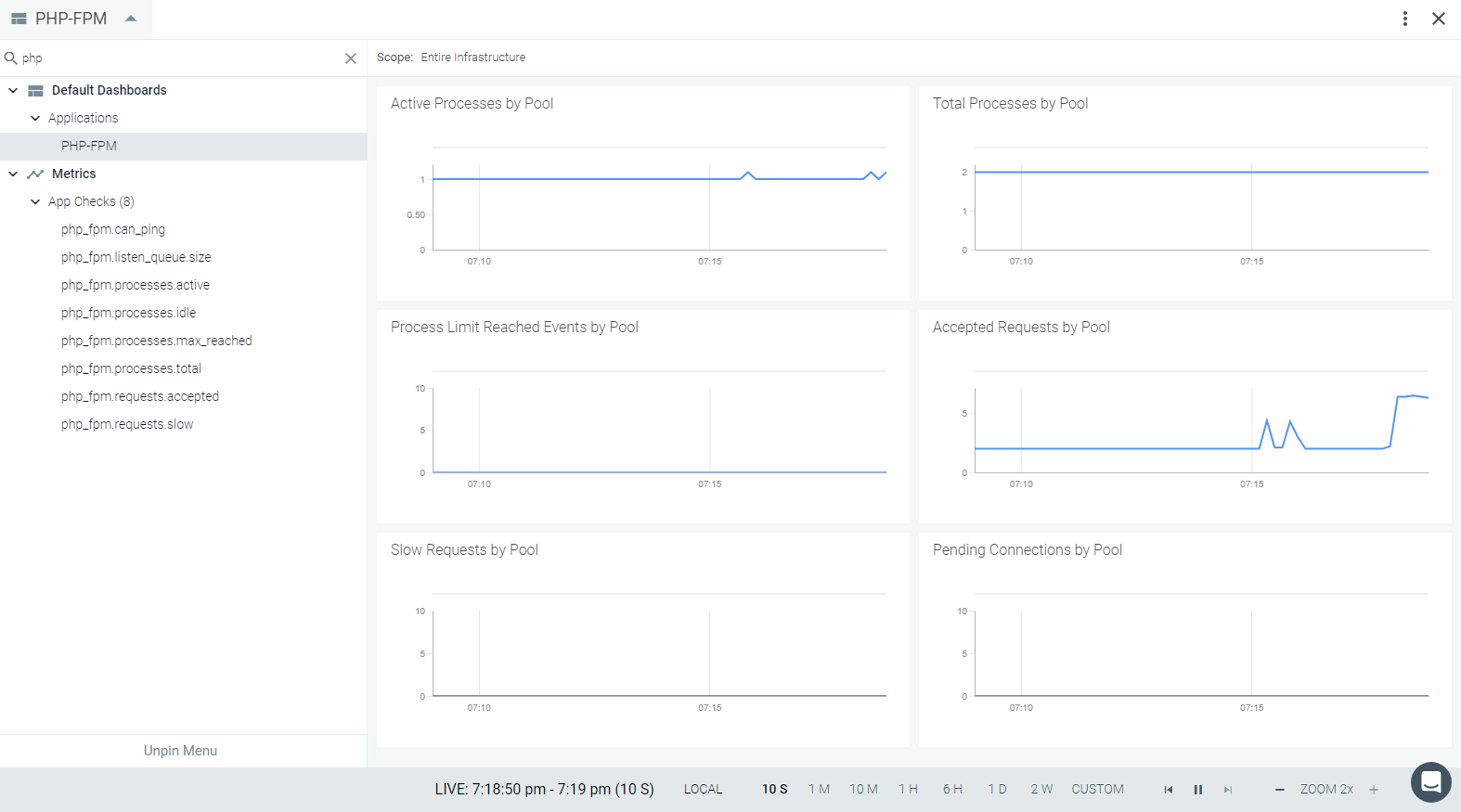 |
 |
 |
 |
PostgreSQL
PostgreSQL is a powerful, open-source, object-relational database system that has earned a strong reputation for reliability, feature robustness, and performance.
If PostgreSQL is installed in your environment, the Sysdig agent will automatically connect in most cases. In some conditions, you may need to create specific user for Sysdig and edit the default entries to connect.
See Default Configuration. The Sysdig agent automatically collects all metrics with the default configuration when correct credentials are provided.
This page describes the default configuration settings, how to edit the configuration to collect additional information, the metrics available for integration, and a sample result in the Sysdig Monitor UI.
PostgreSQL will be auto-discovered and the agent will connect through the Unix socket using the Default Configuration with the postgres default user. If this does not work, you can create a user for Sysdig Monitor and give it enough permissions to read Postgres stats. To do this, execute the following example statements on your server:
create user sysdig-cloud with password 'password';
grant SELECT ON pg_stat_database to sysdig_cloud;
Review how to Edit dragent.yaml to Integrate or Modify Application Checks.
By default, Sysdig's default.dragent.yaml uses the following code to connect with Postgres.
app_checks:
  - name: postgres
    pattern:
      comm: postgres
      port: 5432
    conf:
      unix_sock: "/var/run/postgresql/.s.PGSQL.{port}"
      username: postgres
If a special user for Sysdig is created, then update dragent.yaml file with PostgreSQL#Expanded Example 1.
Warning
Remember! Never edit default.dragent.yaml directly; always edit only dragent.yaml.
Update the username and password created for the Sysdig agent in the respective fields, as follows:
app_checks:
  - name: postgres
    pattern:
      comm: postgres
      port: 5432
    conf:
      username: sysdig-cloud
password: passwordSee PostgreSQL Metrics.
The default PostgreSQL dashboard includes combined metrics and individual metrics in an overview page.
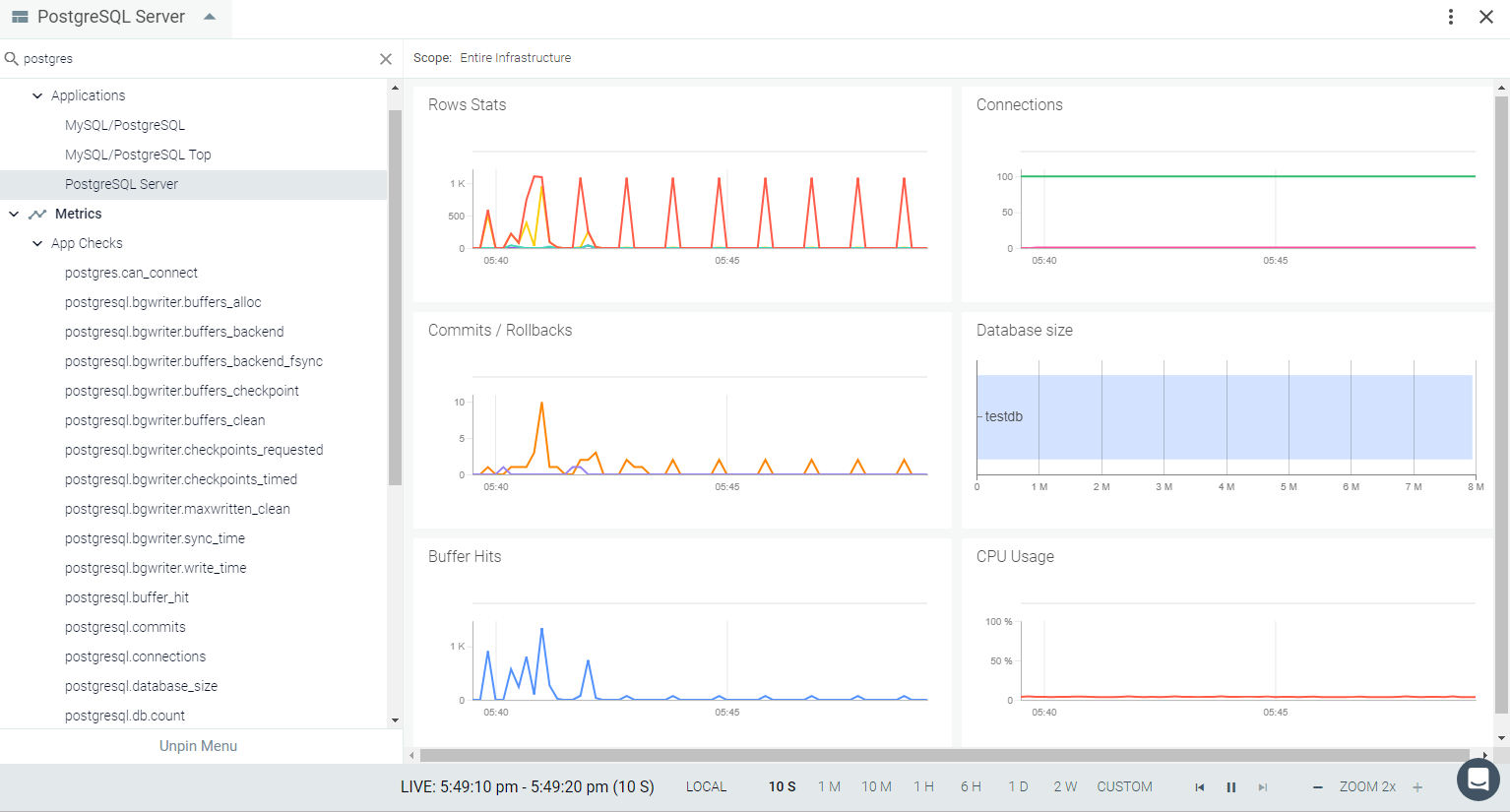 |
You can also view individual metric charts from a drop-down menu in an Explore view.
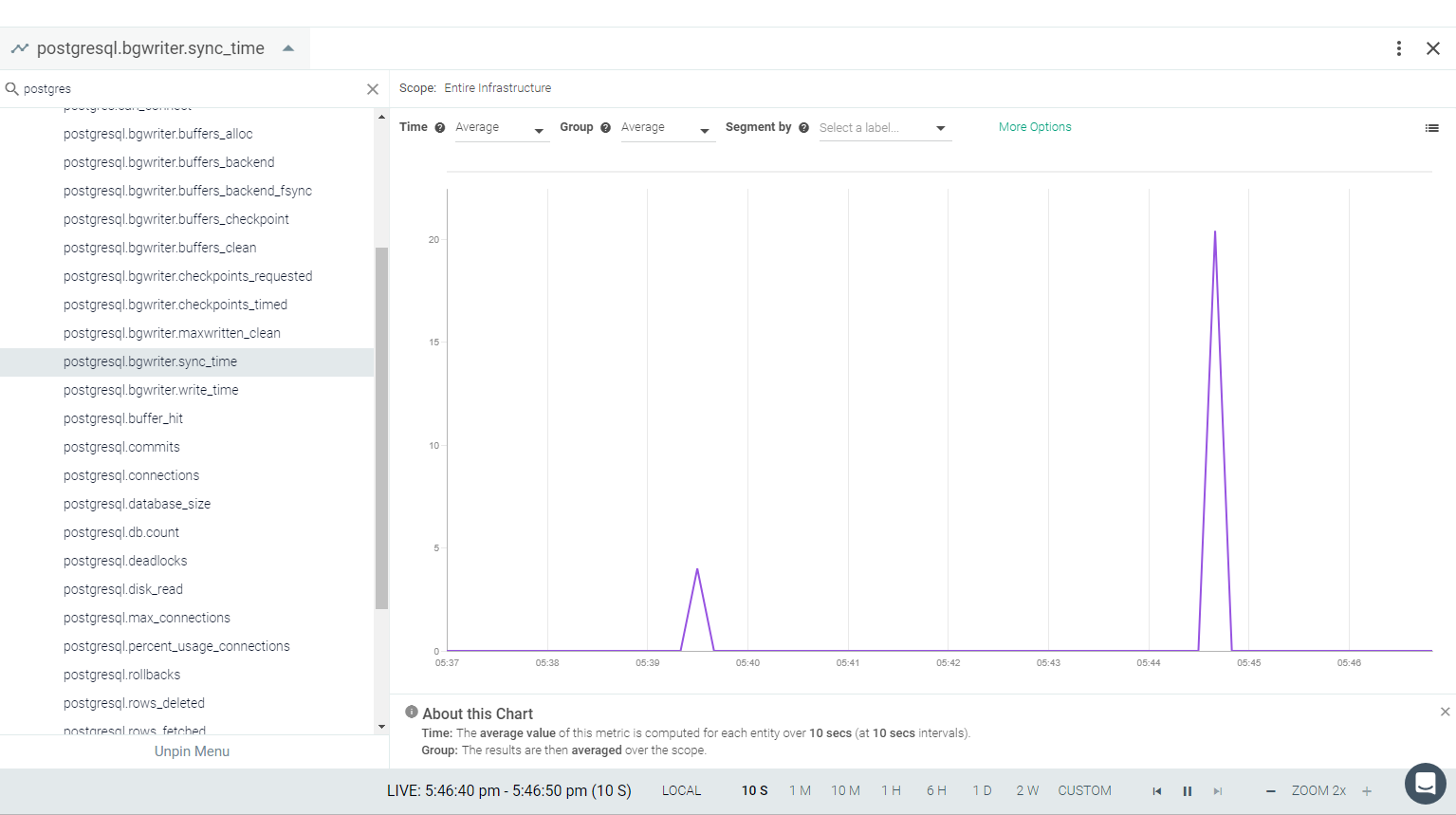 |
 |
 |
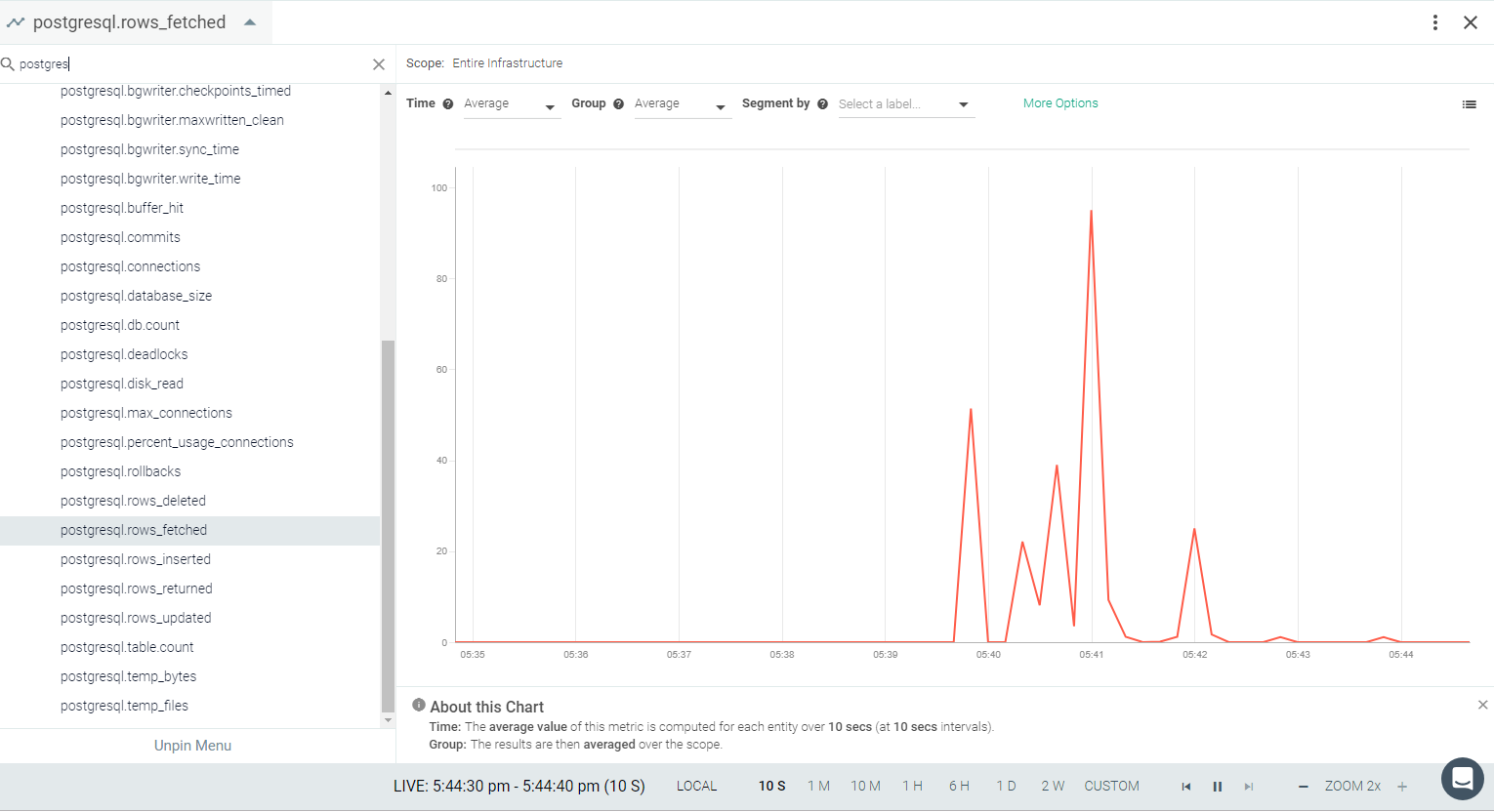 |
RabbitMQ
RabbitMQ is an open-source message-broker software (sometimes called message-oriented middleware) that implements Advanced Message Queuing Protocol (AMQP). The RabbitMQ server is written in the Erlang language and is built on Open Telecom Platform framework for clustering and fail-over. Client libraries to interface with the broker are available in all major programming languages. If RabbitMQ is installed on your environment, the Sysdig agent will automatically connect. See RabbitMQ#Default Configuration.
The Sysdig agent automatically collects all metrics with the default configuration. You may need to edit the dragent.yaml file if a metrics limit is reached.
This page describes the default configuration settings, how to edit the configuration to collect additional information, the metrics available for integration, and a sample result in the Sysdig Monitor UI.
Enable the RabbitMQ management plugin. See RabbitMQ’s documentation to enable it.
Review how to Edit dragent.yaml to Integrate or Modify Application Checks.
By default, Sysdig's dragent.default.yaml uses the following code to connect with RabbitMQ and collect all metrics.
app_checks:
  - name: rabbitmq
    pattern:
      port: 15672
    conf:
      rabbitmq_api_url: "http://localhost:15672/api/"
      rabbitmq_user: guest
      rabbitmq_pass: guest
The RabbitMQ app check tracks various entities, such as exchanges, queues and nodes. Each of these entities has its maximum limits. If the limit is reached, metrics can be controlled by editing the dragent.yaml file, as in the following examples.
Warning
Remember! Never edit dragent.default.yaml directly; always edit only dragent.yaml.
When a maximum limit is exceeded, the app check will log an info message:
|
This message is suppressed by a configuration parameter, logging_interval.
Its default value is 300 seconds. This can be altered by specifying a different value in dragent.yaml.
app_checks:
  - name: rabbitmq
    pattern:
      port: 15672
    conf:
      rabbitmq_api_url: "http://localhost:15672/api/"
      rabbitmq_user: guest
      rabbitmq_pass: guest
logging_interval: 10 # Value in seconds. Default is 300Each of the tracked RabbitMQ entities has its maximum limits. Default limits are as follows:
Exchanges: 50
Queues: 200
Nodes: 100
The metrics for these entities are tagged. If any of these entities are present but no transactions have occurred for them, the metrics are still reported with 0 values, though without tags. Therefore, when segmenting these metrics, the tags will show as unset in the Sysdig Monitor Explore view. However, all such entities are still counted against the maximum limits. In such a scenario, you can specify the entity names for which you want to collect metrics in the dragent.yaml file.
app_checks:
  - name: rabbitmq
    pattern:
      port: 15672
    conf:
      rabbitmq_api_url: "http://localhost:15672/api/"
      rabbitmq_user: guest
      rabbitmq_pass: guest
      tags: ["queues:<queuename>"]
      nodes:
        - rabbit@localhost
        - rabbit2@domain
      nodes_regexes:
        - bla.*
      queues:
        - queue1
        - queue2
      queues_regexes:
        - thisqueue-.*
        - another_\d+queue
      exchanges:
        - exchange1
        - exchange2
      exchanges_regexes:
- exchange*Optional tags can be applied to every emitted metric, service check, and/or event.
Note
Names can be specified by exact name or regular expression.
app_checks:
  - name: rabbitmq
    pattern:
      port: 15672
    conf:
      rabbitmq_api_url: "http://localhost:15672/api/"
      rabbitmq_user: guest
      rabbitmq_pass: guest
tags: ["some_tag:some_value"]See RabbitMQ Metrics.
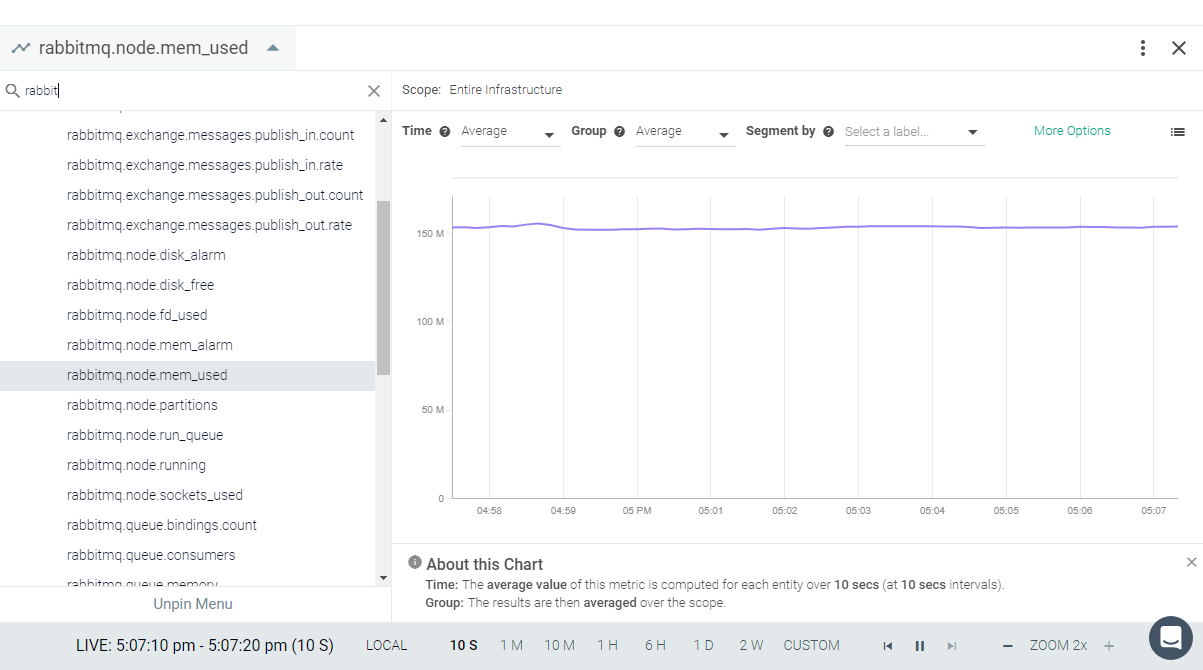 |
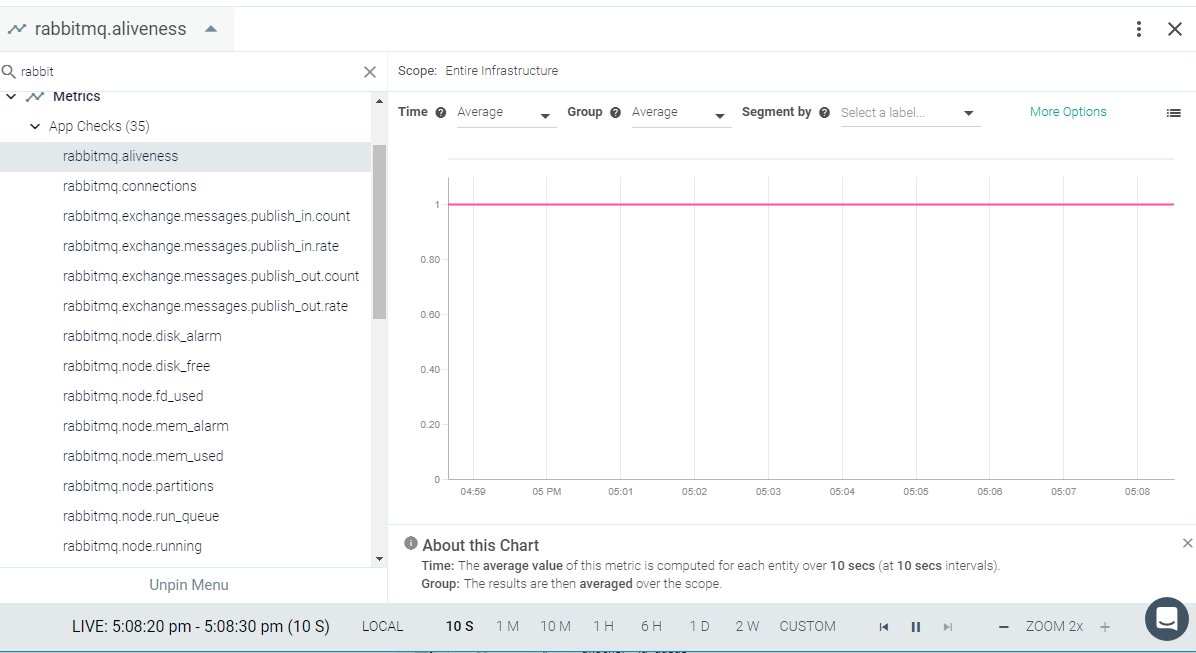 |
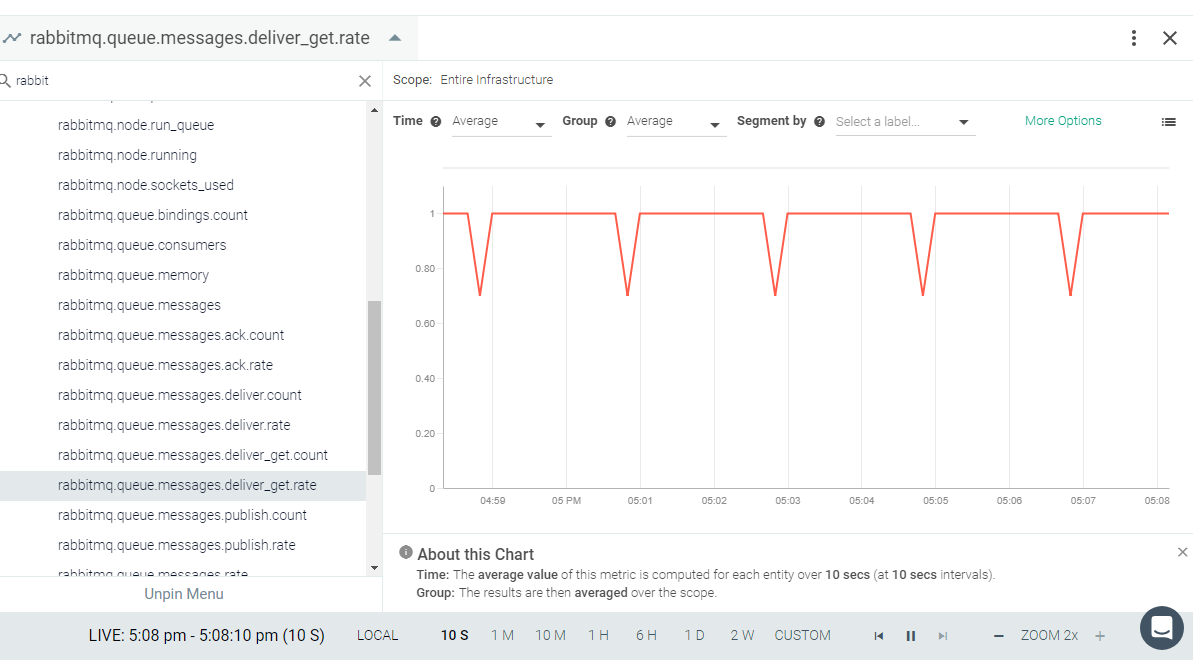 |
 |
RedisDB
Redis is an open-source (BSD licensed), in-memory data structure store, used as a database, cache, and message broker. If Redis is installed in your environment, the Sysdig agent will automatically connect in most cases. You may need to edit the default entries to get additional metrics. See Default Configuration.
This page describes the default configuration settings, how to edit the configuration to collect additional information, the metrics available for integration, and a sample result in the Sysdig Monitor UI.
Redis will automatically expose all metrics. You do not need to configure anything in the Redis instance.
Review how to Edit dragent.yaml to Integrate or Modify Application Checks.
By default, Sysdig's dragent.default.yaml uses the following code to connect with Redis and collect basic metrics:
app_checks:
  - name: redis
    check_module: redisdb
    pattern:
      comm: redis-server
    conf:
      host: 127.0.0.1
      port: "{port}"
Some additional metrics can be collected by editing the configuration file as shown in following examples. The options shown in Example 2 are relevant if Redis requires authentication or if a Unix socket is used.
Warning
Remember! Never edit dragent.default.yaml directly; always edit only dragent.yaml.
The following example entry results in the metric redis.key.length in the Sysdig Monitor UI, displaying the length of specific keys (segmented by: key). To enable, provide the key names in dragent.yaml as follows.
Note that length is 0 (zero) for keys that have a type other than list, set, hash, or sorted set. Keys can be expressed as patterns; see https://redis.io/commands/keys.
Sample entry in dragent.yaml:
app_checks:
  - name: redis
    check_module: redisdb
    pattern:
      comm: redis-server
    conf:
      host: 127.0.0.1
      port: "{port}"
      keys:
        - "list_1"
- "list_9*"unix_socket_path(Optional) - Can be used if your Redis uses a socket instead of host and port.password(Optional) - Can be used if your Redis requires a password
app_checks:
  - name: redis
    check_module: redisdb
    pattern:
      comm: redis-server
    conf:
      host: 127.0.0.1
      port: "{port}"
      # unix_socket_path: /var/run/redis/redis.sock # can be used in lieu of host/port
# password: mypassword # if your Redis requires authYou can also collect the INFO COMMANDSTATS result as metrics (redis.command.*). This works with Redis >= 2.6
Sample implementation:
app_checks:
  - name: redis
    check_module: redisdb
    pattern:
      comm: redis-server
    conf:
      host: 127.0.0.1
      port: "{port}"
command_stats: trueSee RedisDB Metrics.
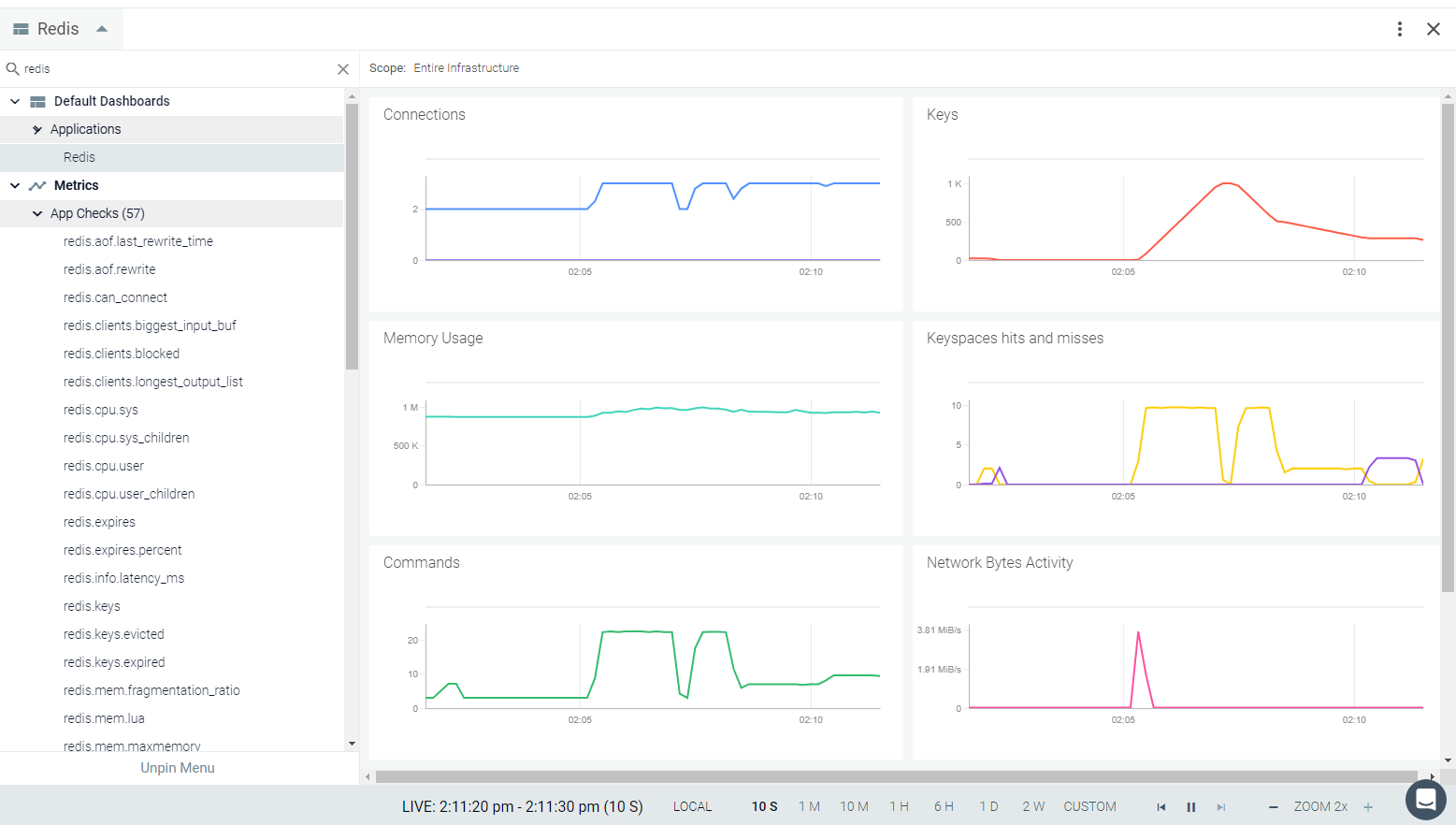 |
 |
 |
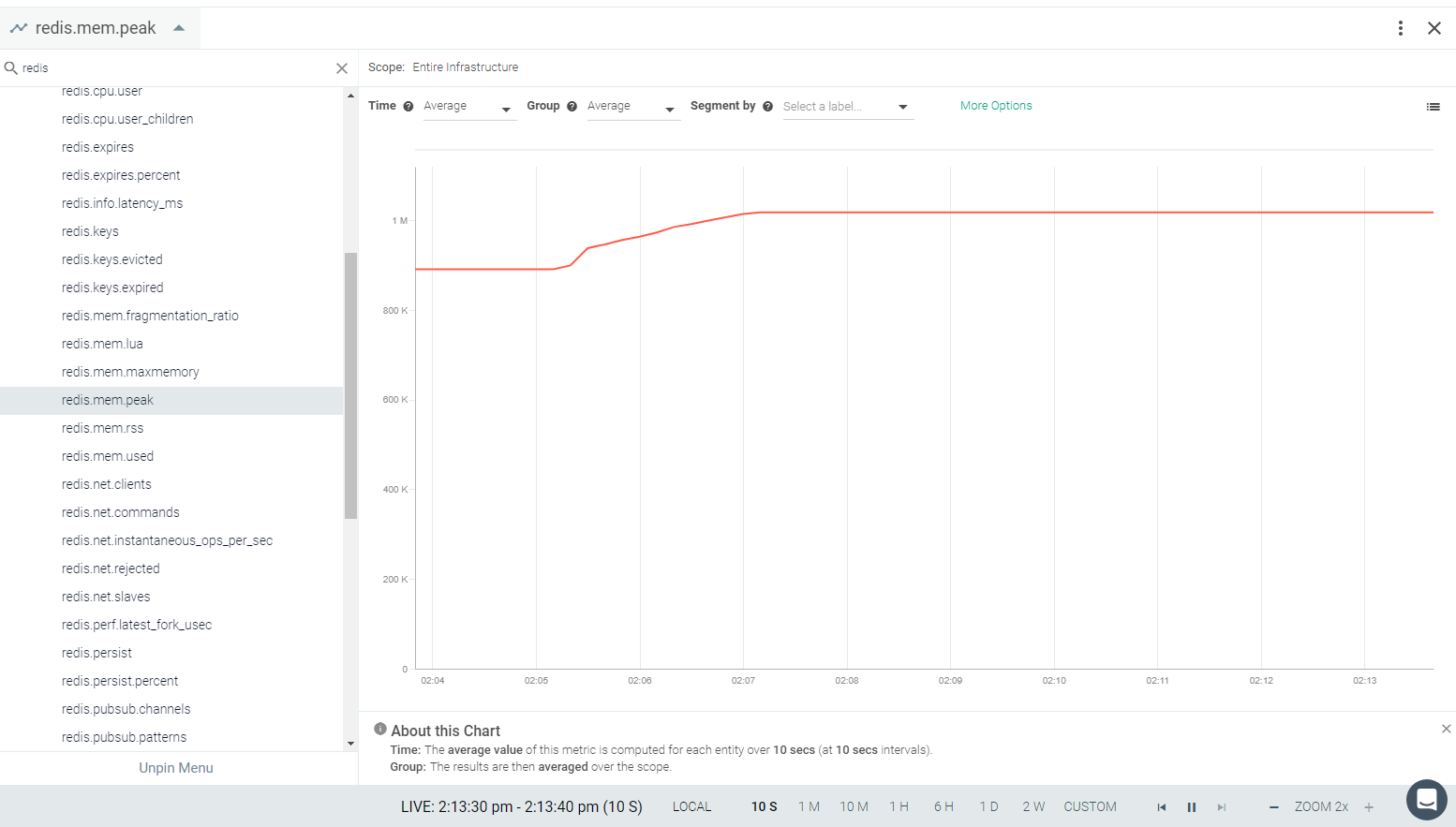 |
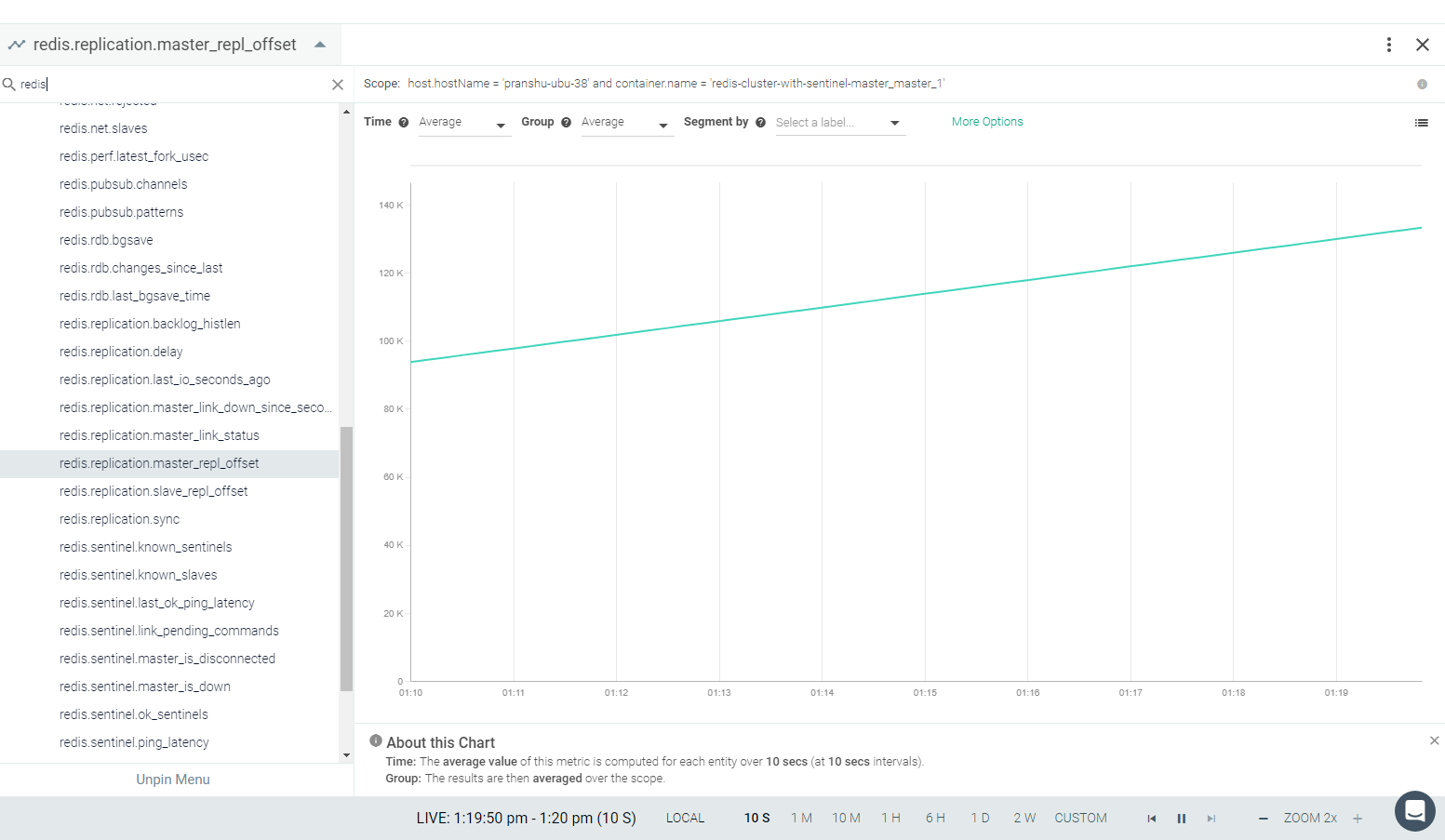 |
Riak CS
Riak CS does not ship with a default configuration because it needs at least access_id and access_secret to work. Add the riakcs entry in your dragent.yaml with those unique parameters:
  - name: riakcs
    pattern:
      comm: beam.smp
      port: 8080
    conf:
      access_id: "my_access_id"
      access_secret: "my_access_secret"
      #is_secure: false
      s3_root: s3.amazonaws.dev
To get statistics, app_checks also needs permissions to read the riak-cs bucket.
SNMP
Simple Network Management Protocol (SNMP) is an application-layer protocol used to manage and monitor network devices and their functions. The Sysdig agent can connect to network devices and collect metrics using SNMP.
This page describes the default configuration settings, how to edit the configuration to collect additional information, the metrics available for integration, and a sample result in the Sysdig Monitor UI.
Simple Network Management Protocol (SNMP) is an Internet Standard protocol for collecting and configuring information about devices in the networks. The network devices include physical devices like switches, routers, servers etc.
SNMP has three primary versions ( SNMPv1, SNMPv2c and SNMPv3) and SNMPv2c is most widely used.
SNMP allows device vendors to expose management data in the form of variables on managed systems organized in a management information base (MIB), which describe the system status and configuration. The devices can be queried as well as configured remotely using these variables. Certain MIBs are generic and supported by the majority of the device vendors. Additionally, each vendor can have their own private/enterprise MIBs for vendor-specific information.
SNMP MIB is a collection of objects uniquely identified by an Object Identifier (OID). OIDs are represented in the form of x.0, where x is the name of object in the MIB definition.
For example, suppose one wanted to identify an instance of the variable sysDescr

The object class for sysDescr is:

iso org dod internet mgmt mib system sysDescr
 1   3   6     1      2    1    1       1

Hence, the object type, x, would be 1.3.6.1.2.1.1.1
To monitor the servers with the Sysdig agent, the SNMP agent must be installed on the servers to query the system information.
For Ubuntu-based servers, use the following commands to install the SNMP Daemon:
$sudo apt-get update
$sudo apt-get install snmpd
Next, configure this SNMP agent to respond to queries from the SNMP manager by updating the configuration file located at /etc/snmp/snmpd.conf
Below are the important fields that must be configured:
snmpd.conf
# Listen for connections on all interfaces (both IPv4 *and* IPv6)
agentAddress udp:161,udp6:[::1]:161

## ACCESS CONTROL
## system + hrSystem groups only
view systemonly included .1.3.6.1.2.1.1
view systemonly included .1.3.6.1.2.1.25.1
view systemonly included .1.3.6.1.2.1.31.1
view systemonly included .1.3.6.1.2.1.2.2.1.1

# Default access to basic system info
rocommunity public default -V systemonly
# rocommunity6 is for IPv6
rocommunity6 public default -V systemonly
After making changes to the config file, restart the snmpd service using:
$sudo service snmpd restart
Review how to Edit dragent.yaml to Integrate or Modify Application Checks.
No default configuration is present for SNMP check.
You must specify the OID/MIB for every parameter you want to collect, as in the following example.
The OIDs configured in
dragent.yamlare included in thesnmpd.confconfiguration under the 'ACCESS CONTROL' sectionEnsure that the
community_stringis same as configured in the system configuration (rocommunity).
Warning
Remember! Never edit dragent.default.yaml directly; always edit only dragent.yaml.
app_checks:
  - name: snmp
    pattern:
      comm: python
      arg: /opt/draios/bin/sdchecks
    interval: 30
    conf:
      mibs_folder: /usr/share/mibs/ietf/
      ip_address: 52.53.158.103
      port: 161
      community_string: public

      # Only required for snmp v1, will default to 2
      # snmp_version: 2

      # Optional tags can be set with each metric
      tags:
         - vendor:EMC
         - array:VNX5300
         - location:front

      metrics:
        - OID: 1.3.6.1.2.1.25.2.3.1.5
          name: hrStorageSize
        - OID: 1.3.6.1.2.1.1.7
          name: sysServices
        - MIB: TCP-MIB
          symbol: tcpActiveOpens
        - MIB: UDP-MIB
          symbol: udpInDatagrams
        - MIB: IP-MIB
          table: ipSystemStatsTable
          symbols:
            - ipSystemStatsInReceives
          metric_tags:
            - tag: ipversion
              index: 1        # specify which index you want to read the tag value from
        - MIB: IF-MIB
          table: ifTable
          symbols:
            - ifInOctets
            - ifOutOctets
          metric_tags:
            - tag: interface
              column: ifDescr  # specify which column to read the tag value from
The Sysdig agent allows you to monitor the SNMP counters and gauge of your choice. For each device, specify the metrics that you want to monitor in the metrics subsection using one of the following methods:
Specify a MIB and the symbol that you want to export
metrics:
  - MIB: UDP-MIB
    symbol: udpInDatagrams
Specify an OID and the name you want the metric to appear under in Sysdig Monitor:
metrics:
  - OID: 1.3.6.1.2.1.6.5
    name: tcpActiveOpens
#The name here is the one specified in the MIB but you could use any name.
Specify an MIB and a table from which to extract information:
metrics:
  - MIB: IF-MIB
    table: ifTable
    symbols:
      - ifInOctets
    metric_tags:
      - tag: interface
    column: ifDescr
The SNMP check does not have default metrics. All metrics mentioned in dragent.yaml file will be seen with snmp.* prefix/
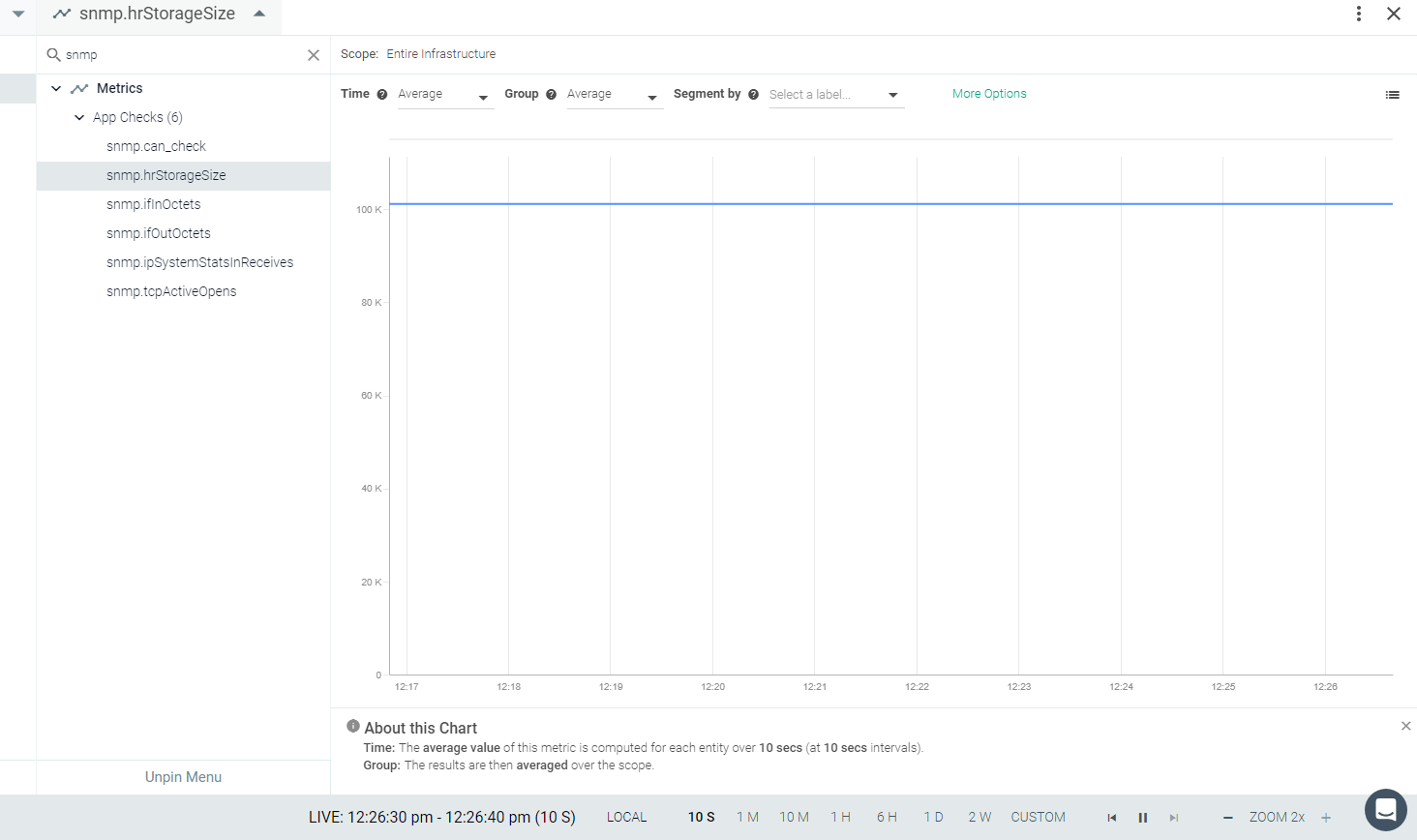 |
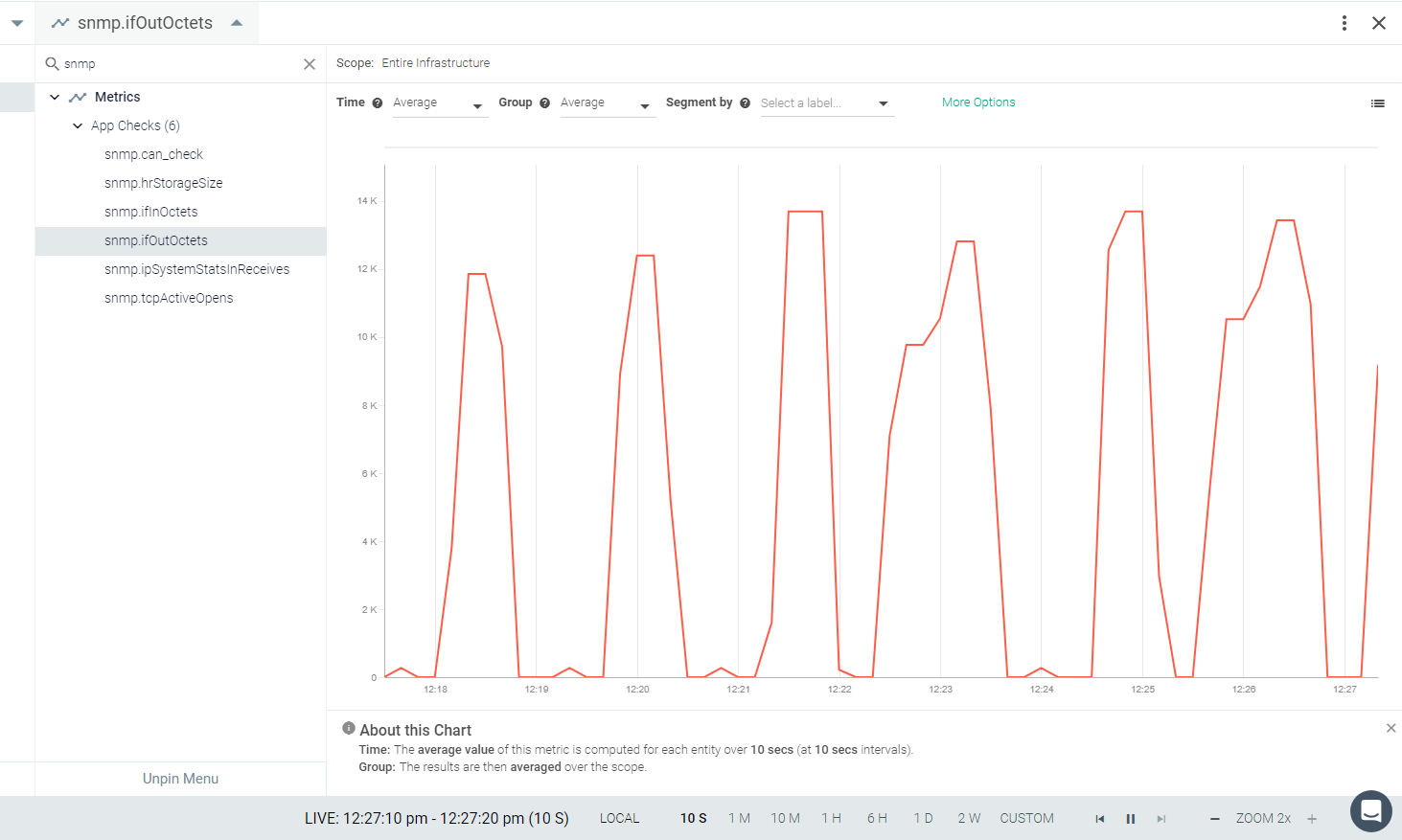 |
Supervisord
Supervisor daemon is a client/server system that allows its users to monitor and control a number of processes on UNIX-like operating systems., The Supervisor check monitors the uptime, status, and number of processes running under Supervisord.
No default configuration is provided for the Supervisor check; you must provide the configuration in the dragent.yaml file for the Sysdig agent to collect the data provided by Supervisor.
This page describes the setup steps required on Supervisor, how to edit the Sysdig agent configuration to collect additional information, the metrics available for integration, and a sample result in the Sysdig Monitor UI.
The Sysdig agent can collect data from Supervisor via HTTP server or UNIX socket. The agent collects the same data regardless of the configured collection method.
Un-comment the following or add them if they are not present in /etc/supervisor/supervisord.conf
[inet_http_server]
port=localhost:9001
username=user  # optional
password=pass  # optional
...


[supervisorctl]
serverurl=unix:///tmp/supervisor.sock
...

[unix_http_server]
file=/tmp/supervisor.sock
chmod=777 # make sure chmod is set so that non-root users can read the socket.
...

[program:foo]
command=/bin/cat
The programs controlled by Supervisor are given by different [program] sections in the configuration. Each program you want to manage by Supervisor must be specified in the Supervisor configuration file, with its supported options in the [program]section. See Supervisor's sample.conf file for details.
Review how to Edit dragent.yaml to Integrate or Modify Application Checks.
By default, Sysdig's dragent.default.yaml does not have any configuration to connect the agent with Supervisor. Edit dragent.yaml following the Examples given to connect with Supervisor and collect supervisor.* metrics.
Warning
Remember! Never edit dragent.default.yaml directly; always edit only dragent.yaml.
  - name: supervisord
    pattern:
      comm: supervisord
    conf:
      socket: "unix:///tmp/supervisor.sock"
- name: supervisord
  pattern:
    comm: supervisord
  conf:
    host: localhost
    port: 9001
# user: user # Optional. Required only if a username is configured.
# pass: pass # Optional. Required only if a password is configured.Metric Name | Metric Description |
|---|---|
supervisord.process.count (gauge) | The number of supervisord monitored processes shown as process |
supervisord.process.uptime (gauge) | The process uptime shown as second |
See also Supervisord Metrics.
Returns CRITICAL if the Sysdig agent cannot connect to the HTTP server or UNIX socket configured, otherwise OK.
SUPERVISORD STATUS | SUPERVISORD.PROCESS.STATUS |
|---|---|
STOPPED | CRITICAL |
STARTING | UNKNOWN |
RUNNING | OK |
BACKOFF | CRITICAL |
STOPPING | CRITICAL |
EXITED | CRITICAL |
FATAL | CRITICAL |
UNKNOWN | UNKNOWN |
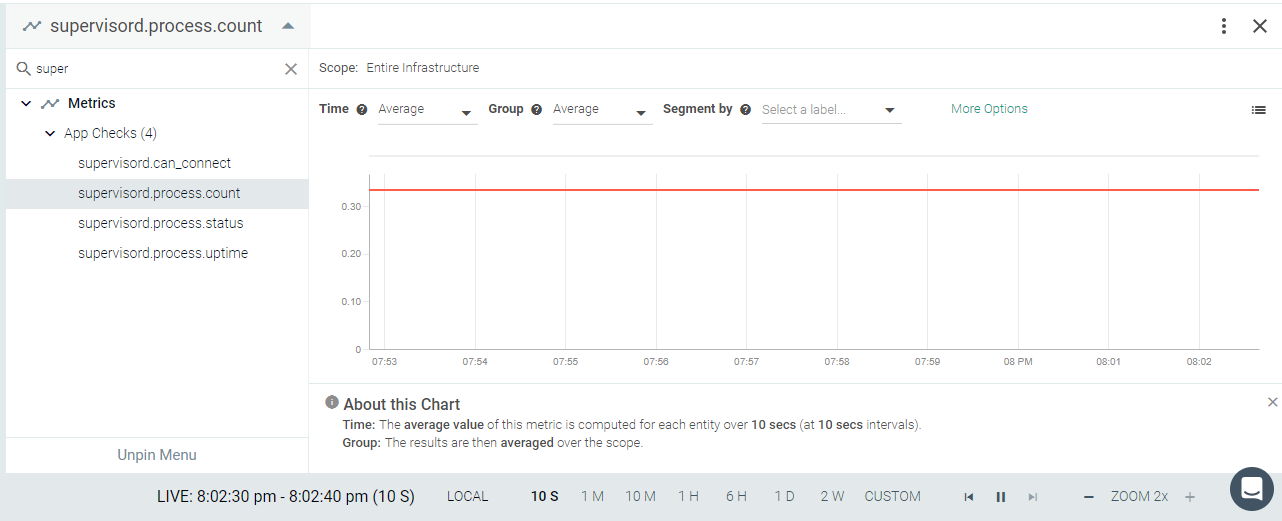 |
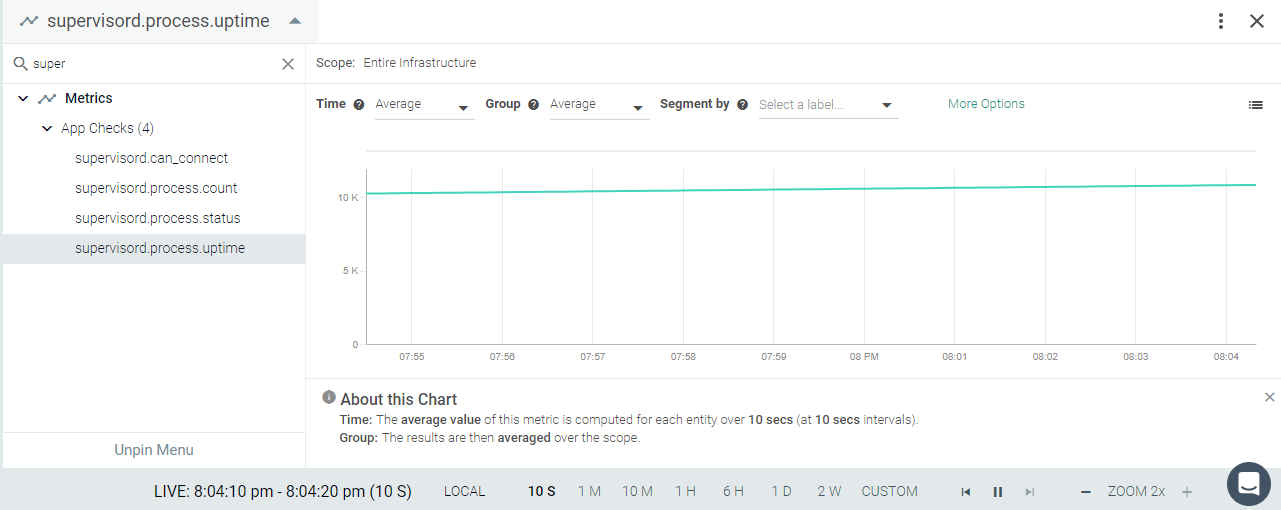 |
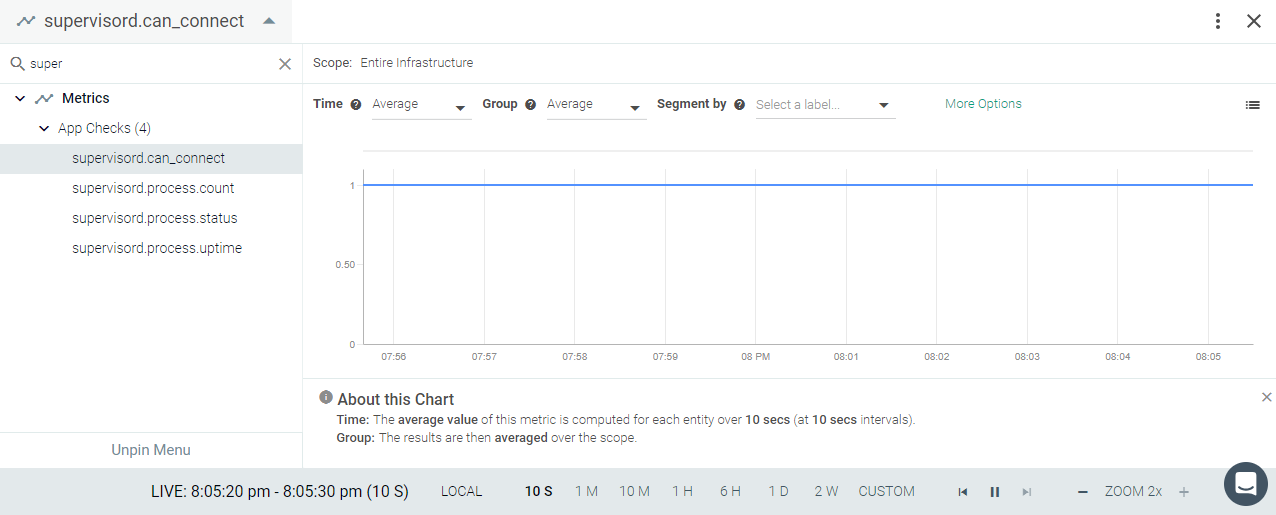 |
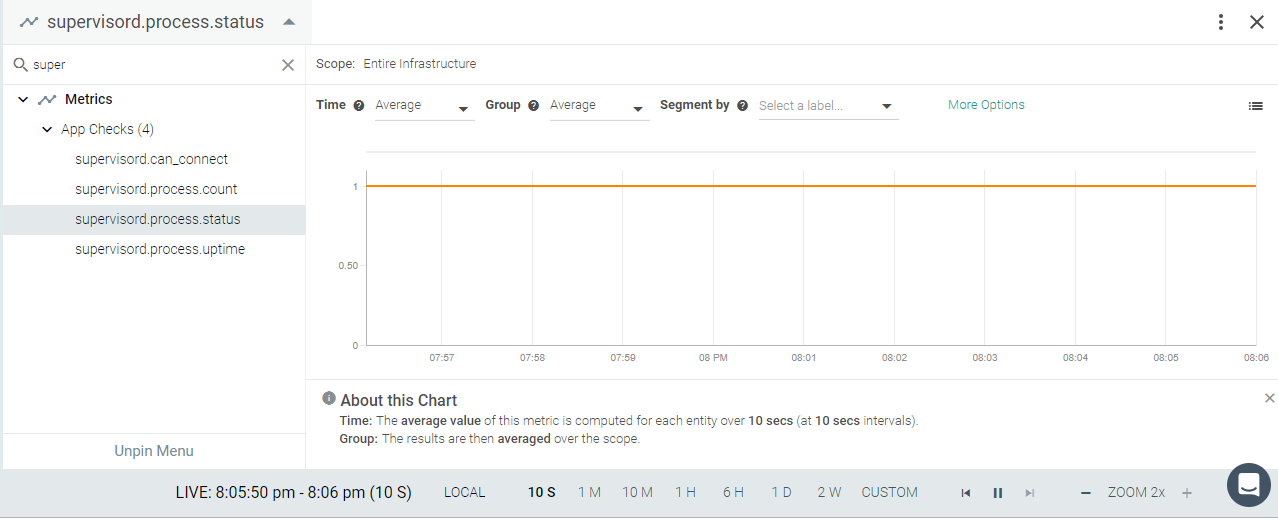 |
TCP
You can monitor the status of your custom application's port using the TCP check. This check will routinely connect to the designated port and send Sysdig Monitor a simple on/off metric and response time.
This page describes the default configuration settings, how to edit the configuration to collect additional information, the metrics available for integration, and a sample result in the Sysdig Monitor UI.
Any application listening on a TCP port can be monitored with tcp_check.
Review how to Edit dragent.yaml to Integrate or Modify Application Checks.
No default configuration is provided in the default settings file; you must add the entries in Example 1 to the user settings config file dragent.yaml.
Warning
Remember! Never edit dragent.default.yaml directly; always edit only dragent.yaml.
 - name: tcp_check
    check_module: tcp_check
    pattern:
      comm: httpd
      arg: DFOREGROUND
    conf:
      port: 80
      collect_response_time: true
This example shows monitoring a TCP check on an Apache process running on the host on port 80.
comm: is the command for running the Apache server on port 80.
If you want the response time for your port, meaning the amount of time the process takes to accept the connection, you can add the collect_response_time: true parameter under the conf: section and the additional metric network.tcp.response_time will appear in the Metrics list.
Warning
Do not use port: under the pattern: section in this case, because if the process is not listening it will not be matched and the metric will not be sent to Sysdig Monitor.
Metric Name | Metric Description |
|---|---|
network.tcp.response_time (gauge) | The response time of a given host and TCP port, tagged with url, e.g. 'url:192.168.1.100:22'. shown as second |
See also TCP Metrics.
tcp.can_connect :
DOWN if the agent cannot connect to the configured host and port, otherwise UP.
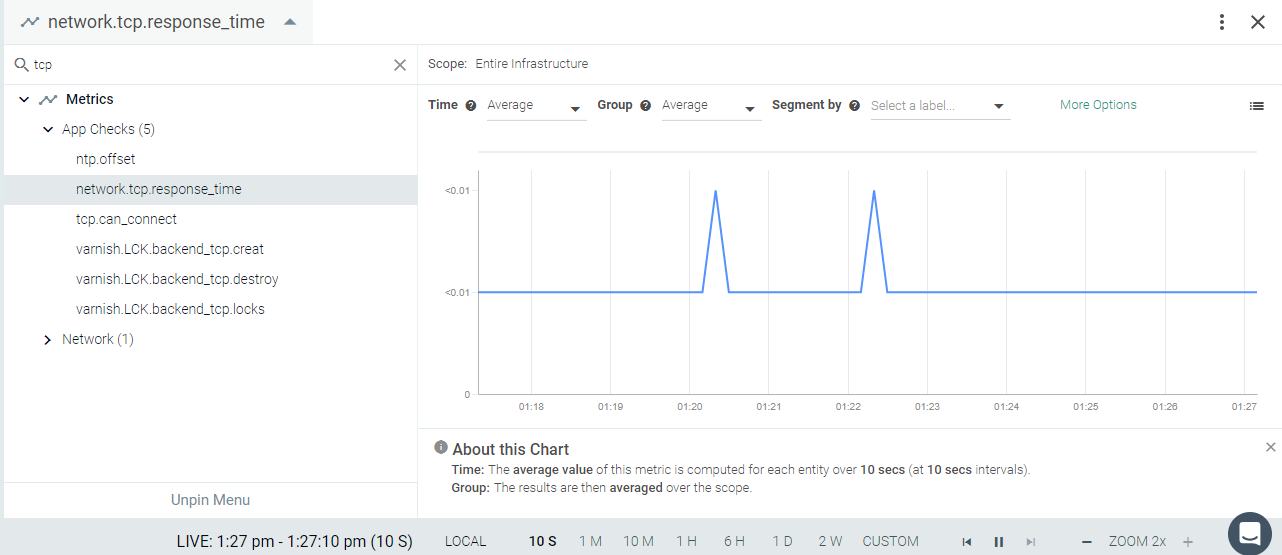 |
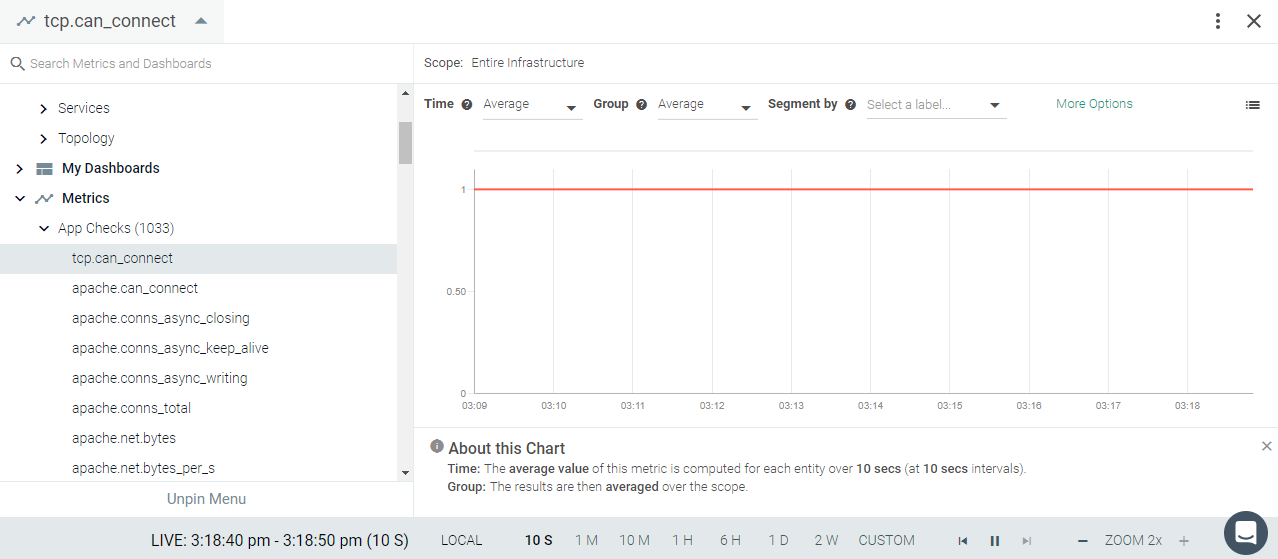 |
Varnish
Varnish HTTP Cache is a web application accelerator, also known as a "caching HTTP reverse proxy." You install it in front of any server that speaks HTTP and configure it to cache the contents. If Varnish is installed on your environment, the Sysdig agent will automatically connect.See Varnish#Default Configuration.
The Sysdig Agent automatically collects all metrics. You can also edit the configuration to emit service checks for the back end.
This page describes the default configuration settings, how to edit the configuration to collect additional information, the metrics available for integration, and a sample result in the Sysdig Monitor UI.
Varnish will automatically expose all metrics. You do not need to add anything to the Varnish instance.
Review how to Edit dragent.yaml to Integrate or Modify Application Checks.
By default, Sysdig's dragent.default.yaml uses the following code to connect with Varnish and collect all metrics.
app_checks:
  - name: varnish
    interval: 15
    pattern:
      comm: varnishd
    conf:
      varnishstat: /usr/bin/varnishstat
Optionally, if you want to submit service checks for the health of each back end, you can configure varnishadm and edit dragent.yaml as in Example 1.
Warning
Remember! Never edit dragent.default.yaml directly; always edit only dragent.yaml.
When varnishadm is configured, the Sysdig agent requires privileges to execute the binary with root privileges. Add the following to your /etc/sudoers file:
sysdig-agent ALL=(ALL) NOPASSWD:/usr/bin/varnishadm
Then edit dragent.yaml as follows. Note: If you have configured varnishadm and your secret file is NOT /etc/varnish/secret, you can comment out secretfile.
app_checks:
  - name: varnish
    interval: 15
    pattern:
      comm: varnishd
    conf:
      varnishstat: /usr/bin/varnishstat
      varnishadm: /usr/bin/varnishadm
      secretfile: /etc/varnish/secret
This example will enable following service check.
varnish.backend_healthy: The agent submits a service check for each Varnish backend, tagging each with backend:<backend_name>.
See Varnish Metrics.
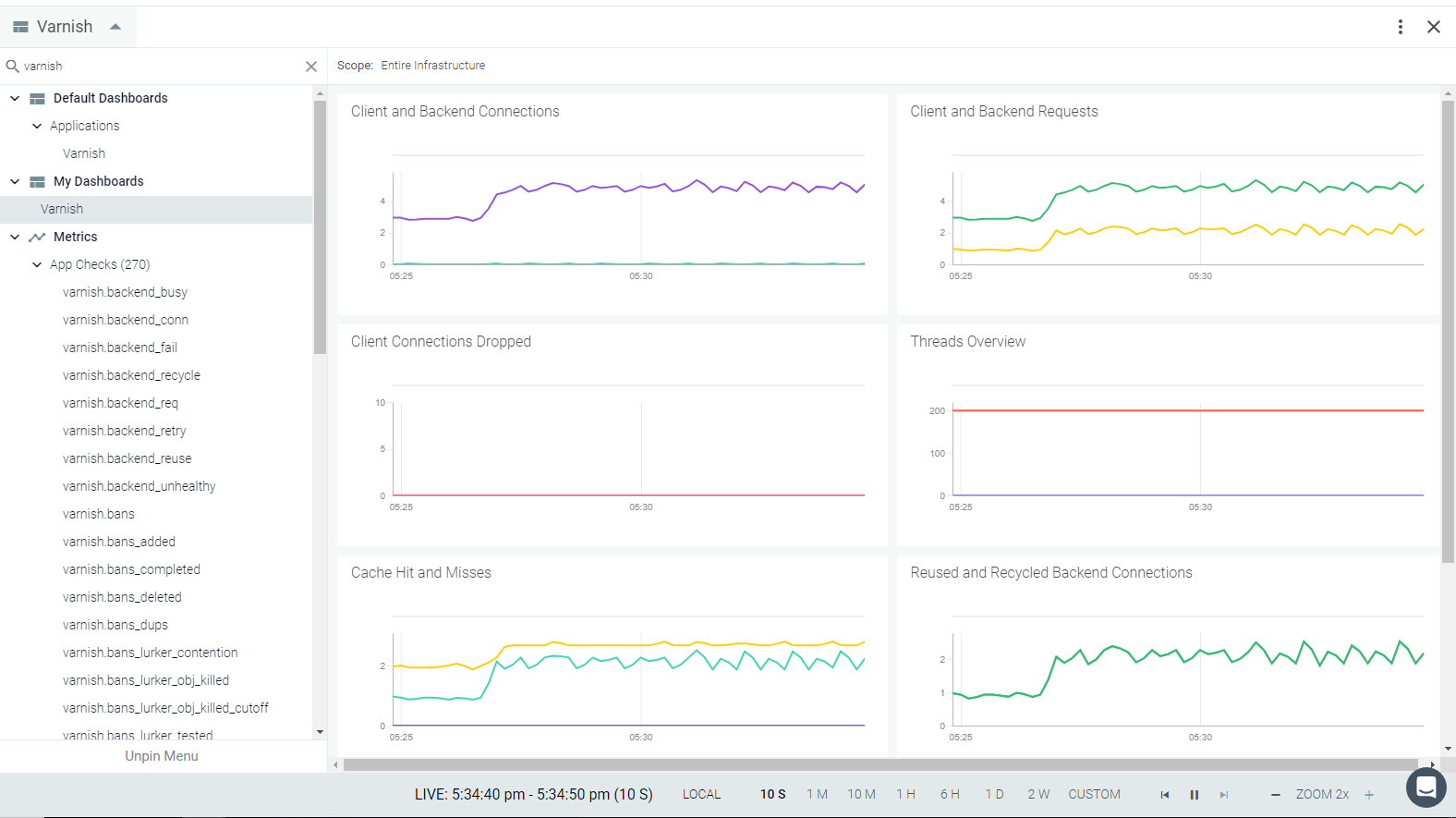 |
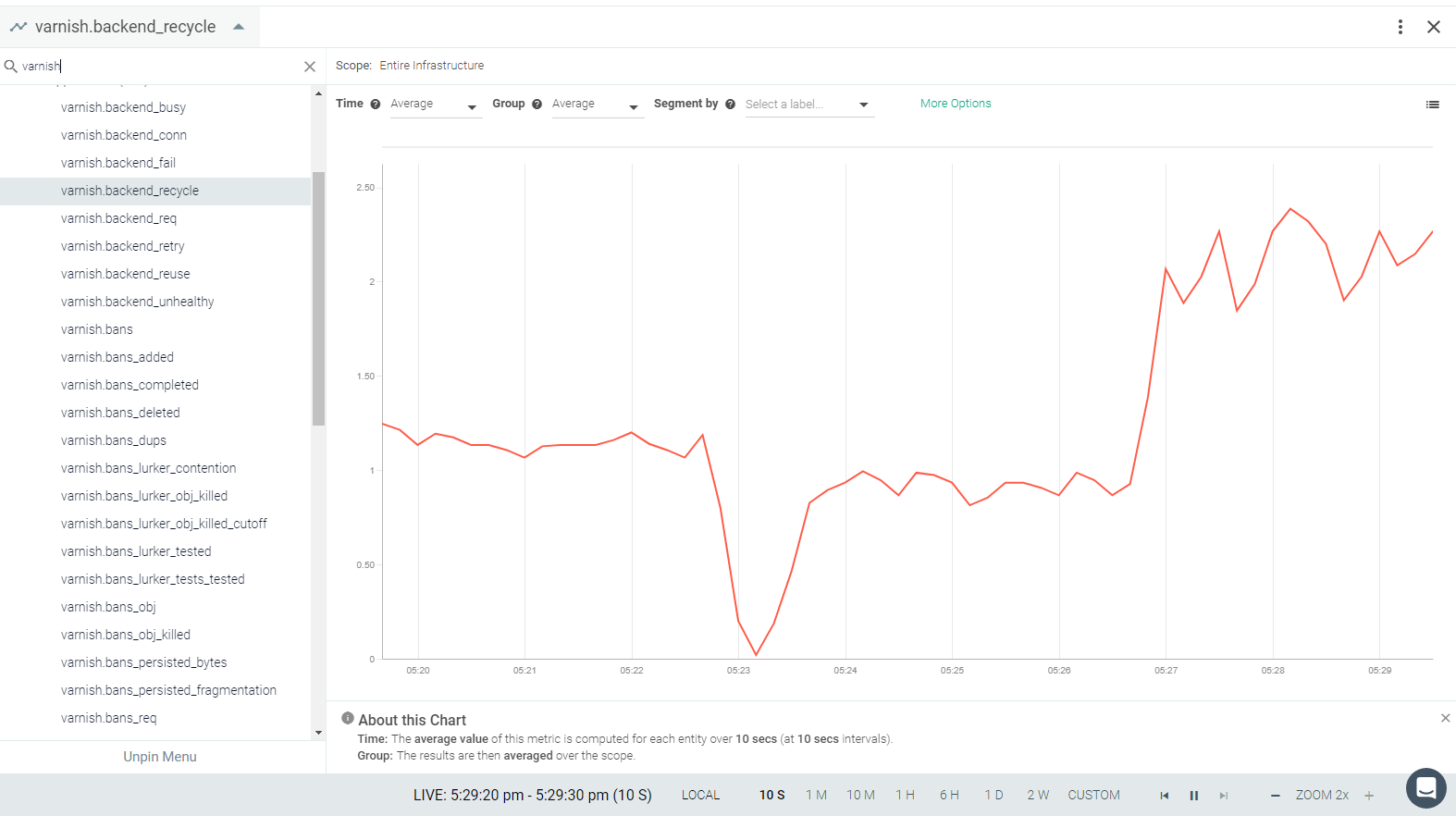 |
 |
 |
 |
**Copy of Mesos/Marathon**
Mesos is built using the same principles as the Linux kernel, only at a different level of abstraction. The Mesos kernel runs on every machine and provides applications (e.g., Hadoop, Spark, Kafka, Elasticsearch) with API’s for resource management and scheduling across entire datacenter and cloud environments. Marathon is a production-grade container orchestration platform for Apache Mesos.
If Mesos and Marathon are installed in your environment, the Sysdig agent will automatically connect and start collecting metrics.You may need to edit the default entries to add a custom configuration if the default does not work. See Default Configuration.
This page describes the default configuration settings, how to edit the configuration to collect additional information, the metrics available for integration, and a sample result in the Sysdig Monitor UI.
Both Mesos and Marathon will automatically expose all metrics. You do not need to add anything to the Mesos/Marathon instance.
Review how to Edit dragent.yaml to Integrate or Modify Application Checks.
The Sysdig agent has different entries for mesos-master, mesos-slave and marathon in its configuration file. Default entries are present in Sysdig's dragent.default.yaml file and collect all metrics for Mesos. For Marathon, it collects basic metrics. You may need add configuration to collect additional metrics.
In the urls for mesos-master and mesos-slave, {mesos_url} will be replaced with either the hostname of the autodetected mesos master/slave if autodetection is enabled or an explicit value from mesos_state_uri otherwise.
In the urls for marathon, {marathon_url} will be replaced with the hostname of the first configured/discovered marathon framework.
For all mesos and marathon apps, {auth_token} will either be blank or an autogenerated token obtained via the /acs/api/v1/auth/login endpoint.
app_checks:
  - name: mesos-master
    check_module: mesos_master
    interval: 30
    pattern:
      comm: mesos-master
    conf:
      url: "{mesos_url}:{port}"
      auth_token: "{auth_token}"
mesos_creds: "{mesos_creds}"app_checks:
- name: mesos-slave
check_module: mesos_slave
pattern:
comm: mesos-slave
interval: 30
conf:
url: "{mesos_url}:{port}"
auth_token: "{auth_token}"
mesos_creds: "{mesos_creds}"
# Name of individual tasks to monitor, if needed
# tasks:
# - mongo
# - cassandraapp_checks:
- name: marathon
check_module: marathon
interval: 30
pattern:
arg: mesosphere.marathon.Main
conf:
url: "{marathon_url}"
auth_token: "{auth_token}"
marathon_creds: "{marathon_creds}"Warning
Remember! Never edit dragent.default.yaml directly; always edit only dragent.yaml.
Enable the flag full_metrics to collect all metrics for marathon.
Following additional metrics collected with this configuration:
marathon.cpus
marathon.disk
marathon.instances marathon.mem
app_checks:
  - name: marathon
    check_module: marathon
    interval: 30
    pattern:
      arg: mesosphere.marathon.Main
    conf:
      url: "{marathon_url}"
      auth_token: "{auth_token}"
      marathon_creds: "{marathon_creds}"
full_metrics: trueMetric Name | Metric Description |
|---|---|
mesos.framework.cpu (gauge) | Framework cpu |
mesos.framework.mem (gauge) | Framework mem shown as mebibyte |
mesos.framework.disk (gauge) | Framework disk shown as mebibyte |
mesos.role.cpu (gauge) | Role cpu |
mesos.role.mem (gauge) | Role mem shown as mebibyte |
mesos.role.disk (gauge) | Role disk shown as mebibyte |
mesos.cluster.tasks_error (gauge) | Number of tasks that were invalid shown as task |
mesos.cluster.tasks_failed (rate) | Number of failed tasks shown as task |
mesos.cluster.tasks_finished (rate) | Number of finished tasks shown as task |
mesos.cluster.tasks_killed (rate) | Number of killed tasks shown as task |
mesos.cluster.tasks_lost (rate) | Number of lost tasks shown as task |
mesos.cluster.tasks_running (gauge) | Number of running tasks shown as task |
mesos.cluster.tasks_staging (gauge) | Number of staging tasks shown as task |
mesos.cluster.tasks_starting (gauge) | Number of starting tasks shown as task |
mesos.cluster.slave_registrations (gauge) | Number of slaves that were able to cleanly re-join the cluster and connect back to the master after the master is disconnected. |
mesos.cluster.slave_removals (gauge) | Number of slaves removed for various reasons, including maintenance |
mesos.cluster.slave_reregistrations (gauge) | Number of slave re-registrations |
mesos.cluster.slave_shutdowns_canceled (gauge) | Number of cancelled slave shutdowns |
mesos.cluster.slave_shutdowns_scheduled (gauge) | Number of slaves which have failed their health check and are scheduled to be removed |
mesos.cluster.slaves_active (gauge) | Number of active slaves |
mesos.cluster.slaves_connected (gauge) | Number of connected slaves |
mesos.cluster.slaves_disconnected (gauge) | Number of disconnected slaves |
mesos.cluster.slaves_inactive (gauge) | Number of inactive slaves |
mesos.cluster.cpus_percent (gauge) | Percentage of allocated CPUs shown as percent |
mesos.cluster.cpus_used (gauge) | Number of allocated CPUs |
mesos.cluster.cpus_total (gauge) | Number of CPUs |
mesos.cluster.gpus_total (gauge) | Number of GPUs |
mesos.cluster.disk_percent (gauge) | Percentage of allocated disk space shown as percent |
mesos.cluster.disk_used (gauge) | Allocated disk space shown as mebibyte |
mesos.cluster.disk_total (gauge) | Disk space shown as mebibyte |
mesos.cluster.mem_percent (gauge) | Percentage of allocated memory shown as percent |
mesos.cluster.mem_used (gauge) | Allocated memory shown as mebibyte |
mesos.cluster.mem_total (gauge) | Total memory shown as mebibyte |
mesos.registrar.queued_operations (gauge) | Number of queued operations |
mesos.registrar.registry_size_bytes (gauge) | Registry size shown as byte |
mesos.registrar.state_fetch_ms (gauge) | Registry read latency shown as millisecond |
mesos.registrar.state_store_ms (gauge) | Registry write latency shown as millisecond |
mesos.registrar.state_store_ms.count (gauge) | Registry write count |
mesos.registrar.state_store_ms.max (gauge) | Maximum registry write latency shown as millisecond |
mesos.registrar.state_store_ms.min (gauge) | Minimum registry write latency shown as millisecond |
mesos.registrar.state_store_ms.p50 (gauge) | Median registry write latency shown as millisecond |
mesos.registrar.state_store_ms.p90 (gauge) | 90th percentile registry write latency shown as millisecond |
mesos.registrar.state_store_ms.p95 (gauge) | 95th percentile registry write latency shown as millisecond |
mesos.registrar.state_store_ms.p99 (gauge) | 99th percentile registry write latency shown as millisecond |
mesos.registrar.state_store_ms.p999 (gauge) | 99.9th percentile registry write latency shown as millisecond |
mesos.registrar.state_store_ms.p9999 (gauge) | 99.99th percentile registry write latency shown as millisecond |
mesos.cluster.frameworks_active (gauge) | Number of active frameworks |
mesos.cluster.frameworks_connected (gauge) | Number of connected frameworks |
mesos.cluster.frameworks_disconnected (gauge) | Number of disconnected frameworks |
mesos.cluster.frameworks_inactive (gauge) | Number of inactive frameworks |
mesos.stats.system.cpus_total (gauge) | Number of CPUs available |
mesos.stats.system.load_15min (gauge) | Load average for the past 15 minutes |
mesos.stats.system.load_1min (gauge) | Load average for the past minutes |
mesos.stats.system.load_5min (gauge) | Load average for the past 5 minutes |
mesos.stats.system.mem_free_bytes (gauge) | Free memory shown as byte |
mesos.stats.system.mem_total_bytes (gauge) | Total memory shown as byte |
mesos.stats.elected (gauge) | Whether this is the elected master |
mesos.stats.uptime_secs (gauge) | Uptime shown as second |
mesos.cluster.dropped_messages (gauge) | Number of dropped messages shown as message |
mesos.cluster.outstanding_offers (gauge) | Number of outstanding resource offers |
mesos.cluster.event_queue_dispatches (gauge) | Number of dispatches in the event queue |
mesos.cluster.event_queue_http_requests (gauge) | Number of HTTP requests in the event queue shown as request |
mesos.cluster.event_queue_messages (gauge) | Number of messages in the event queue shown as message |
mesos.cluster.invalid_framework_to_executor_messages (gauge) | Number of invalid framework messages shown as message |
mesos.cluster.invalid_status_update_acknowledgements (gauge) | Number of invalid status update acknowledgements |
mesos.cluster.invalid_status_updates (gauge) | Number of invalid status updates |
mesos.cluster.valid_framework_to_executor_messages (gauge) | Number of valid framework messages shown as message |
mesos.cluster.valid_status_update_acknowledgements (gauge) | Number of valid status update acknowledgements |
mesos.cluster.valid_status_updates (gauge) | Number of valid status updates |
Metric Name | Metric Description |
|---|---|
mesos.stats.system.cpus_total(gauge) | Number of CPUs available |
mesos.stats.system.load_15min(gauge) | Load average for the past 15 minutes |
mesos.stats.system.load_1min(gauge) | Load average for the past minutes |
mesos.stats.system.load_5min(gauge) | Load average for the past 5 minutes |
mesos.stats.system.mem_free_bytes(gauge) | Free memory |
mesos.stats.system.mem_total_bytes(gauge) | Total memory |
mesos.stats.registered(gauge) | Whether this slave is registered with a master |
mesos.stats.uptime_secs(gauge) | Slave uptime |
mesos.state.task.cpu(gauge) | Task cpu |
mesos.state.task.mem(gauge) | Task memory |
mesos.state.task.disk(gauge) | Task disk |
mesos.slave.tasks_failed(gauge) | Number of failed tasks |
mesos.slave.tasks_finished(gauge) | Number of finished tasks |
mesos.slave.tasks_killed(gauge) | Number of killed tasks |
mesos.slave.tasks_lost(gauge) | Number of lost tasks |
mesos.slave.tasks_running(gauge) | Number of running tasks |
mesos.slave.tasks_staging(gauge) | Number of staging tasks |
mesos.slave.tasks_starting(gauge) | Number of starting tasks |
mesos.slave.cpus_percent(gauge) | Percentage of allocated CPUs |
mesos.slave.cpus_used(gauge) | Number of allocated CPUs |
mesos.slave.cpus_total(gauge) | Number of CPUs |
mesos.slave.disk_percent(gauge) | Percentage of allocated disk space |
mesos.slave.disk_used(gauge) | Allocated disk space |
mesos.slave.disk_total(gauge) | Disk space |
mesos.slave.mem_percent(gauge) | Percentage of allocated memory |
mesos.slave.mem_used(gauge) | Allocated memory |
mesos.slave.mem_total(gauge) | Total memory |
mesos.slave.executors_registering(gauge) | Number of executors registering |
mesos.slave.executors_running(gauge) | Number of executors running |
mesos.slave.executors_terminated(gauge) | Number of terminated executors |
mesos.slave.executors_terminating(gauge) | Number of terminating executors |
mesos.slave.frameworks_active(gauge) | Number of active frameworks |
mesos.slave.invalid_framework_messages(gauge) | Number of invalid framework messages |
mesos.slave.invalid_status_updates(gauge) | Number of invalid status updates |
mesos.slave.recovery_errors(gauge) | Number of errors encountered during slave recovery |
mesos.slave.valid_framework_messages(gauge) | Number of valid framework messages |
mesos.slave.valid_status_updates(gauge) | Number of valid status updates |
Metric Name | Metric Description |
|---|---|
marathon.apps (gauge) | Number of applications |
marathon.backoffFactor (gauge) | Backoff time multiplication factor for each consecutive failed task launch; tagged by app_id and version |
marathon.backoffSeconds (gauge) | Task backoff period; tagged by app_id and version shown as second |
marathon.cpus (gauge) | Configured CPUs for each instance of a given application |
marathon.disk (gauge) | Configured CPU for each instance of a given application shown as mebibyte |
marathon.instances (gauge) | Number of instances of a given application; tagged by app_id and version |
marathon.mem (gauge) | Configured memory for each instance of a given application; tagged by app_id and version shown as mebibyte |
marathon.tasksRunning (gauge) | Number of tasks running for a given application; tagged by app_id and version shown as task |
marathon.tasksStaged (gauge) | Number of tasks staged for a given application; tagged by app_id and version shown as task |
 |
 |
**Copy of Riak CS**
Riak CS does not ship with a default configuration because it needs at least access_id and access_secret to work. Add the riakcs entry in your dragent.yaml with those unique parameters:
  - name: riakcs
    pattern:
      comm: beam.smp
      port: 8080
    conf:
      access_id: "my_access_id"
      access_secret: "my_access_secret"
      #is_secure: false
      s3_root: s3.amazonaws.dev
To get statistics, app_checks also needs permissions to read the riak-cs bucket.
*MemSQL*
MemSQL will be released with PR: https://github.com/draios/agent/pull/819
MemSQL is a distributed, highly-scalable SQL database that can run anywhere. If MemSQL is installed on your environment, you may need to edit Sysdig agent's configuration file to connect it with Sysdig. See Default Configuration.
This page describes the default configuration settings, how to edit the configuration to collect additional information, the metrics available for integration, and a sample result in the Sysdig Monitor UI.
MemSQL will automatically expose all metrics. You do not need to add anything on MemSQL instance.
Review how to Edit dragent.yaml to Integrate or Modify Application Checks.
No default configuration is present in Sysdig's dragent.default.yaml for MemSQL. You must add a custom entry in dragent.yaml as follows.
Warning
Remember! Never edit dragent.default.yaml directly; always edit only dragent.yaml.
Update authentication parameters and insert the configuration in dragent.yaml file, as in this example:
app_checks:
  - name : memsql
    check_module : memsql
    pattern:
      comm: memsqld
      arg: master
    conf:
      server : 127.0.0.1
      port : 3306
      user : <username>
pass : <password> #(optional) if setSee **MemSQL Metrics**.
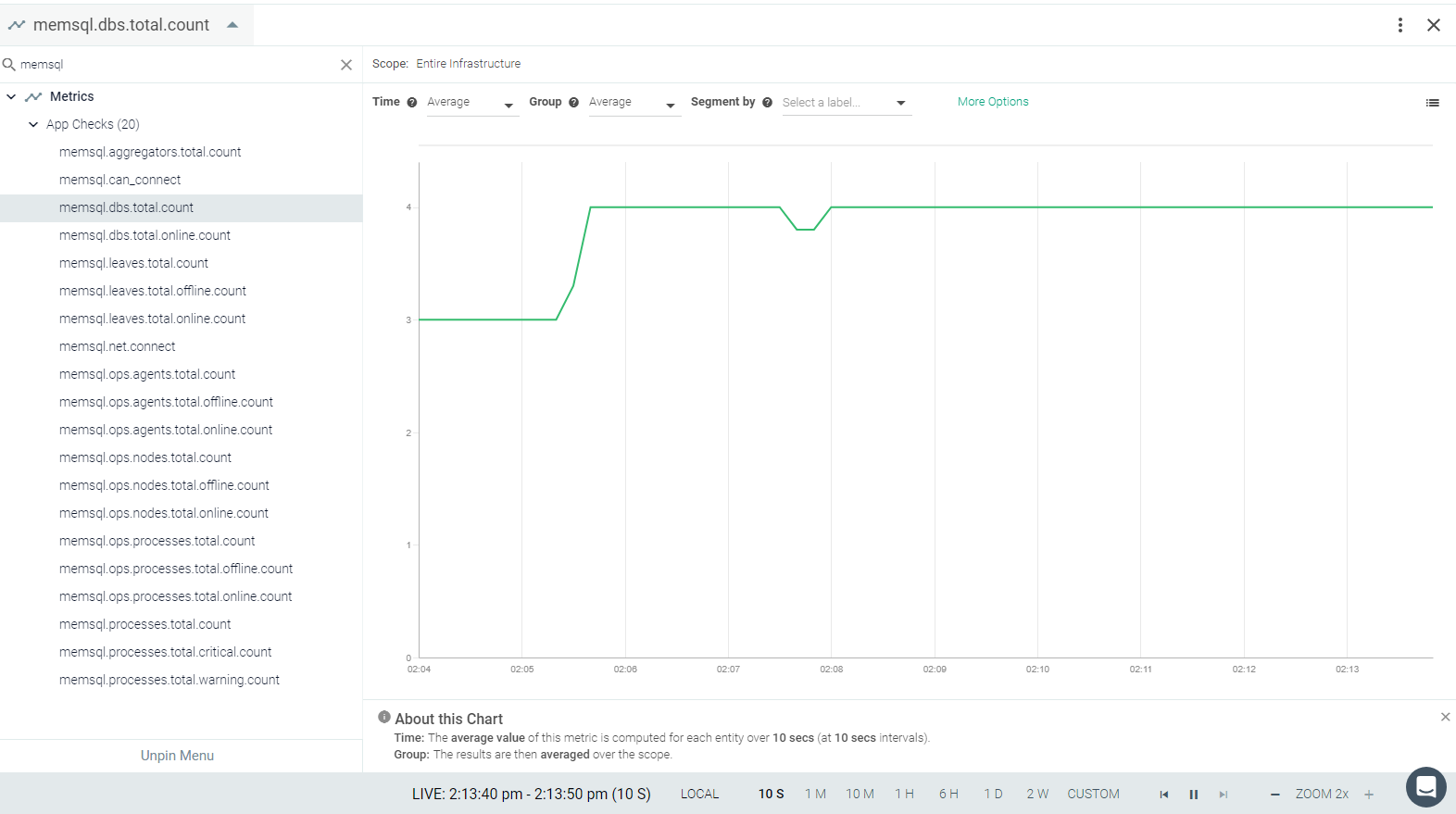 |
 |
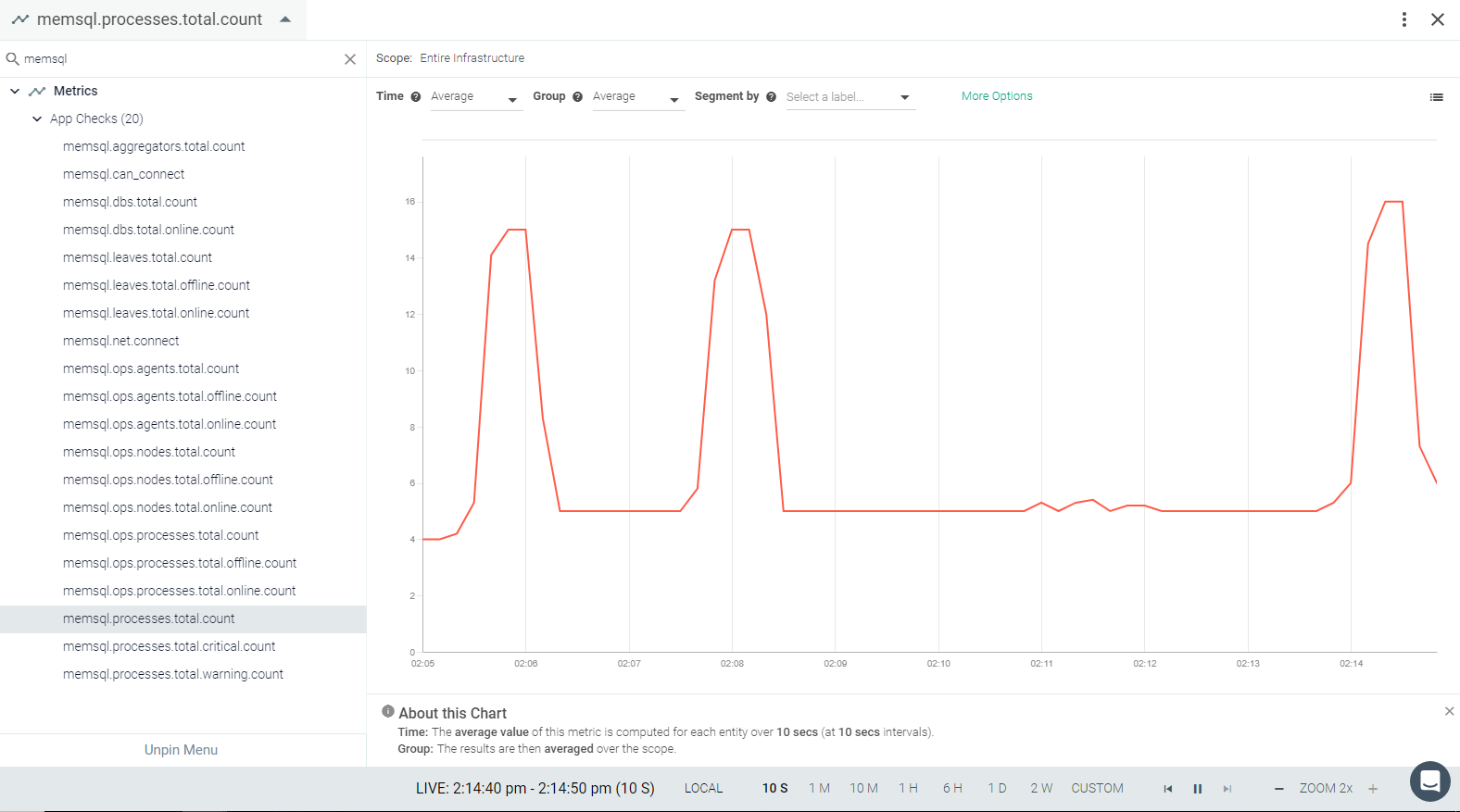 |
 |
 |
*OracleDB*
<This will effective after merging of PR 806 and 1022 >
<Amy comment: I can't find PR 806 and 1022; where are they and what's the status?
Sudhakar - Both these PRs are under review and will be visible once approved by Anoop/Naveen. Currently, Andy Dalton has proposed a solution and we are in process of validating the same.>
Oracle Database 12c is a next-generation database providing a new multi-tenant architecture on top of a fast, scalable, reliable, and secure database platform. If OracleDB is installed on your environment, you need to install and integrate Oracle instant client with Sydig.
This page describes the installation steps for Oracle Instant Client, configuration settings, the metrics available for integration, and a sample result in the Sysdig Monitor UI.
Set Up Sysdig Agent With Oracle Libraries
Install Sysdig agent with Oracle Instant Client Libraries (For Docker users only)
The Oracle app check requires Oracle Instant Client libraries. When Oracle DB is installed as a container, it is necessary to install these dependencies on the host separately to make them available to the Sysdig agent.
When Oracle DB is installed as a process, these dependencies will be installed with Oracle. In that case, you can provide the path of the installation directory to the Sysdig agent by editing dragent.yaml.
Note
Because Oracle Instant Client is a licensed product, Sysdig is unable to include the libraries with the Sysdig agent.
Download Oracle Instant Client from the official Oracle website. You must download and install the packages below. An Oracle login is required.
oracle-instantclient12.2-basic-12.2.0.1.0-1.x86_64.rpm
oracle-instantclient12.2-devel-12.2.0.1.0-1.x86_64.rpm
oracle-instantclient12.2-sqlplus-12.2.0.1.0-1.x86_64.rpm
Once Oracle DB is ready, run the following commands to create a user:
alter session set "_ORACLE_SCRIPT"=true;
CREATE USER <username> IDENTIFIED BY <password>;
GRANT CONNECT TO <username>;
GRANT SELECT ON gv_$sysmetric TO <username>;
GRANT SELECT ON sys.dba_data_files TO <username>;
After installing Oracle instant Client, you need to link it with Sysdig agent.
If you are installing Sysdig agent as a docker container, a volume must to be mounted in the container with the directory where the Oracle Instant Client is present.
Verify that file
"libclntsh.so"is present at the given path. It may differ based on environment.
Examples:
When Oracle Instant Client is installed separately, it will be installed at:
"/usr/lib/oracle/12.2/client64/lib".Volume Mounted:
-v /usr/lib/oracle/12.2/client64:/usr/lib/oracle/12.2/client64docker run -d --name sysdig-agent --restart always --privileged --net host --pid host -e ACCESS_KEY=XXXXX-XXXXX-XXXX-XXXX-XXXXXXXXXX -e TAGS=some_tag:some_value -v /var/run/docker.sock:/host/var/run/docker.sock -v /dev:/host/dev -v /proc:/host/proc:ro -v /boot:/host/boot:ro -v /lib/modules:/host/lib/modules:ro -v /usr:/host/usr:ro -v /usr/lib/oracle/12.2/client64:/usr/lib/oracle/12.2/client64 --shm-size=350m sysdig/agent
When Oracle is installed as a process on the host, it is present at:
"/u01/app/oracle/product/12.1.0.2/db_1/lib".Volume Monted:
-v /u01/app/oracle/product/12.1.0.2/db_1/:/u01/app/oracle/product/12.1.0.2/db_1/docker run -d --name sysdig-agent --restart always --privileged --net host --pid host -e ACCESS_KEY=XXXXX-XXXXX-XXXX-XXXX-XXXXXXXXXX -e TAGS=some_tag:some_value -v /var/run/docker.sock:/host/var/run/docker.sock -v /dev:/host/dev -v /proc:/host/proc:ro -v /boot:/host/boot:ro -v /lib/modules:/host/lib/modules:ro -v /usr:/host/usr:ro -v /u01/app/oracle/product/12.1.0.2/db_1/:/u01/app/oracle/product/12.1.0.2/db_1/ --shm-size=350m sysdig/agent
Configure Oracle Libraries for Sysdig Agent
Link Oracle Instant Client libraries with ldconfig so that they will be available to the Sysdig Agent at runtime. If the Sysdig agent is installed inside the Docker container, run ldconfig commands inside the container.
Provide the library location in the ld configuration file. (Verify that file "
libclntsh.so" is present at given path.)Run ldconfig .
Example:
echo /u01/app/oracle/product/12.1.0.2/db_1/lib/ > /etc/ld.so.conf.d/oracle.conf
ldconfig
Make sure
libaioorlibaio1packege is installed in your environment
Review how to Edit dragent.yaml to Integrate or Modify Application Checks.
There is no default configuration for OracleDB, as a unique user and password are required for metrics polling. You must add the entry for OracleDB into dragent.yaml.
Warning
Remember! Never edit dragent.default.yaml directly; always edit only dragent.yaml.
Confirm the
"comm"value using the command:cat /proc/<pid>/commReplace
<username>and<password>with username and password created for sysdig agent.Update
service_nameif different service name is used. services can be listed with command:lsnrctl statusUpdate
ORACLE_HOMEwith the value of theORACLE_HOMEenvironment variable (fromoracleuser) or with the installation directory of Oracle DB
app_checks:
  - name: oracle
    check_module: oracle
    pattern:
      comm: "tnslsnr"
    conf:
      server: localhost
      user: <username>
      password: <password>
      service_name: cdb1
      envs:
        ORACLE_HOME: /u01/app/oracle/product/12.1.0.2/db_1
log_errors: trueMetric Name | Metric Description |
|---|---|
oracle.buffer_cachehit_ratio (gauge) | Ratio of buffer cache hits shown as fraction |
oracle.cursor_cachehit_ratio (gauge) | Ratio of cursor cache hits shown as fraction |
oracle.library_cachehit_ratio (gauge) | Ratio of library cache hits shown as fraction |
oracle.shared_pool_free (gauge) | shared pool free memory % shown as percent |
oracle.physical_reads (gauge) | physical reads per sec shown as read |
oracle.physical_writes (gauge) | physical writes per sec shown as write |
oracle.enqueue_timeouts (gauge) | enqueue timeouts per sec shown as timeout |
oracle.gc_cr_block_received (gauge) | GC CR block received shown as block |
oracle.cache_blocks_corrupt (gauge) | corrupt cache blocks shown as block |
oracle.cache_blocks_lost (gauge) | lost cache blocks shown as block |
oracle.logons (gauge) | number of logon attempts |
oracle.active_sessions (gauge) | number of active sessions |
oracle.long_table_scans (gauge) | number of long table scans per sec shown as scan |
oracle.service_response_time (gauge) | service response time shown as second |
oracle.user_rollbacks (gauge) | number of user rollbacks shown as operation |
oracle.sorts_per_user_call (gauge) | sorts per user call |
oracle.rows_per_sort (gauge) | rows per sort shown as row |
oracle.disk_sorts (gauge) | disk sorts per second shown as operation |
oracle.memory_sorts_ratio (gauge) | memory sorts ratio shown as fraction |
oracle.database_wait_time_ratio (gauge) | memory sorts per second shown as fraction |
oracle.session_limit_usage (gauge) | session limit usage shown as percent |
oracle.session_count (gauge) | session count |
oracle.temp_space_used (gauge) | temp space used shown as byte |
oracle.tablespace.used (gauge) | tablespace used shown as byte |
oracle.tablespace.size (gauge) | tablespace size shown as byte |
oracle.tablespace.in_use (gauge) | tablespace in-use shown as fraction |
Result in the Monitor UI
 |
 |
 |
 |
 |
**TokuMX**
Support background: https://sysdig.atlassian.net/wiki/spaces/EN/pages/118119/App+checks#Appchecks-TokuMX
Create a Custom App Check
Application checks are integrations that allow the Sysdig agent to poll specific metrics exposed by any application, and the built-in app checks currently supported are listed on the App Checks main page. Many other Java-based applications are also supported out-of-the-box.
If your application is not already supported though, you have a few options:
Utilize Prometheus, StatsD, or JMX to collect custom metrics:
Send a request at support@sysdig.com, and we'll do our best to add support for your application.
Create your own check by following the instructions below.
If you do write a custom check, let us know. We love hearing about how our users extend Sysdig Monitor, and we can also consider embedding your app check automatically in the Sysdig agent.
See also Understanding the Agent Config Files for details on accessing and editing the agent configuration files in general.
Contents
Check Anatomy
Essentially, an app check is a Python Class that extends AgentCheck :
from checks import AgentCheck

class MyCustomCheck(AgentCheck):
    # namespaces of the monitored process to join
    # right now we support 'net', 'mnt' and 'uts'
    # put there the minimum necessary namespaces to join
    # usually 'net' is enough. In this case you can also omit the variable
    # NEEDED_NS = ( 'net', )

    # def __init__(self, name, init_config, agentConfig):
    #     '''
    #     Optional, define it if you need custom initialization
    #     remember to accept these parameters and pass them to the superclass
    #     '''
    #     AgentCheck.__init__(self, name, init_config, agentConfig)
    #     self.myvar = None

    def check(self, instance):
        '''
        This function gets called to perform the check.
        Connect to the application, parse the metrics and add them to aggregation using
        superclass methods like `self.gauge(metricname, value, tags)`
        '''
        server_port = instance['port']
        self.gauge("testmetric", 1)
Put this file into /opt/draios/lib/python/checks.custom.d (create the directory if not present) and it will be available to the Sysdig agent. To run your checks, you need to supply configuration information in the agent's config file, dragent.yaml as is done with bundled checks:
app_checks:
  - name: voltdb # check name, must be unique
    # name of your .py file, if it's the same of the check name you can omit it
    # check_module: voltdb
    pattern: # pattern to match the application
      comm: java
      arg: org.voltdb.VoltDB
    conf:
      port: 21212 # any key value config you need on `check(self, instance_conf)` function
Check Interface Detail
As you can see, the most important piece of the check interface is the check function. The function declaration is:
def check(self, instance)
instance is a dict containing the configuration of the check. It will contain all the attributes found in the conf: section in dragent.yaml plus the following:
name: The check unique name.ports: An array of all listening ports of the process.port: The first listening port of the process.
These attributes are available as defaults and allow you to automatically configure your check. The conf: section as higher priority on these values.
Inside the check function you can call these methods to send metrics:
self.gauge(metric_name, value, tags) # Sample a gauge metric

self.rate(metric_name, value, tags) # Sample a point, with the rate calculated at the end of the check

self.increment(metric_name, value, tags) # Increment a counter metric

self.decrement(metric_name, value, tags) # Decrement a counter metric

self.histogram(metric_name, value, tags) # Sample a histogram metric

self.count(metric_name, value, tags) # Sample a raw count metric

self.monotonic_count(metric_name, value, tags) # Sample an increasing counter metric
Usually the most used are gauge and rate . Besides metric_name and value parameters that are quite obvious, you can also add tags to your metric using this format:
tags = [ "key:value", "key2:value2", "key_without_value"]
It is an array of string representing tags in both single or key/value approach. They will be useful in Sysdig Monitor for graph segmentation.
You can also send service checks which are on/off metrics, using this interface:
self.service_check(name, status, tags)
Where status can be:
AgentCheck.OKAgentCheck.WARNINGAgentCheck.CRITICALAgentCheck.UNKNOWN
Testing
To test your check you can launch Sysdig App Checks from the command line to avoid running the full agent and iterate faster:
# from /opt/draios directory
sudo ./bin/sdchecks runCheck <check_unique_name> <process_pid> [<process_vpid>] [<process_port>]
check_unique_name: The check name as on config file.pid: Process pid seen from host.vpid: Optional, process pid seen inside the container, defaults to 1.port: Optional, port where the process is listening, defaults to None.
Example:
sudo ./bin/sdchecks runCheck redis 1254 1 6379
5658:INFO:Starting
5658:INFO:Container support: True
5658:INFO:Run AppCheck for {'ports': [6379], 'pid': 5625, 'check': 'redis', 'vpid': 1}
Conf: {'port': 6379, 'socket_timeout': 5, 'host': '127.0.0.1', 'name': 'redis', 'ports': [6379]}
Metrics: # metrics array
Checks: # metrics check
Exception: None # exceptions
The output is intentionally raw to allow you to better debug what the check is doing.
Create Per-Container Custom App Checks
Sysdig supports adding custom application check-script configurations for each individual container in the infrastructure. This avoids multiple edits and entries to achieve container specific customization. In particular, this enables PaaS to work smarter, by delegating application teams to configure their own checks.
See also Understanding the Agent Config Files for details on accessing and editing the agent configuration files in general.
Contents
How It Works
The SYSDIG_AGENT_CONF variable stores a YAML-formatted configuration for your app check and will be used to match app check configurations.
All originalapp_checksare available, and the syntax is the same as for dragent.yaml. You can add the environment variable directly to theDocker file.
Example with Dockerfile
This example defines a per container app-check for redis. Normally you would have a yaml formatted entry installed into the agent's /opt/draios/etc/dragent.yaml file that would look like this:
app_checks:
 - name: redis
    check_module: redisdb
    pattern:
      comm: redis-server
    conf:
      host: 127.0.0.1
      port: "{port}"
      password: protected
For the per-container method, convert and add the above entry to the Docker file via the SYSDIG_AGENT_CONF environment variable:
FROM redis
# This config file adds a password for accessing redis instance
ADD redis.conf /

ENV SYSDIG_AGENT_CONF { "app_checks": [{ "name": "redis", "check_module": "redisdb", "pattern": {"comm": "redis-server"}, "conf": { "host": "127.0.0.1", "port": "6379", "password": "protected"} }] }
ENTRYPOINT ["redis-server"]
CMD [ "/redis.conf" ]
Example with Docker CLI
You can add parameters starting a container with dockerrunusing-e/--envflag or injecting it using orchestration systems like Kubernetes:
PER_CONTAINER_CONF='{ "app_checks": [{ "name": "redis", "check_module": "redisdb", "pattern": {"comm": "redis-server"}, "conf": { "host": "127.0.0.1", "port": "6379", "password": "protected"} }] }'

docker run --name redis -v /tmp/redis.conf:/etc/redis.conf -e SYSDIG_AGENT_CONF="${PER_CONTAINER_CONF}" -d redis /etc/redis.conf