Sysdig Monitor Documentation

Explore

The Sysdig Monitor web interface centers around the Explore module, where users will do the majority of their infrastructure monitoring. The sections below outline the key areas of the interface, provide an overview of the most common workflows, and detail basic navigation steps.

Contents

The C-Frame Structure

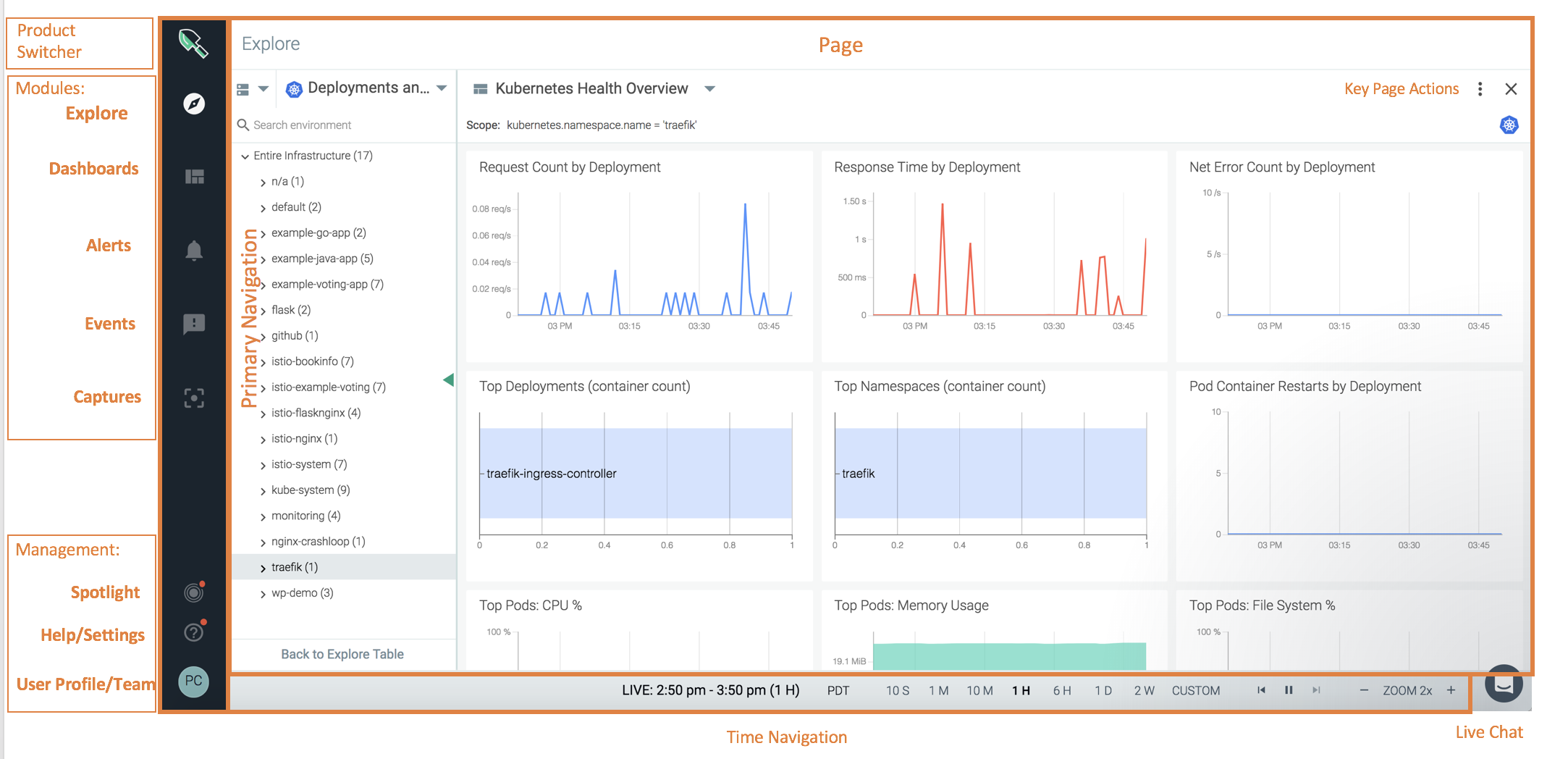
The image below provides a complete view of the Sysdig Monitor c-frame style interface:
239599744.png

There are several key areas highlighted in the image above:

Section

Description

Product Selector

Allows users to switch between Sysdig products.

Modules

Quick links for each of the main Sysdig Monitor modules: Explore, Dashboards, Alerts, Events, and Captures.

Management

Quick links for Sysdig Spotlight, help/additional material, and the user profile configuration settings.

Page

The main section of the interface.

Time Navigation

Allows users to customize the time window used for displaying data.

Shared Content Settings

Sysdig Monitor provides a wide range of functionality to allow users to work on individual levels, or within larger teams, by sharing data, dashboards, and configuration settings. Each component of Sysdig Monitor is affected differently.

Explore Module

The Explore module displays content on a per-user, per-team basis. This means that, the set of data visible within the Explore module will be restricted to the scope permitted by the team settings, even if a user belongs to other teams with wider scope permissions.

Note

Changes to the Explore table settings, for example the order of columns, will persist only for the current user, and will not change the settings for other team members.

Dashboards Module

The Dashboards module displays content on a per-user, per-team basis. After switching to a new team for the first time, the initial settings will match those of existing team members. This means that, for example, the initial characteristics of each of the Dashboards Shared with Me will be the same as those of the owner of the dashboard.

Note

Any dashboards created by a user while switched to a specific team will only be visible while the user is switched to that team. If the dashboard is shared, it will only be visible to members of that specific team.

Note

The set of data visible within a dashboard is restricted to that permitted by the scope settings of the team, even if the user belongs to other teams with wider scope permissions.

Note

Changes made to a shared dashboard will persist only for the current user, and not change the dashboard for other team members.

Events Module

Event data is specific to the active team. At a minimum, the custom events section will consist of events generated by an API token for a member of the active team. However, the team settings may also allow all custom events collected within the Sysdig Monitor environment to be visible to the team as well. Contact an admin user to review team settings.

Alerts Module

Alert settings are team-wide. Any team member can change the alert settings for a team, and those changes will be immediately visible to all other members of the team.

Captures Module

Captures can only be take on hosts/containers that are visible within the scope settings of the active team. The list of existing captures visible on the Captures module will also be limited to those initiated by team members while switched to the active team.

API Token

The Sysdig Monitor API Token is unique per team, to enable custom events generated via the API to target a specific team.

Global Settings

Some configuration settings are global across all teams. Changes to these settings by any user will affect all users, regardless of team status. These include notification channels, agent installation defaults, and Sysdig storage settings.

Workflows

While every user has unique needs from Sysdig Monitor, there are three main workflows that users tend to follow when building out their interface, and monitoring their infrastructure.

Note

The first workflow assumes that an alert has not been triggered yet.

Workflow One

Start with an overview, identify a problem area, then drill-down into the data. This workflow is the most basic approach, as it begins with a user monitoring the overall infrastructure, rather than with a specific alert notification. The workflow tends to follow the following steps:

  1. Organize the infrastructure with groupings.

  2. Define key signals with alerts and dashboards to detect a problem.

  3. Identify a problem area, and drill down into the data using dashboards, metrics, and by adjusting groupings and scope as necessary.

Workflow Two

Start with an event notification, and begin troubleshooting. This workflow begins with an already configured alert and event being triggered. Unlike workflow one, this workflow assumes that pre-determined data boundaries have already been set:

  1. Explore the event by adjusting time windows, scope, and segmentation.

  2. Identify the exact area of concern within the infrastructure.

  3. Drill down into the data to troubleshoot the issue.

Workflow Three

Customize default dashboard panels to troubleshoot a potential issue. This workflow assumes that an issue has been identified within one of the default dashboards, but alerts have not been set up for the problem area.

  1. Copy the displayed panel to a new dashboard.

  2. Create an alert based on the dashboard panel.

  3. Configure a Sysdig Capture on demand.