** [draft] Visualizing Metrics Using the Topology View **
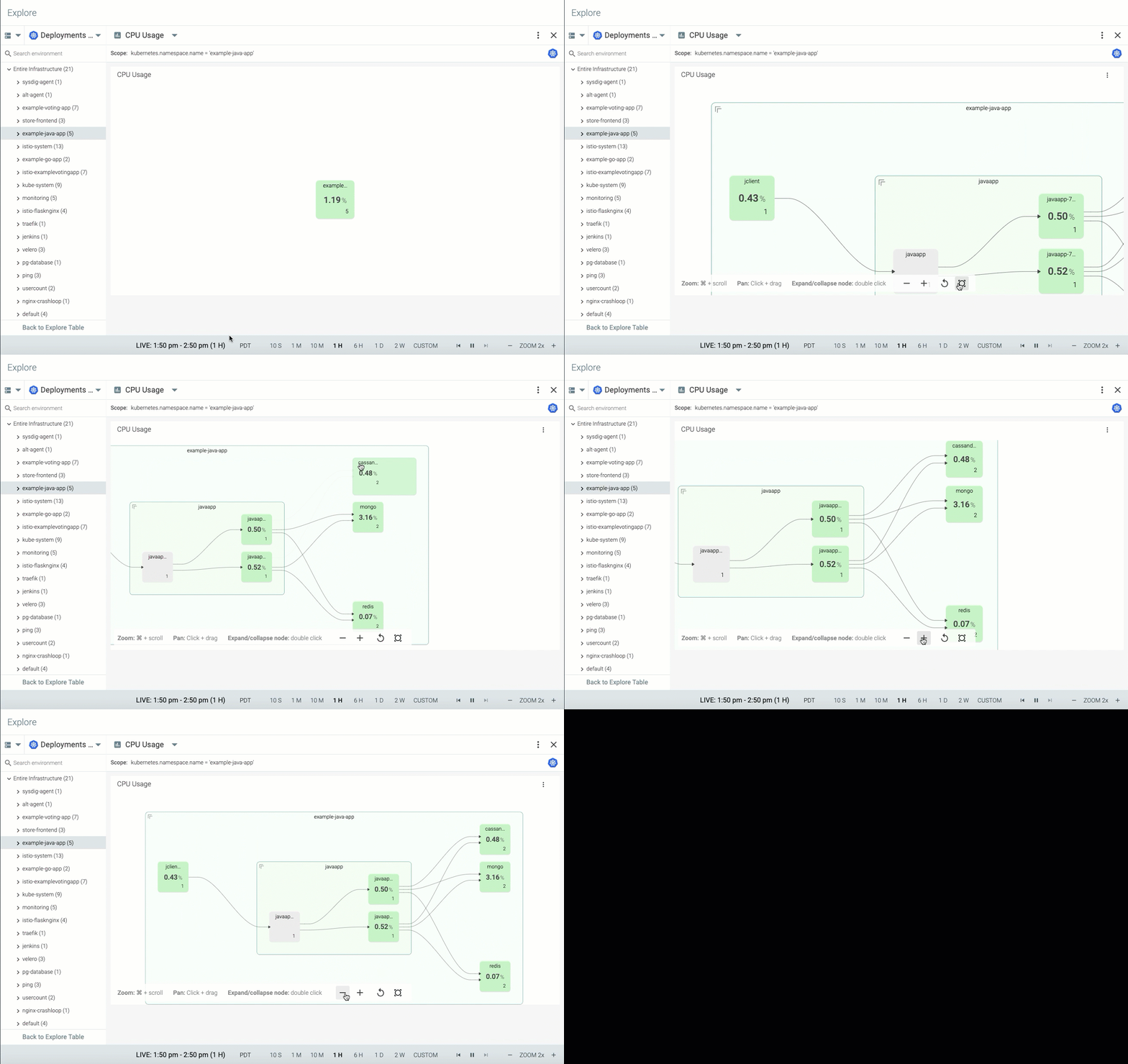
Topology View provides an interactive, animated interface to visualize how different components in your system interact with each other in real time. The interface renders a selected host's top processes and their interaction with processes on remote hosts or host groups. The interaction is depicted as nodes and links. Links connect nodes. Nodes and links radially expand from the left.
Nodes: The entities participating in network communication. A node could be a process, a container, or a host.
Links: The network connection between nodes.
 |
Topology View visualizesCPU Usage,Network Traffic, andResponse Time metrics. It serves as a diagnostic tool that provides bottom-up inter-process connection metrics as graphs. Scaling a Topology View is limited by the number of processes and connections. Sysdig Monitor creates the Topology View by identifying network endpoints (IP addresses) derived from system call data.
For a detailed description on each metric type supported by the Topology View, see Topology Dashboards.
About Topology View
The UI allows you to zoom in, zoom out, fit, pan, and reset the display, and expand and collapse the nodes.
Zoom into the host by clicking the associated + icon and view the top processes within a host. You can expand the hosts to see individual processes running inside and corresponding metric value. The links indicating network connections are rendered between hosts and, when zoomed, between processes and hosts. Use the mouse scroll wheel to zoom the content, then left-click and drag to move the map components within the window.
Topology View uses legends and color schemes. This section explains what they mean.
The line width (thickness) of the links expresses metric values relative to other connections in the system. Scaling line width is relative to the metric values associated with each link. Topology View dynamically adjusts the legend as the data recorded for each connection changes.
The thin black line(—): Lower metric values.
The thick black line(—): Higher metric values.
Dashed lines(---): The connections between nodes where no Sysdig Agent is installed.
The color scheme is determined by color coding for the customizable threshold. The nodes are identified by five colors:
GREEN The node is healthy.
YELLOW The node is in a warning state.
RED The node is under a critical state.
GREY The node state is unknown. An unknown node typically signifies a node where no Sysdig Agent installed.
BLUE No threshold is defined for the metrics.
Configure Topology View
You can navigate to the Topology View from the Explore or Dashboard menus
Access from Explore
1. Click Explorer .
2. On the Explorer tab, click the Data Source drop-down menu.
3. Select the desired data source from the drop-down list.
4. Select a grouping for which you want to view a Topology.
5. From the Metrics and Dashboard drill-down menu, select Topology .
6. Select the metric type for which you want to create a Topology View.
The Topology View for the selected metrics appears on the screen.
Access from Dashboard
You can either add a panel for the Topology View to an existing Dashboard or create a new Dashboard exclusively for Topology View.
Add the Topology View as a Panel
1. Click Dashboardsand select the relevant dashboard from the Search Dashboards panel.
3. Click the Add panel icon.
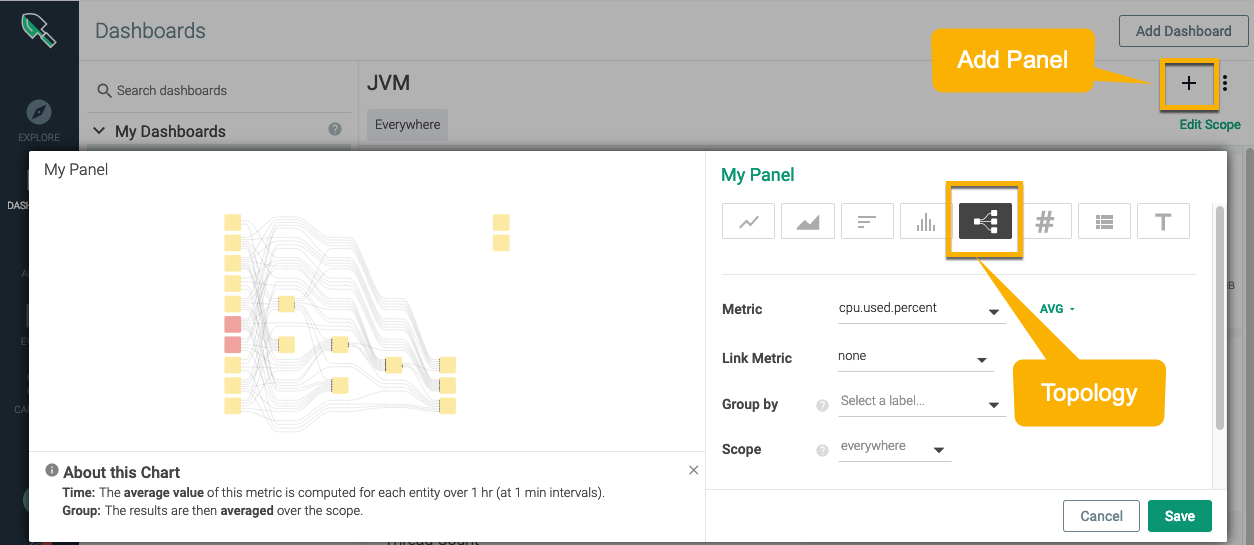 |
4. Select the Topology panel.
5. Specify the following:
Metric: Select a metric you want to visualize on the Topology View.
Link Metric: Select a network-related metric.
Group by: You can set up to five metrics to develop a hierarchy for the Topology View. By default, the Topology View has two levels:
host nameorcontainer ID,based on the scope and process.Scope: The scope of the panel is determined by the scope of the team that created it and the metrics selected in the
Groupbyoption. The scope of the Topology View overrides the dashboard's global scope.Aggregation: Select a aggregation type.
Create a Dashboard for the Topology View
On the
Dashboardstab, click theAdd Dashboardbutton.Type Topology in the
SelectaDashboardsearch bar.Select the metric type for which you want to create a Topology View.
Specify a name for the dashboard.
Click the
Create Dashboardbutton.
The new dashboard is added to the side panel under My Dashboards,and is ready for configuration.